
The basics
Symbols are designed to work next to text from any SF family
When symbols appear next to text they are vertically centered with a cap height
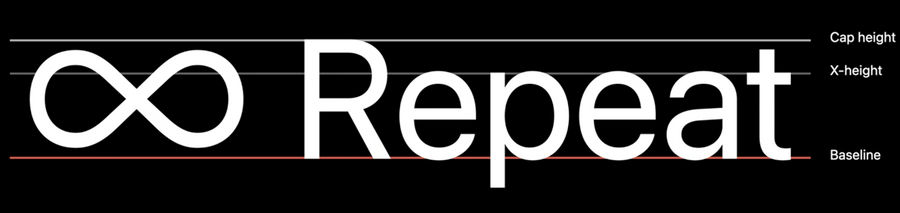
The text baseline is used as a flexible guide, sometimes symbols are lower or higher than the baseline: this is intended and it’s meant to optically balance the shape of the symbol with the text
Things to keep in mind when designing new symbols:
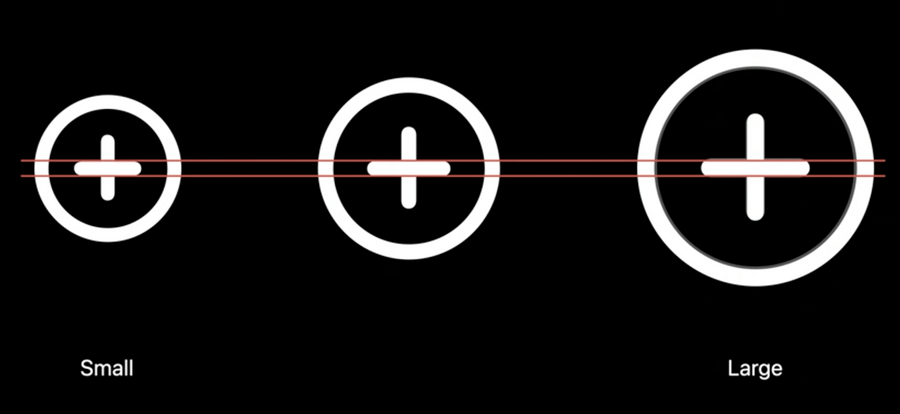
symbols come in three dimensions, small medium (default) large
all sizes align vertically
small symbols are ~20% smaller than the medium, large symbols are ~30% bigger than the medium symbol
small symbols look lighter and large symbols look bolder than others sizes, but actually there are some weight compensations which allow the symbols to maintain the same stroke thickness, making the symbols look weight matched not only between the scales but also with text.
Usage tips
SF Symbol are supported on macOS starting from Big Sur
When using the SF Symbols app, we can copy the name of a symbol via
⇧+⌘+C.To change the scale of a symbol while maintaining the same point size we need to set the
UIImage’sSymbolConfiguration:
var playImageView: UIImageView = ...
let buttonConfig = UIImage.SymbolConfiguration(textStyle: .headline, scale: .small)
playImageView.preferredSymbolConfiguration = buttonConfig
playImageView.image = UIImage(systemName: "play.fill")
In SwiftUI:
Image(systemName: "shuffle")
    .font(.headline)
    .imageScale(.small)
Use SwiftUI’s
Labelto make sure the symbol and text are always in sync:
Label("Sharing location", systemImage: "location.fill")With iOS 14 Images can also be added directly in
Text:
let glyph = Image(systemName: "location.[fill")
return Text("\(glyph) Sharing location")]
Some symbols have been renamed: when selecting a symbol in the SF Symbols app, you can see what name you should use based on your target
use the baseline alignment when laying symbols next to text
use vertical alignment guides to make the symbols and text grow harmoniously when text gets resized
What’s new
New symbol categories:
devices
transportation
game controllers
human features
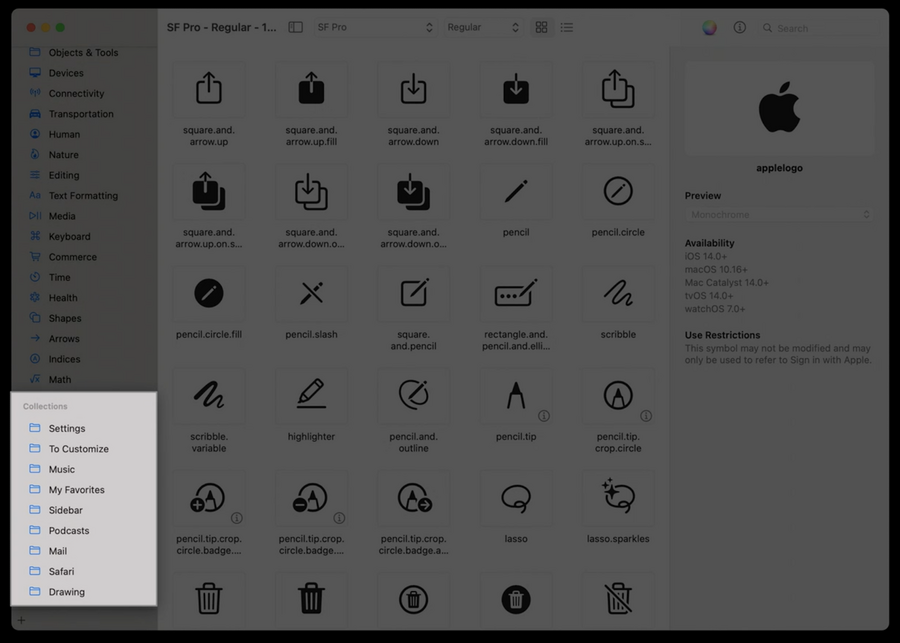
In the SF Symbol 2 app we can create our own collections:
Symbols are now automatically localized (you can see the localization when selecting a symbol in the SF Symbols app):

Colors
Last year all symbols were a mono color glyph, from this year we have new colored symbol variants
These variants will still respect the set tint color, but some part might have a different color
All these colors adapt with system appearances
To use the multicolor variant, set the isTemplate property to false:
if let folder = NSImage(
    systemSymbolName: "folder.badge.plus", accessibilityDescription: "add folder") {
    folder.isTemplate = true
}
In SwiftUI:
Image(systemName: "pencil.tip.crop.circle.badge.plus")
    .renderingMode(.original)