
Key Takeaways
🤖 UI automation has three key phases: record, replay and review
🦮 It is powered by Accessibility
☁️ Can do on Xcode Cloud
UI automation overview
Inside Xcode there are two testing frameworks: Swift Testing & XCText.
When importing XCText, XCUIAutomation is automatically included. XCUIAutomation can interact with your app like a person does.
A complete app testing suite would be something like this:
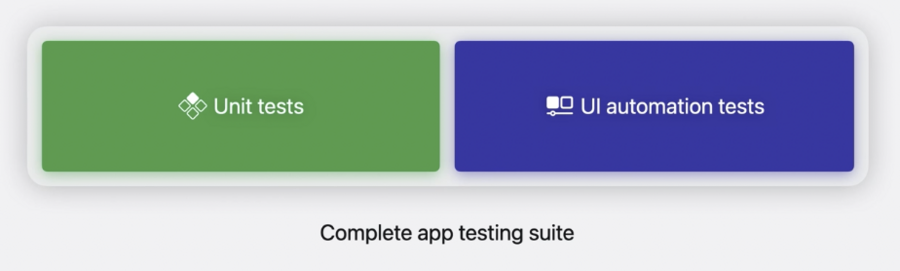
Unit tests test your logic and models. With Swift Testing, you can test frameworks and Swift Packages that don’t even have user interface.
UI automation tests validate your app’s user experience, as well as integration with Apple harewares and the behaviors of common workflows.
Benefits of UI automation
User experience
Accessibility
Localization
Hareware interaction
Launch performance
There are three key phrases to setup a UI automation:
Record your interactions
Replay in multiple configurations
Review videos and results
UI automation is supported on all apple platforms: iOS/iPadOS, macOS, watchOS, tvOS, visionOS(Designed for iPad).
Sum up for what UI automation can do
Interacts with your app like a person would
Runs independently from your app
Instructs the operating system what actions to perform
Actions include launching your app, interacting with it, and setting system state
Accessibility powers UI automation. Having a great experience of Accessibility means you will get a great UI automation experience too.
Prepare your app for automation
Your app can be automated with no code changes. The steps covered in this section is not required, but they can lead to better and higher quality of results.
Add accessibility identifiers
Best way to identify an element in your app for automation
Add identifiers for elements with localized strings or dynamic content
Good identifiers are:
Unique
Descriptive
Static
In SwiftUI, this is done by adding a view modifier .accessibilityIdentifier. In UIKit, set the accessibilityIdentifier property of an accessibility element.
Most UIView like Controls, Texts, and Images are accessibility elements by default.
Accessibility property exposure:
| Property | VoiceOver | UI Automation |
|---|---|---|
| accessibilityLabel | ✅ | ✅ |
| accessibilityTraits | ✅ | ✅ |
| accessibilityValue | ✅ | ✅ |
| accessibilityIdentifier | ❌ | ✅ |
Review your app’s accessibility Xcode ships with an app call Accessibility Inspector, which lets you find, diagnose and fix accessibility issues.
Add a new UI testing target
Record your interactions
When open the UI test source file for the first time, a popover will appear telling you how to start a UI recording. Or you can tap the button on the side bar, then Xcode will automatically build and relaunch your app in the simulator.
Next, as you interact with your app, the code representing your interactions will be recorded in the source editor.
After recording, these steps may help you get the automation you wanted:
Review UI queries
Prefer accessibility identifiers over localized string
Keep queries as concise as possible
Prefer generic queries for dynamic content
Add validations
Explore other automation APIs
Replay in multiple configurations
Test plan configuration
Include or exclude individual tests
Set system settings for where and how tests will run
Manage timeouts, repetitions on failure, and execution order
Associated with a scheme and build settings
You can use Xcode Cloud to run your UI tests.
Review videos and results
Double click on the failure of the test report and you can check the video recorded when the test failed.
