Key Takeaways
😎 Widgets get new looks
🚗 New places for Widgets: visionOS, CarPlay, macOS, Controls
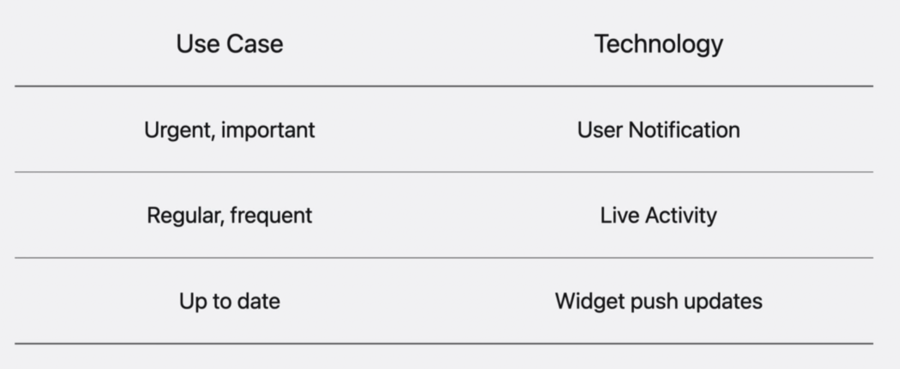
🎯 Reload(or surface) widgets by relevance
📬 Keep widgets up to date by push notifications
New Look for Widgets
Generate Process
Widgets content is generated using accented rendering mode. The new presentations are constructed similarly across iOS and macOS:
Tinting all of the content to white
Widgets background is removed
A themed glass or tinted color effect is added as the new background
Updates for better handling accented rendering
Observe
.widgetRenderingModeenvironment variableStay with the origin design if rendering mode is
.fullColorPlay with the
.widgetAccentedRenderingModemodifier of Images if rendering mode is.accented, such as setting it to.desaturated
More on .widgetAccentedRenderingMode
There are five options .widgetAccentedRenderingMode accepts. Depending on the different default accent color on iOS and watchOS, the results of setting these options may differ.
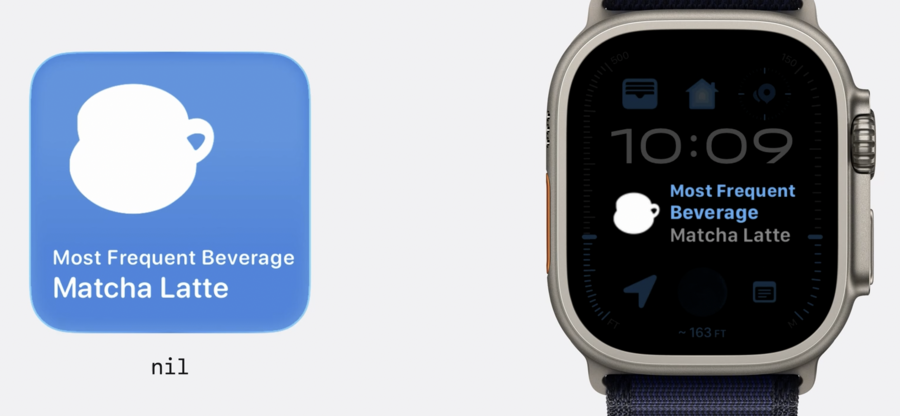
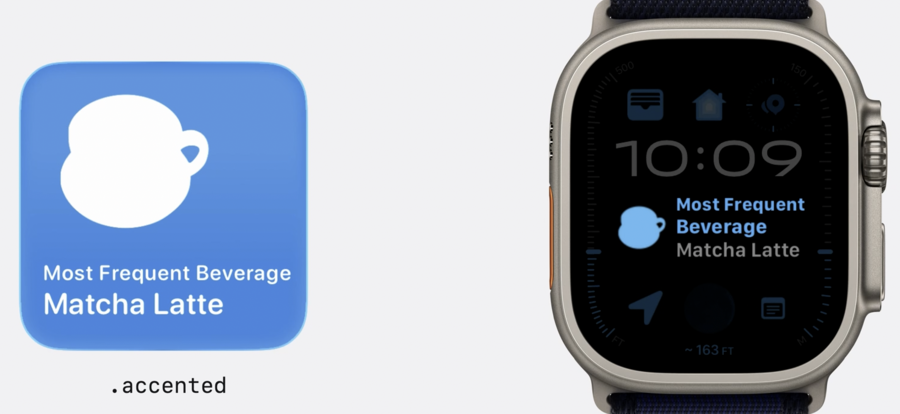
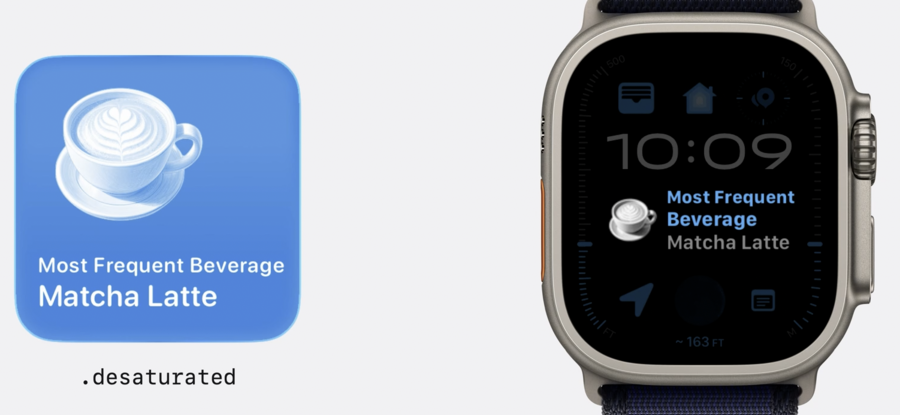
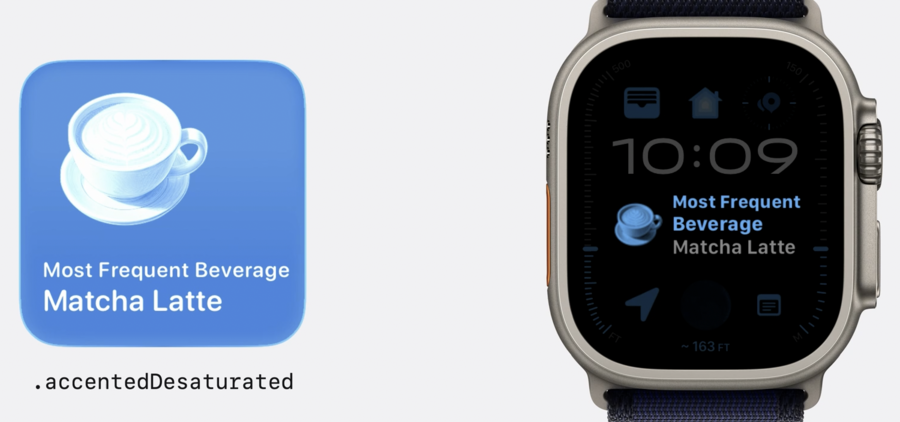
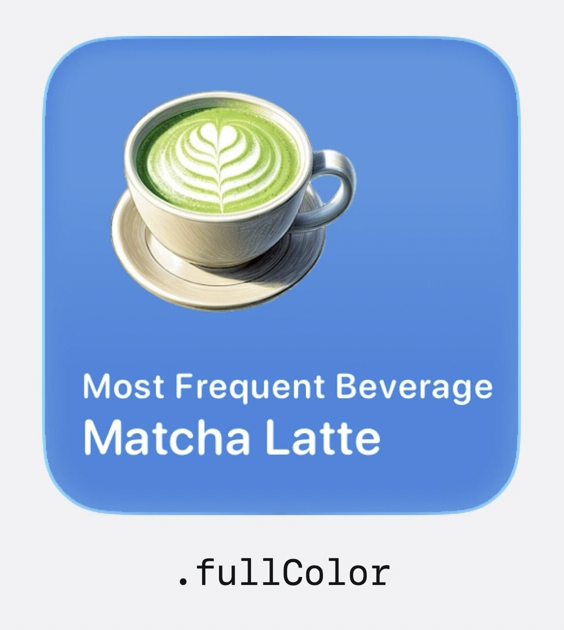
Note that for better blend in with the watch face, option .fullColor is ignored on watchOS.
For most widgets, use either .desaturated or .accentedDesaturated to help the Image content blend in with the rest of the home screen.
Use .fullColor for Images that represent media content, such as album artwork or a book cover.
Widgets in new places
visionOS
Compatible iPhone or iPad app with widgets will automatically become available in visionOS.
.supportedMountingStyles: defaults to.elevatedon visionOS.widgetTexture: defaults to.glassA new widget family:
.systemExtraLargeProtraitSame approach as iOS and macOS for accented rendering
.levelOfDetailenvironment variable. If widgets are physically far enough away, it will changed to.simplified.
CarPlay
In iOS 26, widgets are available in all CarPlay cars.
CarPlay widget design
Glanceable information
Large typography
Legibility
Widgets in CarPlay
StandBy presentation
Supports touchscreen interaction
Test with CarPlay Simulator
Live Activities in CarPlay
Using
.supplementalActivityFamilies([.small])to indicates that the Live Activity supports CarPlayThis will also improve the look of Live Activity presented on a paired Apple Watch
macOS
Live Activities from a paired iPhone will now appear in macOS Tahoe. When it is selected, the lock screen presentation from iPhone will appear. Clicking the lock screen presentation will launch the associated app using iPhone Mirroring.
Live Activities on macOS
iOS 18 and later
No code changes
Interaction and deep link
Controls
Controls on macOS
Can be provided from:
macOS
Catalyst
iOS apps on Apple silicon
Can be placed:
In the Control Center
On the menu bar
Controls on watchOS
Can be provided from:
watchOS app
iPhone app on a paired device
Can appear in:
Control Center
Executed when pressing the Action button on Apple Watch Ultra
Smart Stack
Relevance widgets
Define relevance widget with RelevanceConfiguration:
struct HappyHourRelevanceWidget: Widget {
    var body: some WidgetConfiguration {
        RelevanceConfiguration(
            kind: "HappyHour",
            provider: Provider()
        ) { entry in
            WidgetView(entry: entry)
        }
    }
}
Implement RelevanceEntriesProvider(similar to TimelineEntriesProvider):
struct Provider: RelevanceEntriesProvider {
    func placeholder(context: Context) -> Entry {
        Entry()
    }

    func relevance() async -> WidgetRelevance<Configuration> {
        let configs = await fetchConfigs()
        var attributes: [WidgetRelevanceAttribute<Configuration>] = []

        // Since this widget is time relevant,
        // It should define the relevance attribute using the date interval for each config
        for config in configs {
            attributes.append(WidgetRelevanceAttribute(
                configuration: config,
                context: .date(interval: config.interval, kind: .default)))
        }

        return WidgetRelevance(attributes)
    }

    // Unlike a Timeline widget, RelevanceEntriesProvider only provides a single entry for a configuration.
    func entry(configuration: Configuration,
               context: RelevanceEntriesProviderContext) async throws -> Entry {
        Entry(shop: configuration.shop, timeRange: configuration.timeRange)
    }
}
Relevnace widgets on watchOS 26
Connect content with relevance
Great on their own or alongside timeline widgets
Widget push updates
Available on all widget platforms
Push updates all push-enabled widgets
Limit update pushes
Use WidgetKit developer mode
Widgets reload options
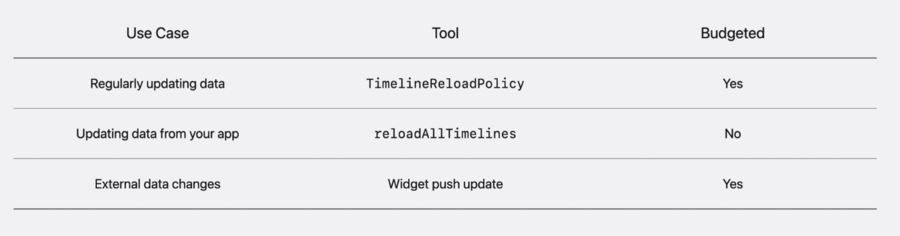
Scheduled widget reloads - TimelineReloadPolicy
When a widget is configured on deivce, these things will happen:
WidgetKit will request a timeline from the widget extension
The extension will respond with a widget timeline, which includes a TimelineReloadPolicy
WidgetKit use the timeline to determine the next appropriate time to reload that widget
Scheduled timeline reload is budgeted by the system to help maintain performance and battery life
Explicit widget reloads - calling reloadAllTimelines()
Inside the app,
reloadingAllTimelines()is calledWidgetKit then request a timeline from the widget extension to update the widget
Since the app is running when the API is called, the system does not budget this request
Widget push update
A server tracking data changes can send a push notification to APNs
APNs tells WidgetKit to reload that app’s widget
Like other updates, WidgetKit will request a updated timeline from the widget extension
Adding push notification support
Create a structure conform to
WidgetPushHandlerprotocolAdd the Push Notification entitlement to the widget extension
Send a widget udpate push request
To update your widget with a push notification, send a HTTPS POST request to the Apple Push Server
:method = POST
:scheme = https
:path = /3/device/<DEVICE_TOKEN> // token provided in WidgetPushHandler

// Headers
host = api.sandbox.push.apple.com
apns-push-type = widgets
apns-topic = com.example.CaffeineTracker.push-type.widgets // app's bundle ID suffix with .push-type.widgets

// Body
{
    "aps": {
        "content-changed": true
    }
}
Push updates for widgets help keep widgets content more up to date, but are performed opportunistically.