
Key Takeaways
✍️ New draw animation along defined path, inspired by handwriting
🪄 Magic replace recognizes more shapes
🌈 Apply gradients to any Symbol
🎞️ Use SF Symbol app to add draw animation for custom Symbols
Introduction
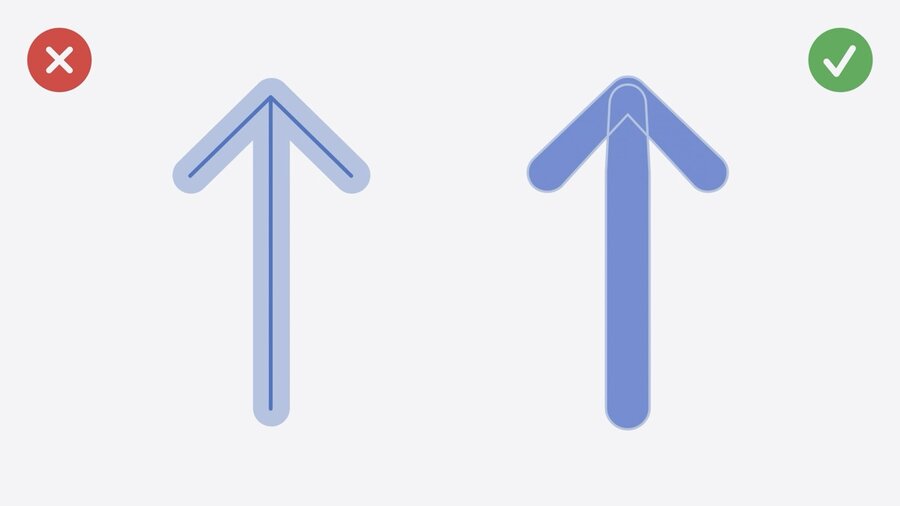
Symbols are created using outlined vector shapes, not just paths with outlines.
Shapes may be constructed from two different paths, oriented in opposite direction.
All new symbols and animations can be previewed and customized in updated SF Symbols app.
Draw Animation

Animation along defined path, inspired by handwriting.
Two different presets:
Draw On: shows symbol
Draw Off: hides symbol
Draw off animation can be reversed.
Default animation is by layer.
Also supports whole symbol or individually.
Animation direction is customizable.
Complex shapes like arrow heads traveling with path possible.
Variable draw allows symbols to animate progress, like progress bar or temperature.
At render time you need to choose between variable color or variable draw.
Magic Replace Animation
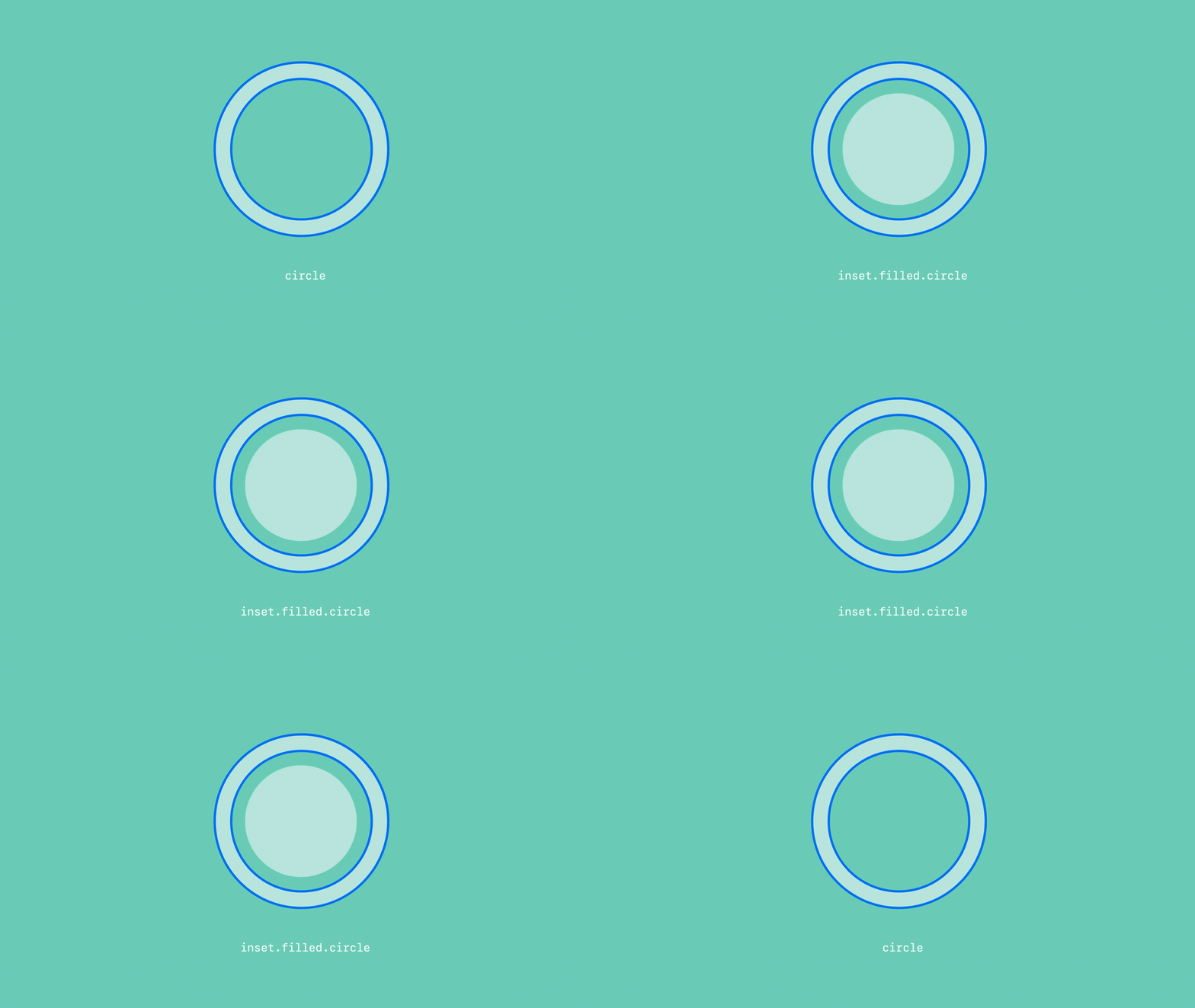
Now recognizes matching enclosures aka shapes like circles.
Can be combined with draw animation.
Gradients
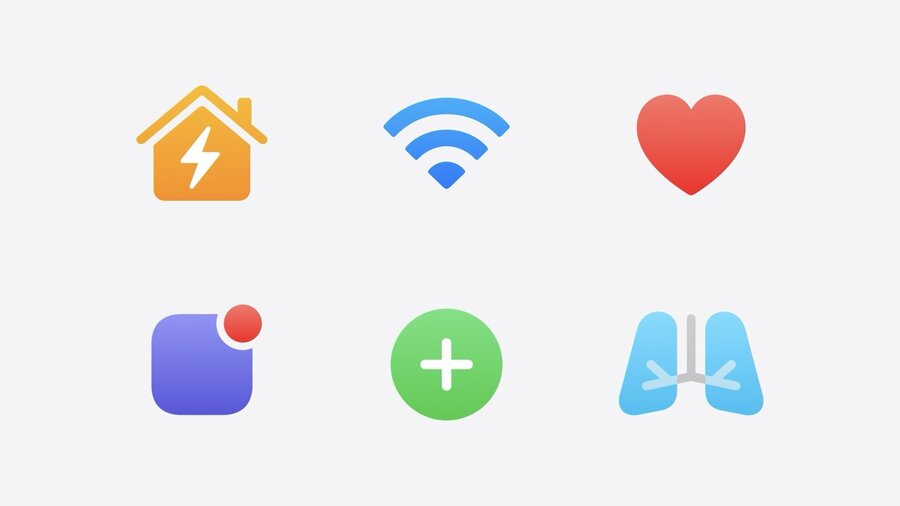
Generates gradient from single source color.
Both for system and custom colors.
Gets applied across all rendering modes.
Draw for Custom Symbols
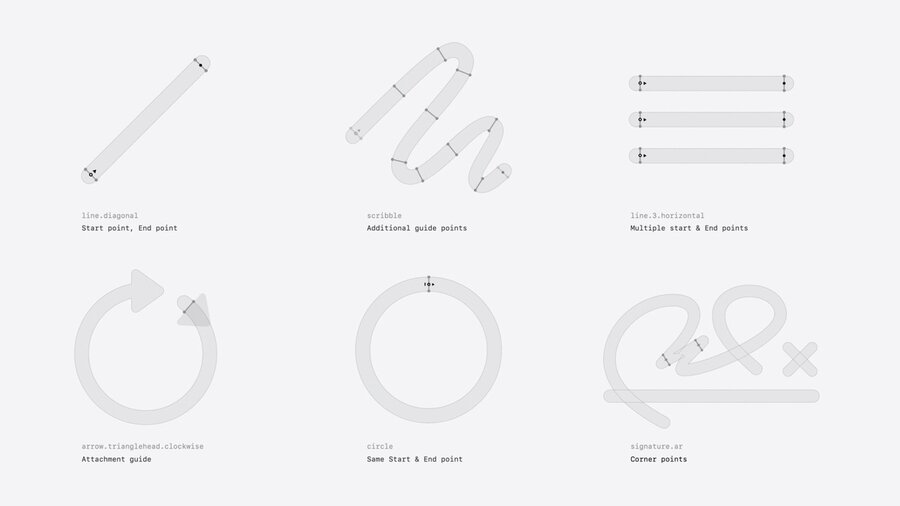
Draw animation relies on set of at least 2 guide points.
Start point: hollow dot
End point: filled dot
All annotation is done in the SF Symbols app.
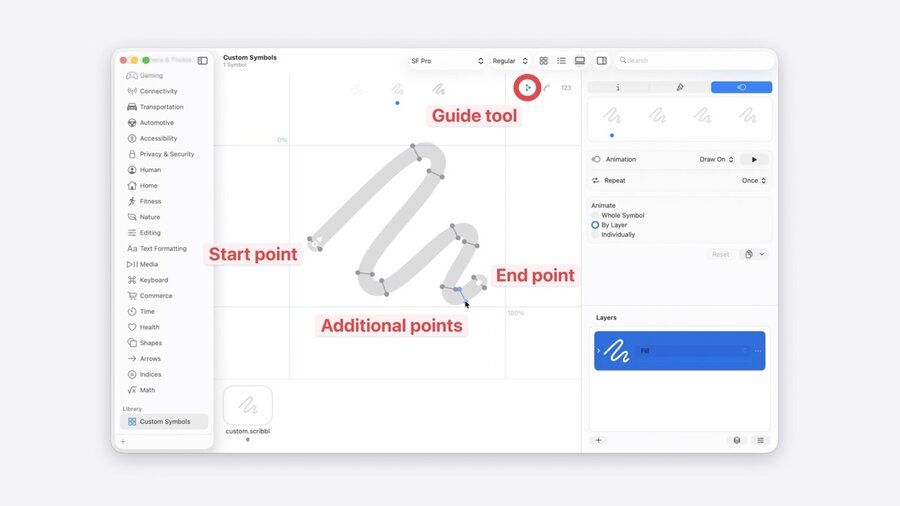
Show Draw toolbar via selecting “Draw On” or “Draw Off” in animation tab (in gallery view).
Enter guide point mode via leftmost button in Draw toolbar.
Click on Symbols paths to define guide points.
Use context menu to change point type.
Add additional guide points for complex shapes like turning points.
Drag guide points to edit and flip animation direction.
Two-path shapes (e.g. circle) automatically get combined start and end point.
Animate clockwise by default.
Use context menu to change direction to counterclockwise.
Multiple Paths & Bidirectionally
Each path has same set of rules (at least 2 guides).
Select each layer and annotate it separately.
For bidirectional animation place start point between two end points.
System will recognize it automatically.
Only available for single path shapes.
Enable snapping (2nd button in Draw toolbar) to ensure start points aligning across multiple layers.
End Caps
Rounded end cap by default.
Use context menu on guide points to change end cap to “adaptive”.
Only available in single draw direction.
Non-Drawing Components
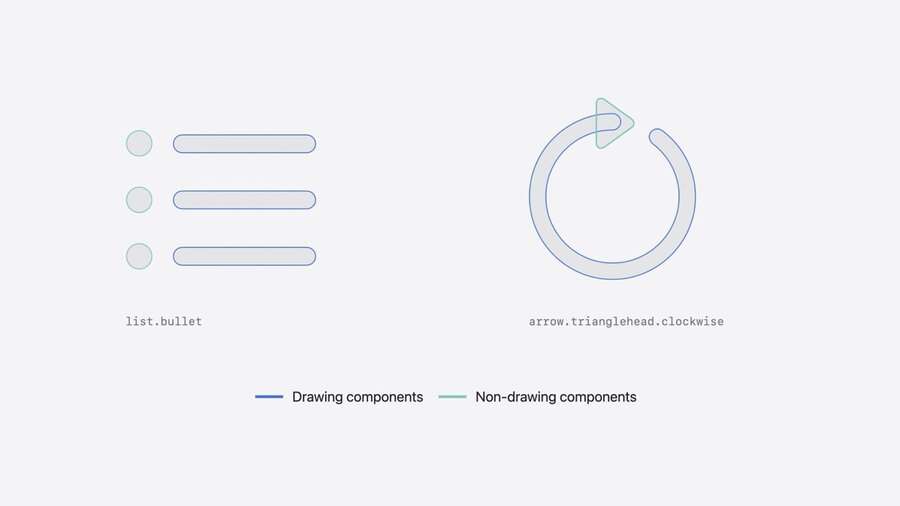
Drag and drop non-drawing shape (like arrow head) on guide to attach it.
Indicates where shape will appear from.
To remove drag and drop it on canvas.
Non-drawing components need to be separate path.
Sharp Corner Points
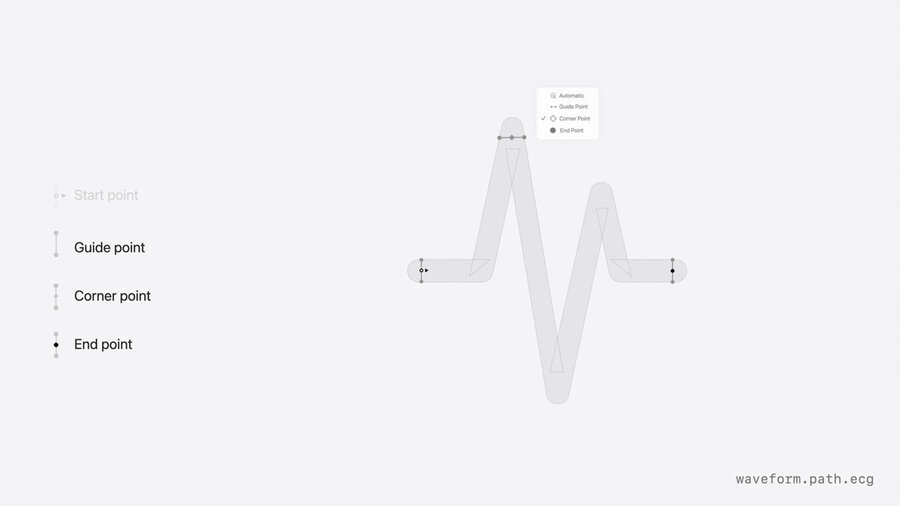
For sharp corners use “Corner Point” to assign both points on same path.
Advanced Options
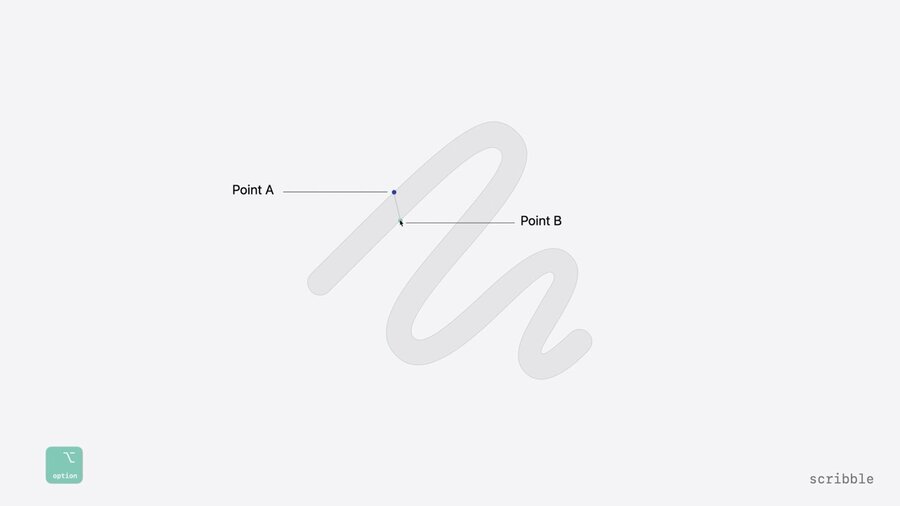
Hold option key (⌥) to change location of guide point of one side of path.
Select subpath in layer list to limit guide points to that path.
Support All Weights
System interpolates guide points across weights.
Annotate regular weight first!
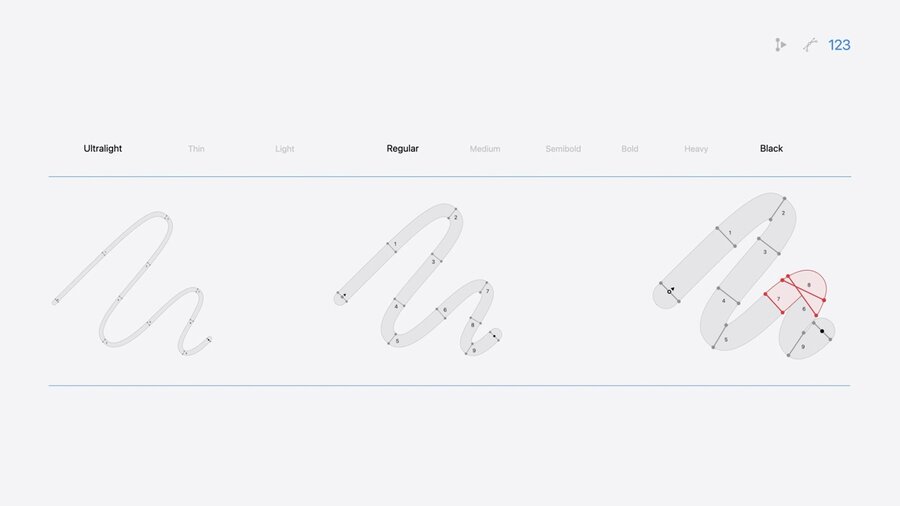
When fixing specific weights make sure the guide points are in correct order.
Use 3rd button in Toolbar to toggle numbers on/off.
Drag broken guide points to correct placement in given weight.
Variable Rendering
Enable variable draw via button in layer list.
Review each layer and preview the animation.
New APIs
Draw Animations
struct DrawExamples: View {
    @State var isHidden: Bool = false

    var body: some View {
        HStack {
            Image(systemName: "wind")
                .symbolEffect(.drawOn, isActive: isHidden)
        }
    }
}imageView.addSymbolEffect(.drawOff)
// Sometime later, draw on the symbol
imageView.addSymbolEffect(.drawOn)Variable Draw
struct VariableDrawExample: View {
    var body: some View {
        VStack {
            Image(systemName: "thermometer.high", variableValue: 0.5)
        }
        .symbolVariableValueMode(.draw)
    }
}imageView.image = UIImage(systemName: "thermometer.high", variableValue: 0.5)
imageView.preferredSymbolConfiguration = UIImage.SymbolConfiguration(variableValueMode: .draw)imageView.image = NSImage(systemSymbolName: "thermometer.high", variableValue: 0.5, ...)
imageView.symbolConfiguration = NSImage.SymbolConfiguration(variableValueMode: .draw)Gradients
struct GradientExample: View {
    var body: some View {
        VStack {
            Image(systemName: "heart.fill")
        }
        .symbolColorRenderingMode(.gradient)
    }
}view.image = UIImage(systemName: "heart.fill")
view.preferredSymbolConfiguration = UIImage.SymbolConfiguration(colorRenderingMode: .gradient)view.image = NSImage(systemSymbolName: "heart.fill", accessibilityDescription: "heart symbol")
view.symbolConfiguration = NSImage.SymbolConfiguration(colorRenderingMode: .gradient)