
iOS 26 Feature Overview
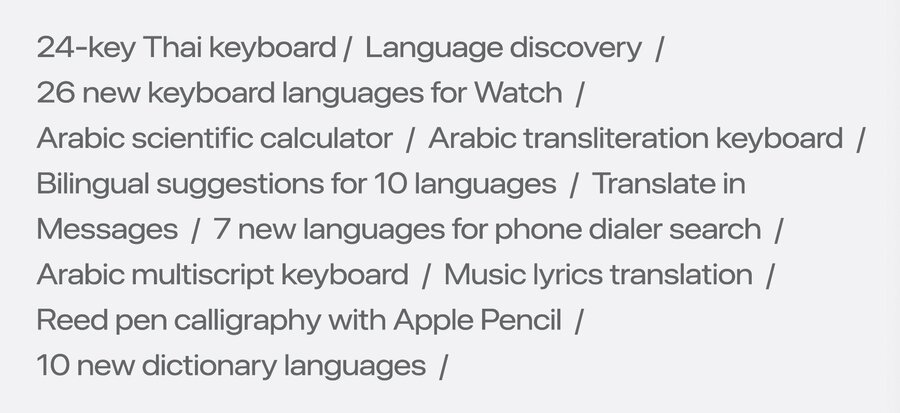
Users can now type arabic words in latin script, the keyboard transliterates automatically
Transliteration keyboard now also offers bilingual suggestions for 10 languages, enter English & translate
New multi-script bilingual like for typing in Arabic or English
New Thai keyboard with 24-key layout, way better for Thai speakers
Best Practices (Reminder)
TextKit 2 makes it easy to support multiple languages, handles scripts like Korean/Hindi, more control
Formatters help display dates, numbers, and text in an auto-adapting way (currency, date formats, etc.)
Use
inputAccessoryViewto place input above keyboard,setTextInputContextIdentifierto remember language/layout
Language discovery
Siri proactively suggests to setup device in multiple languages using on-device intelligence
Content recommendations are done (additionally) in other language than UI is set to
The existing
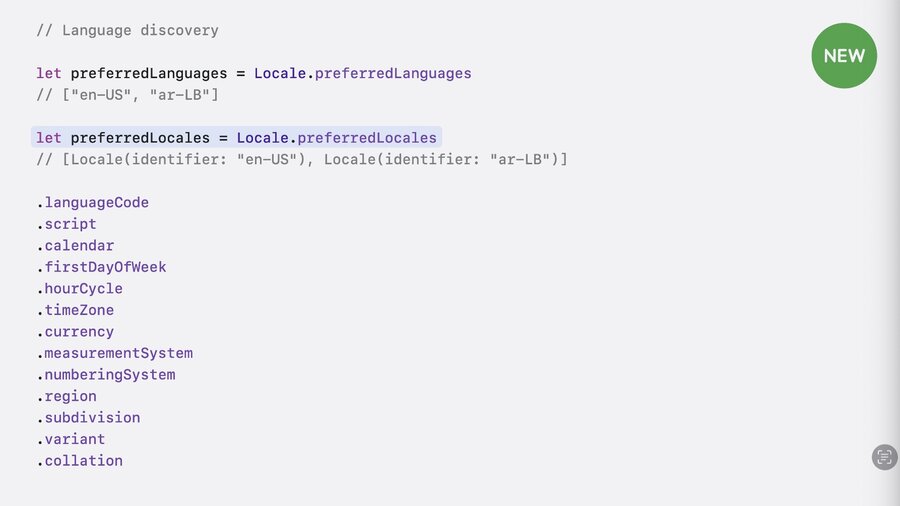
Locale.preferredLanguagesis now extended byLocale.prferredLocalesto get more language infoYou get fields like
.languageCode,.script,.calendar,.firstDayOfWeek,.timeZone,.currency,.regionLocale.preferredLanguagesmay get deprecated, so migrate topreferredLocales
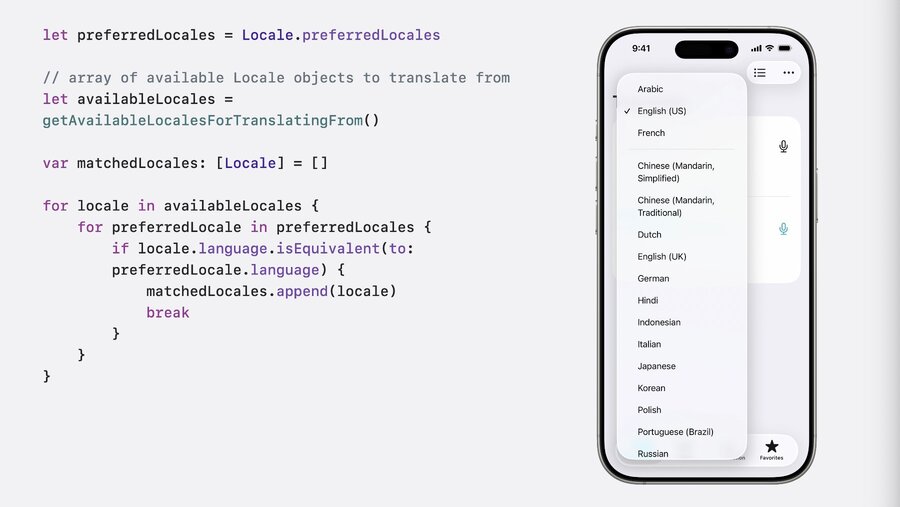
When offering list of languages, for example, put all matching preferred locales at the top
Use
.isEquivalentor.hasCommonParentbased on your needs for language matching
Alternate calendars
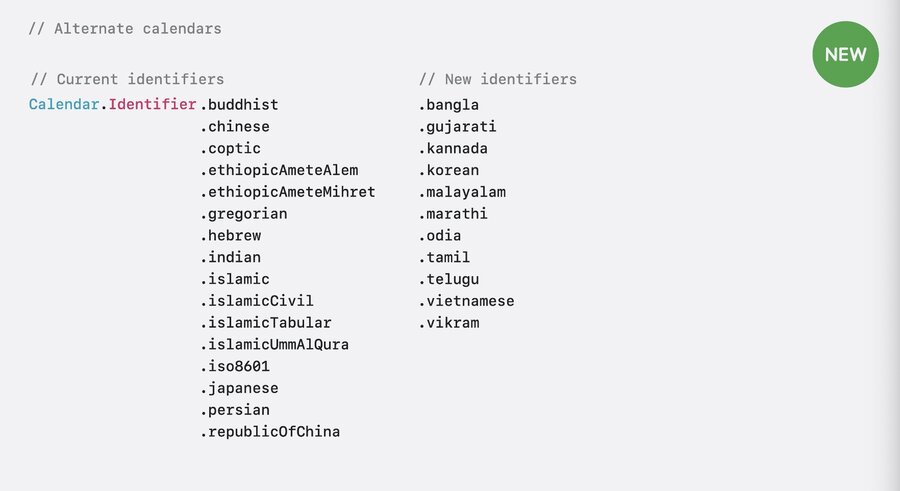
New alternate calendar options for languages like Gujarati, Marati, and Korean
Existing 16 calendar identifiers are extended by 11 more
Bidirectional text
See also: Get it right to left
Bidirectional text is when left-to-right and right-to-left language words are combined in one text
This has significant implications for text selection
Characters are always stored in the order they are written, only display varys
When selecting bidirectional text, the cursor used to “jump”, creating a confusing experience
New in iOS 26, selection in UI is now intuitive, the storage is adjusted accordingly
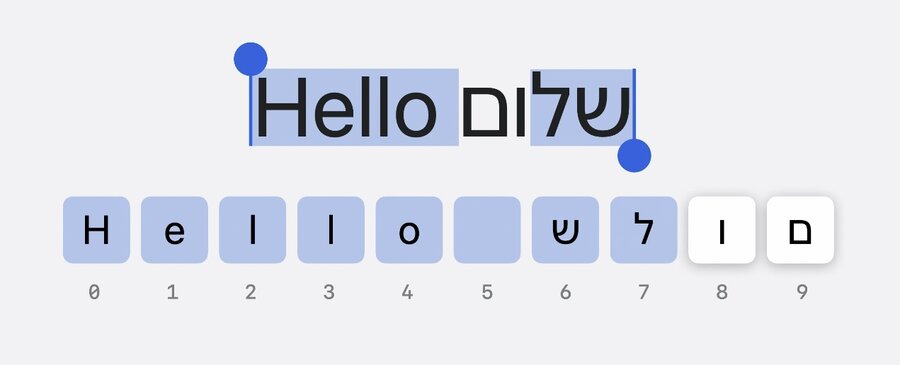
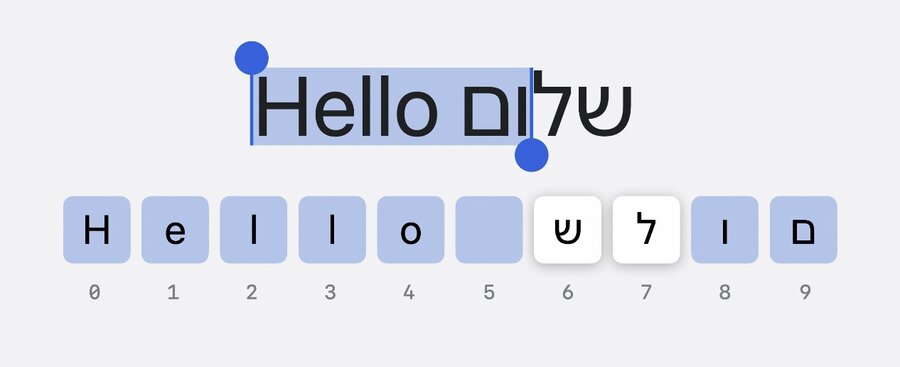
To adopt this, instead of a single selected range, an array of selected ranges is required
On macOS, this was already possible –
NSTextViewhadselectedRangesBut on iOS,
UITextViewhad onlyselectedRangewhich will be deprecated in favor ofselectedRangesLearn more: Codealong Cook up a rich text experience in SwiftUI with AttributedString
New versions of edit menu
UITextViewDelegateandUITextFieldDelegatemethods availableUse TextKit 2 to utilize
textView.textLayoutManager(instead oftextView.layoutManager)Writing direction used to be different from text direction in bidirectional text, leading to cursor “stay in place”
This year, when switching from LTR to RTL, the cursor moves naturally considering it to be an LTR sentence
Writing direction will now be dynamically determined for whole sentence based on text content
If you use your custom texte engine, refer to the Language Introspector sample code
