
Key Takeaways
🗂️ Start with Tab bar as navigation
🚏 Use Sidebar for complex navigation
🚥 Every app gets size handle, window controls, and menu bar
📄 Open documents in new windows
👆 New pointer highlight effect
🙈 Never hide menu items!
Navigation
Main navigation patterns for iPad:
| Sidebar | Tab bar |
|---|---|
| Ideal for many subviews or deeply nested content. | Gives content more space. |
| e.g. Mail or Music | e.g. App Store |
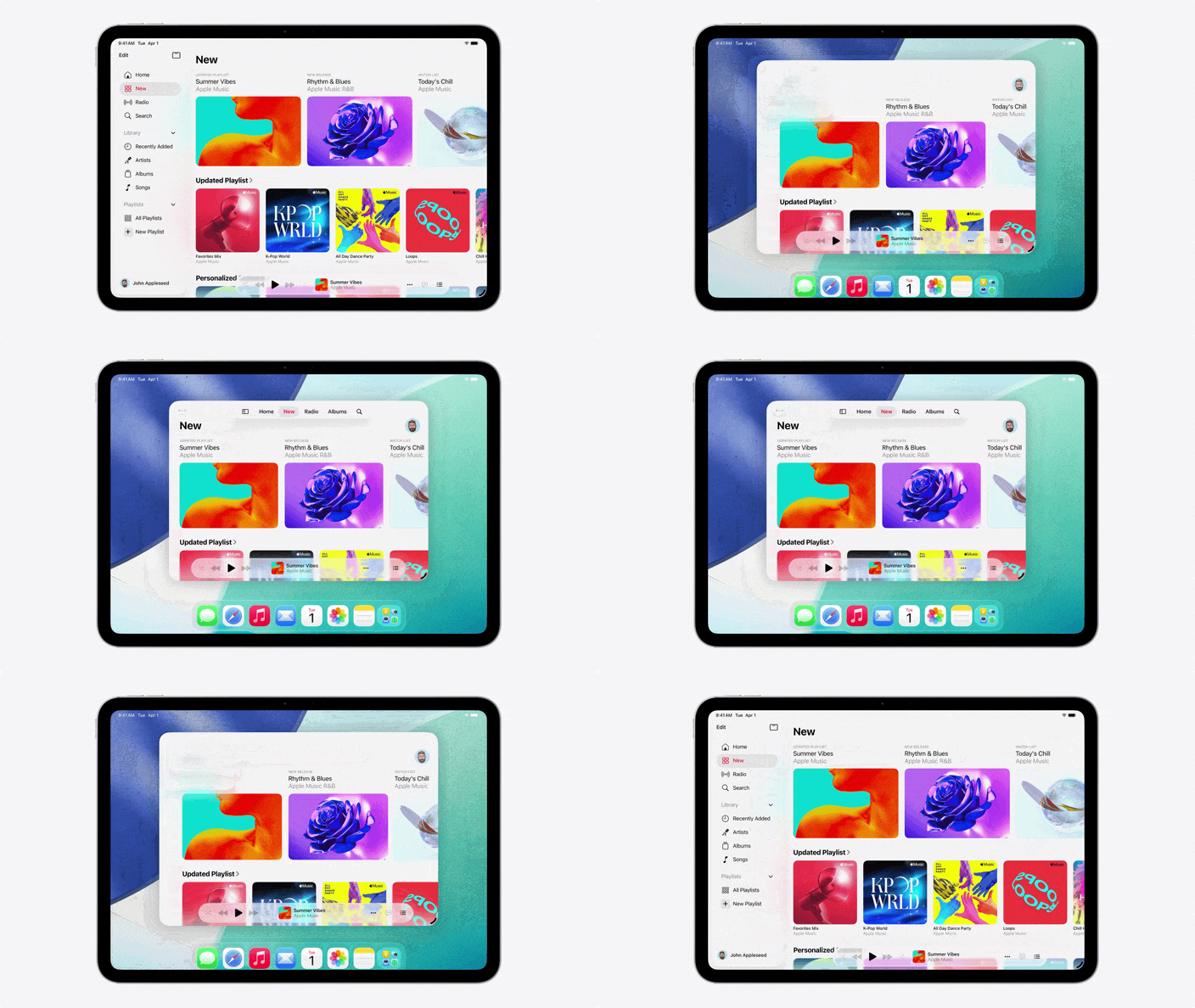
Sidebar can morph into Tab bar and vice versa
Users can choose best fitting navigation
Sidebar automatically morphs into Tab bar in portrait
Also on smaller windows
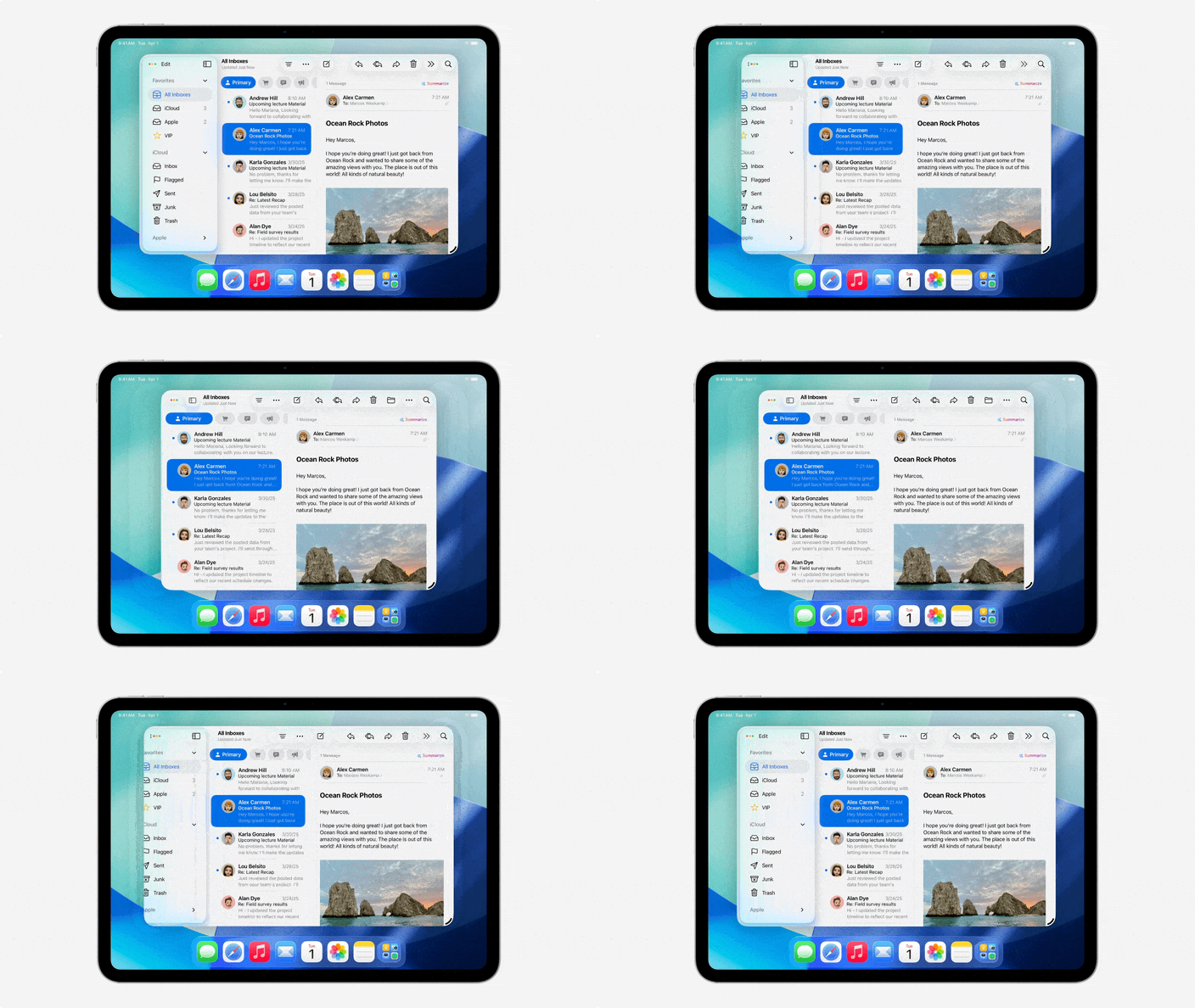
Apps without Tab bar collapse columns down
Make sure layout changes (because of size) are non-destructive
When not sure which navigation is best → start with tab bar.
Extend content around navigation
Use as much of display as possible with “scroll edge effect”
Especially for floating windows (aka smaller than fullscreen)
Extend content behind sidebars
Windows
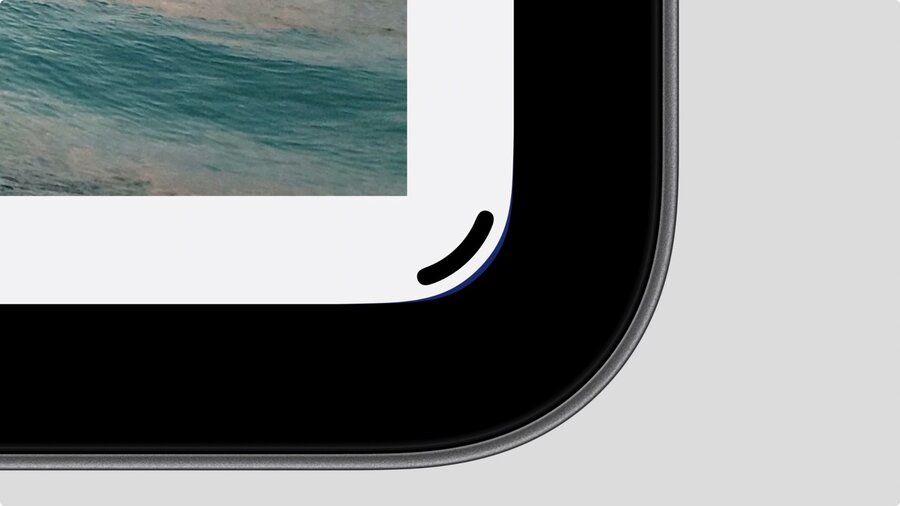
Every app that supports multitasking gets handle at bottom right corner
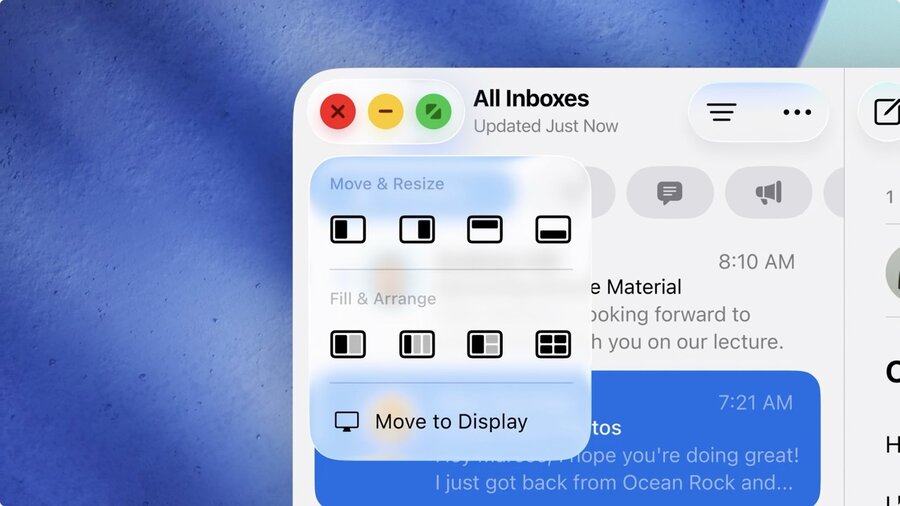
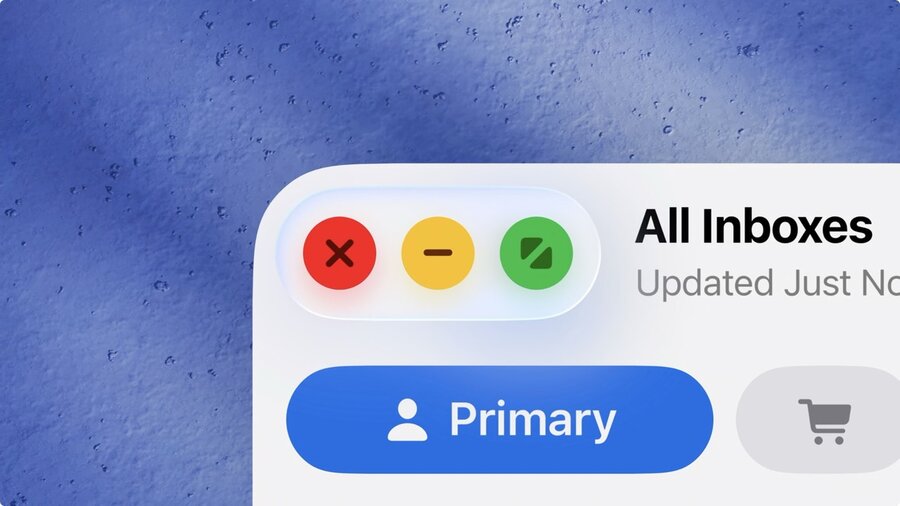
Every window get window controls on top left
Tap extends/enlarges
Tab and hold shows menu with layout actions
Window controls placed in leading edge of toolbar
Existing controls get shifted
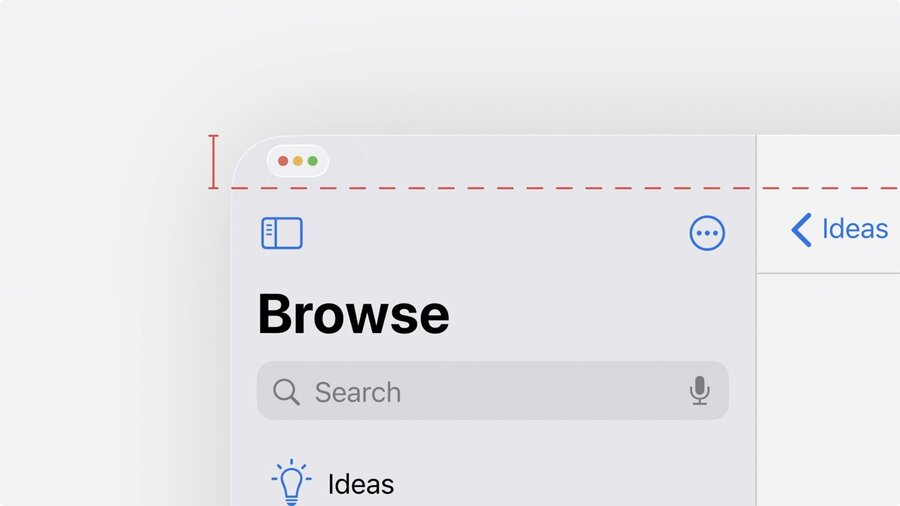
Apps not updated for iPadOS 26 get window controls in top safe area
Safe area is increased for that
Should only be used for compatibility
Opening Documents
New behavior when opening documents from external app (like Files):
Create new window for each opened document
Don’t open/replace in same window
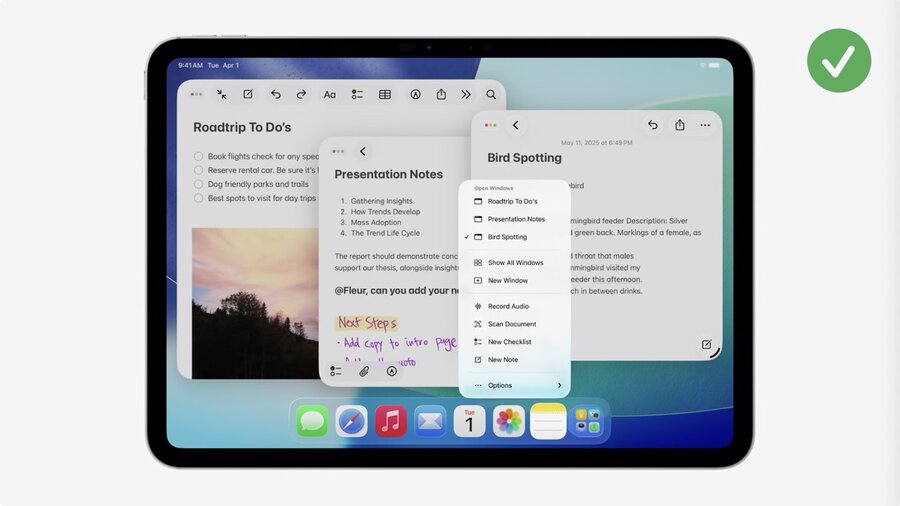
Doc menu will provide way to see all open windows
Like on macOS
Provide helpful window titles, like document name
Pointer
Original pointer was designed to mimic finger
iPadOS 26 gets new pointer shape
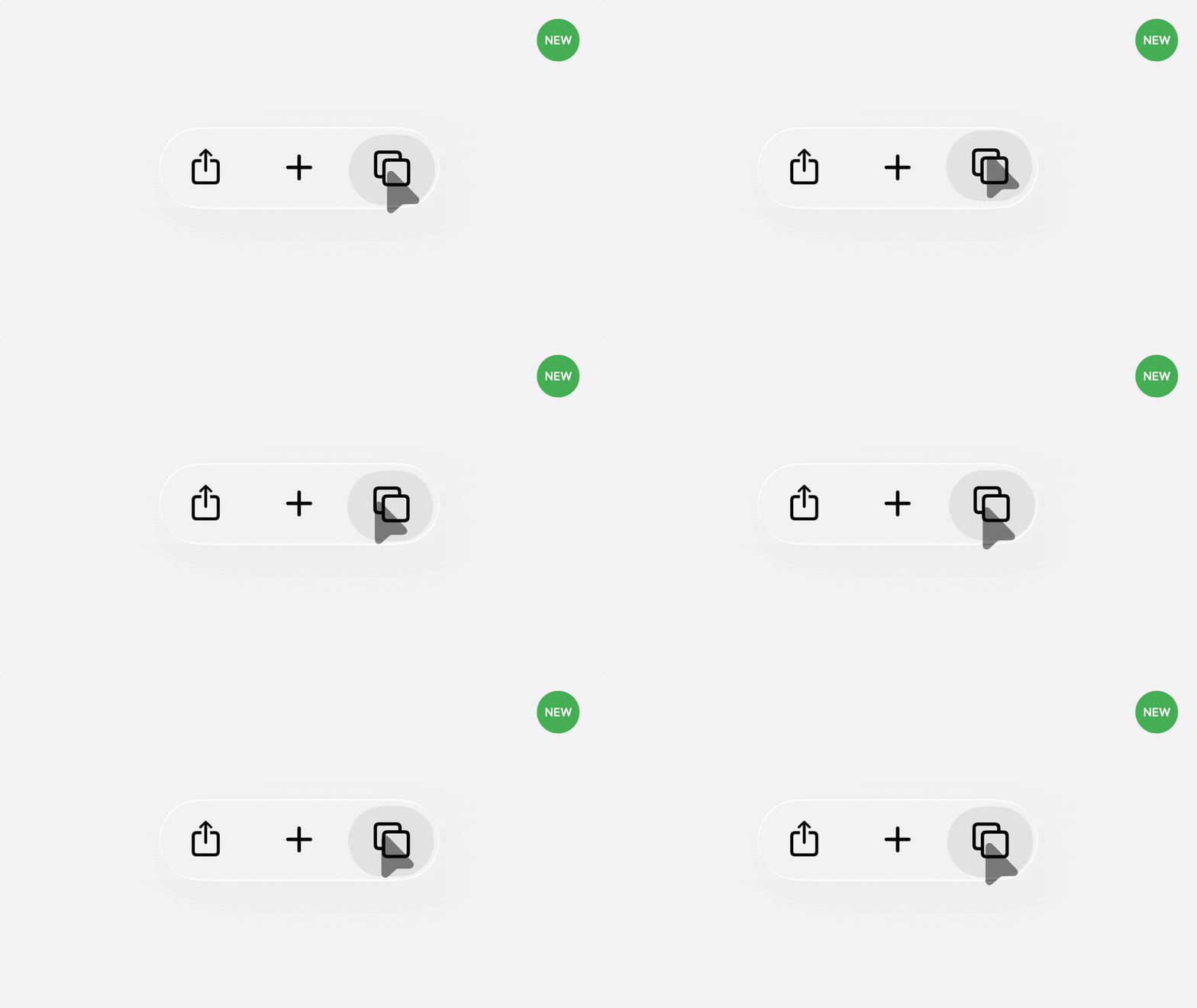
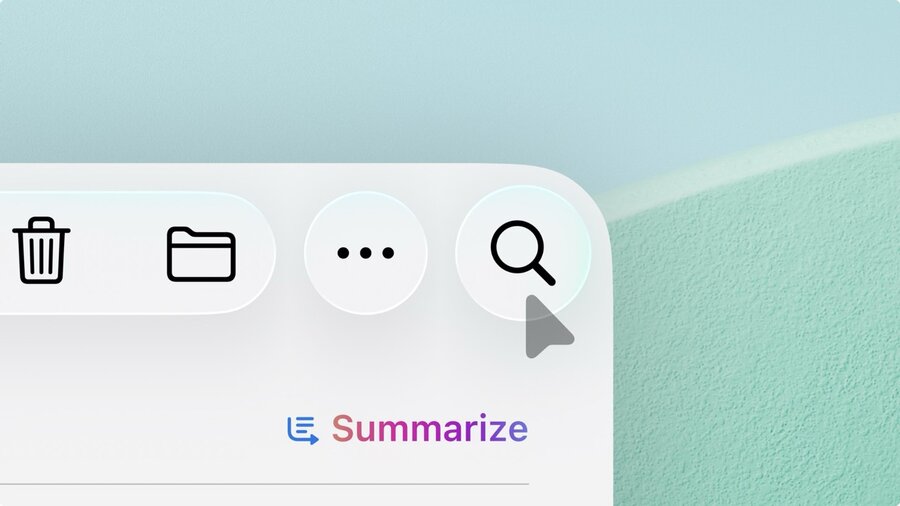
New highlight effect for hovering buttons/controls
No more morph and rubber band effect
Test your app with pointer for unexpected results.
The Menu Bar
Shares core principles with macOS’ menu bar
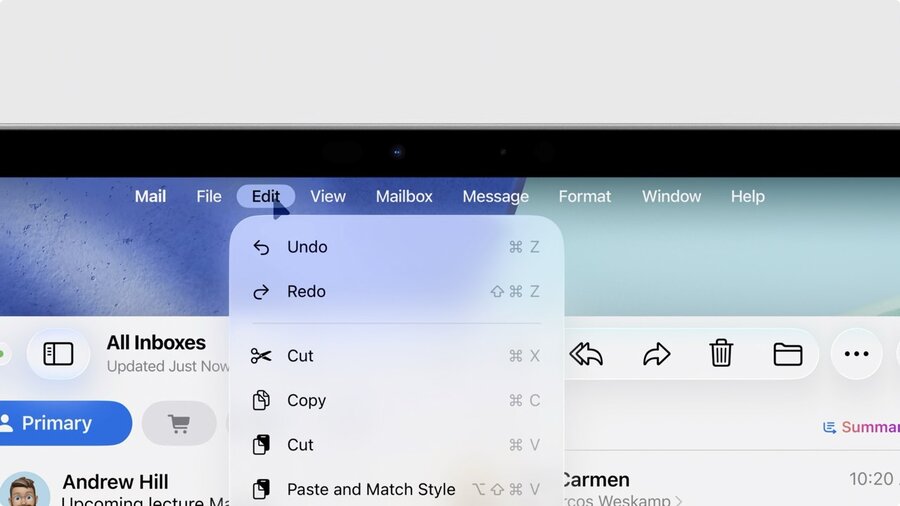
Revealed by swipe down or moving pointer to top edge of screen
Every app gets menu bar
Every menu bar has app menu, default system menus and custom menus of app
Organize your menu items
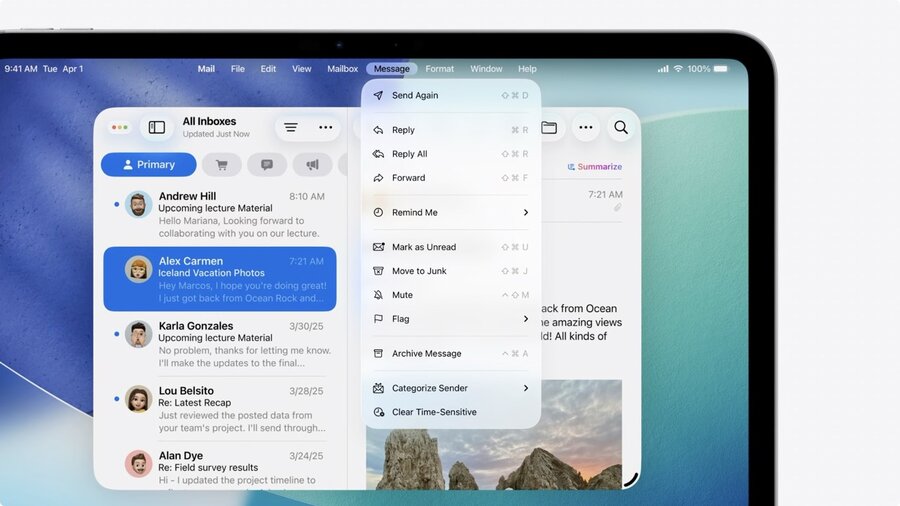
Populate menu with every action related to menu name
Order by frequency of use
Not alphabetically
Group related actions in sections
Move secondary actions into sub-menus, if menu gets too long
Assign each item a symbol
Match symbol how they appear in app
Assign keyboard shortcuts to each action to most common actions
Populate the “view” menu
One of system provided menus
Tabs are great to include here
Navigation toggles are great as well
Like show/hide sidebar (default action)
Never hide menus or items
Don’t hide menu items
Disable items when inactive
Don’t hide whole menus
Disable all menu items inside
Hiding menu items is disorienting and hard to scan
Messes with muscle memory
Bad for discoverability of features
More information on the menu bar in the HIG.
