Skip to content

Say hello to the new look of app icons

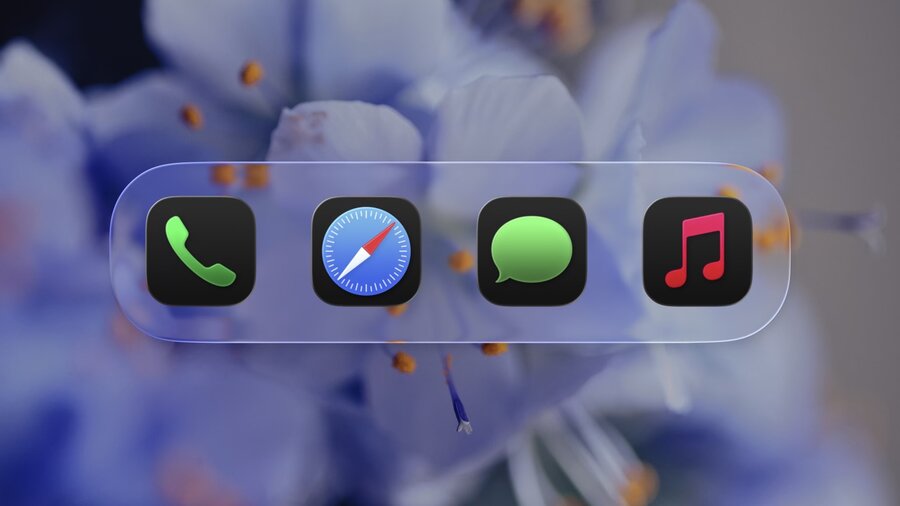
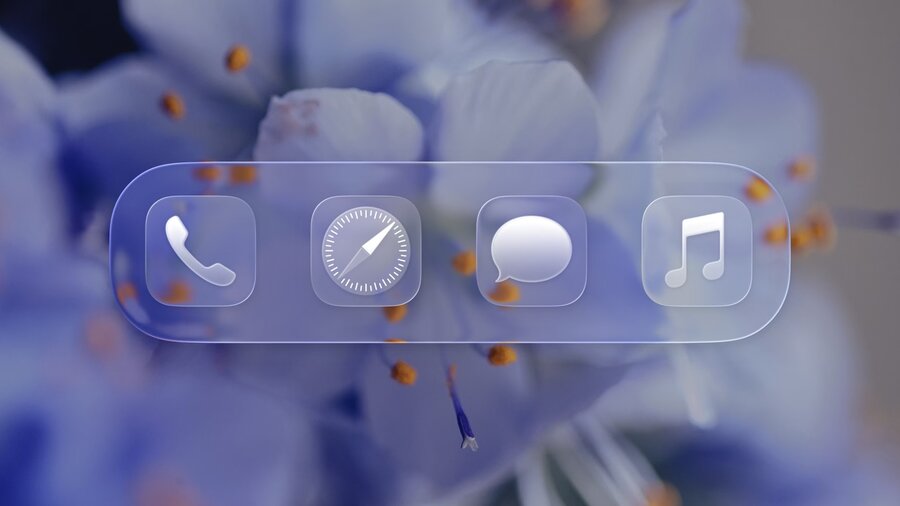
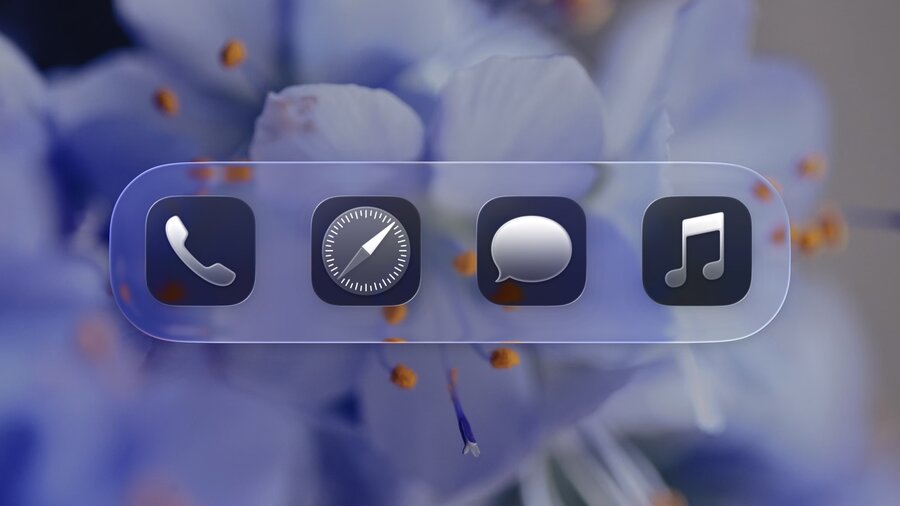
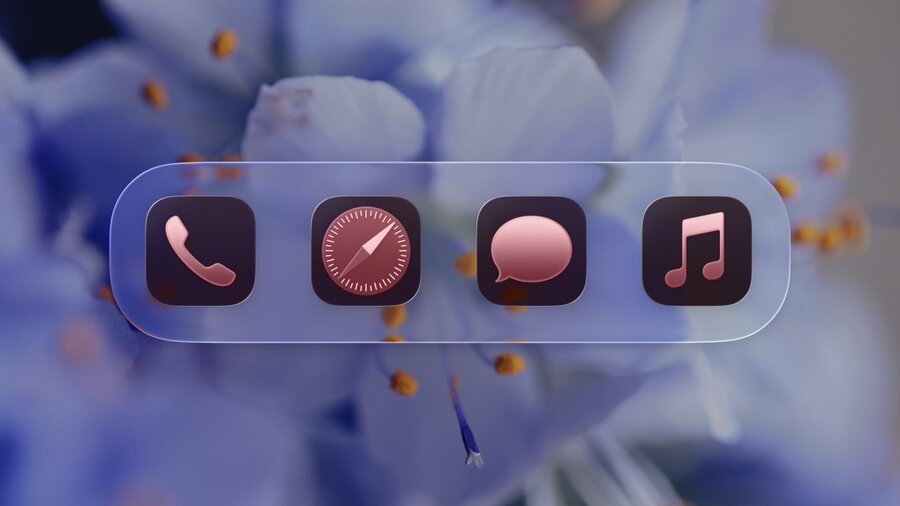
Get an overview of the new app icon appearances for iOS, iPadOS, and macOS, including light and dark tints, and clear options. Learn how to use frostiness and translucency to make your app icon more vibrant, dynamic, and expressive, and find out how to ensure your icon works well with specular highlights.

Summary

  • Liquid glass material introduces layered translucency, frostiness, and edge highlights for depth and internal glow.

  • New appearance modes: light/dark monochrome and two tinted glass options enrich color expression.

  • Unified iconography system standardizes grids and corner radii for rounded rectangles and circles across devices.

  • Layering, translucency, and simplicity are essential to maximize the new material effects.

  • Avoid sharp edges; prefer rounder corners and bolder lines to preserve detail and enhance lighting.
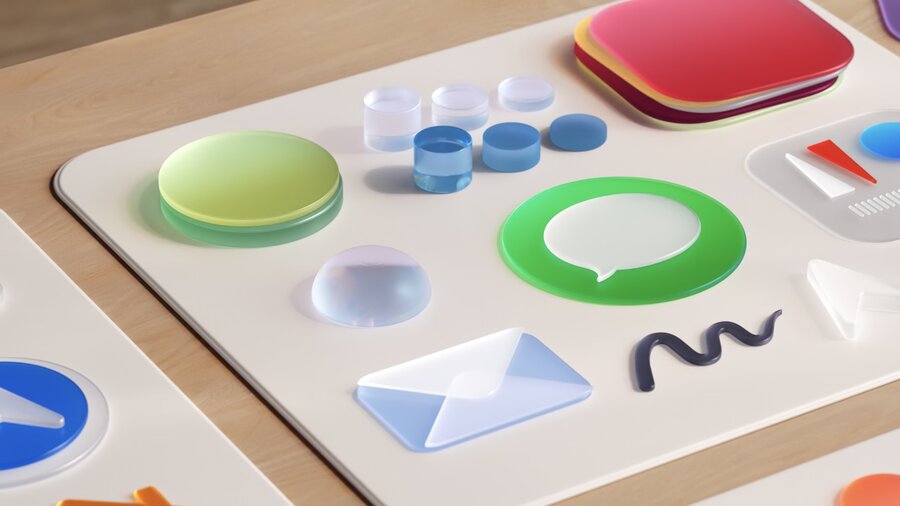
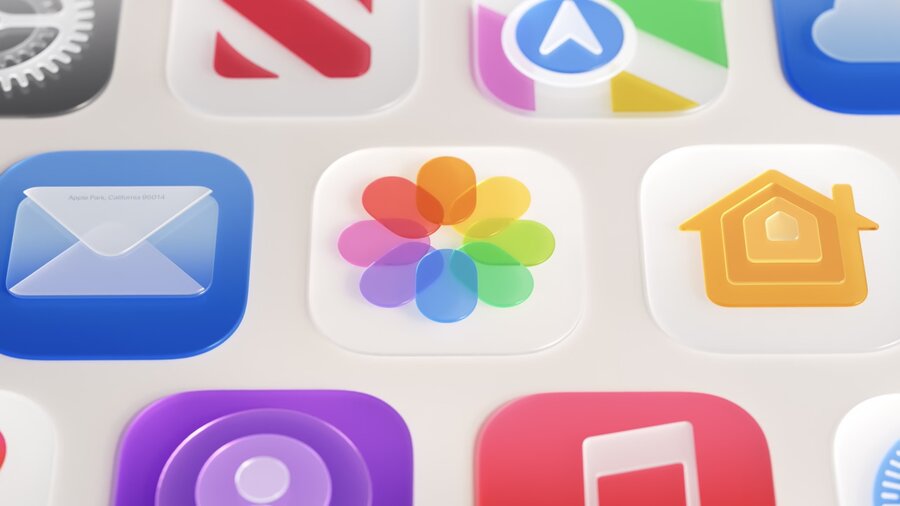
Realistic glass app icons elements in a table
Collection of redesigned liquid glass app icons

Presenters

  • Marie Dommenget, Apple Design Team

Appearance Modes

  • Support for light and dark modes with liquid glass effects.

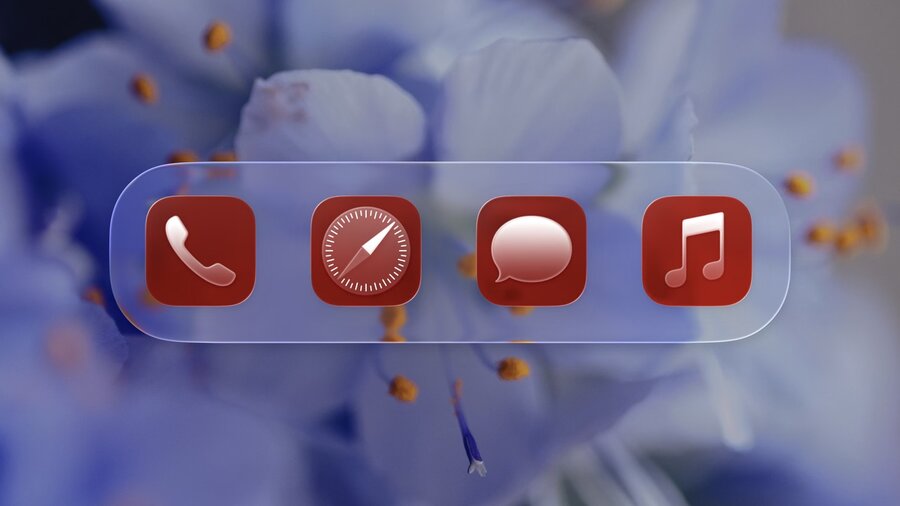
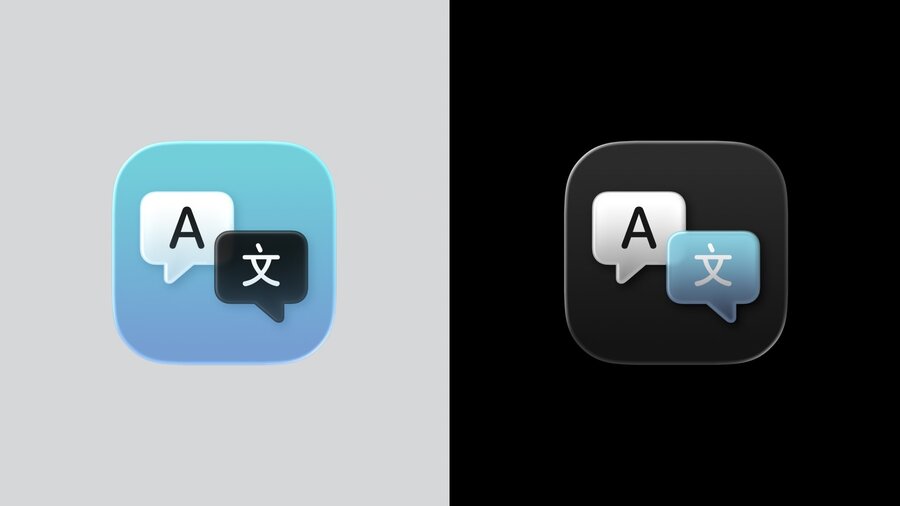
  • New translucent modes:

    • Monochrome glass (light and dark variants)

    • Tinted glass with dark foreground tint or light glass-infused color.

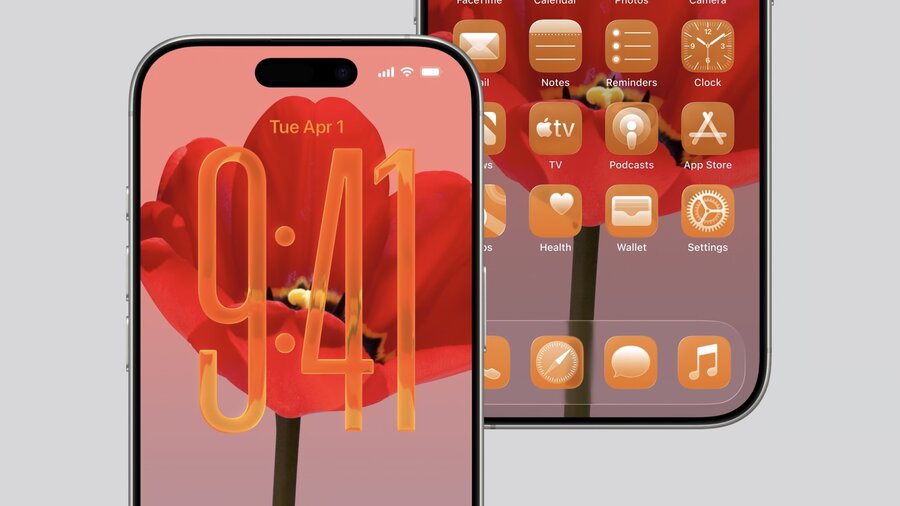
  • Available on iPhone, iPad, Mac, Apple Watch, and reflected on App Store pages.
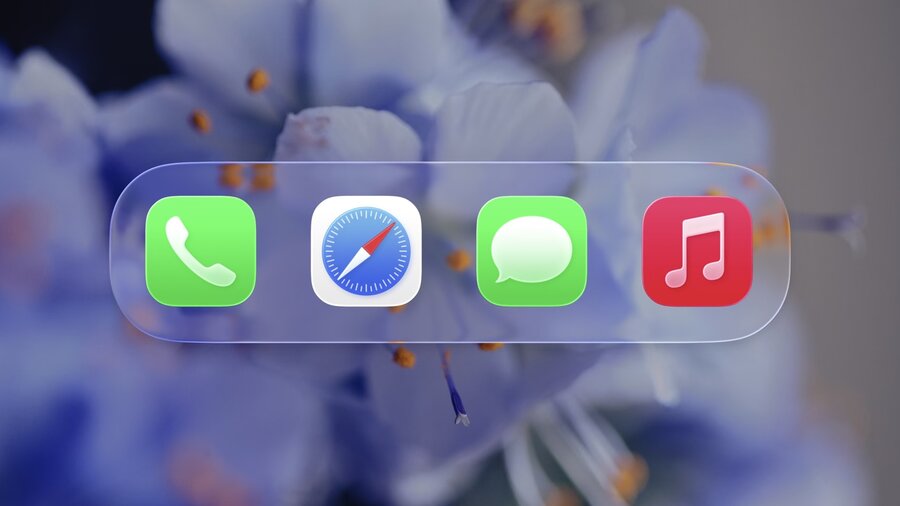
Collection of app icons displayed in light mode with the new liquid glass material appearance
Collection of app icons displayed in dark mode with liquid glass effects
App icons in monochrome glass light variant showing translucent layering
App icons in monochrome glass dark variant with frosted glass appearance
App icons with tinted glass effect on dark background
App icons with tinted glass effect on light background
iPhone homescreen displaying app icons with the new liquid glass appearance and material effects

Unified Design System

  • Previous platform-specific icon designs replaced by a single, consistent language.

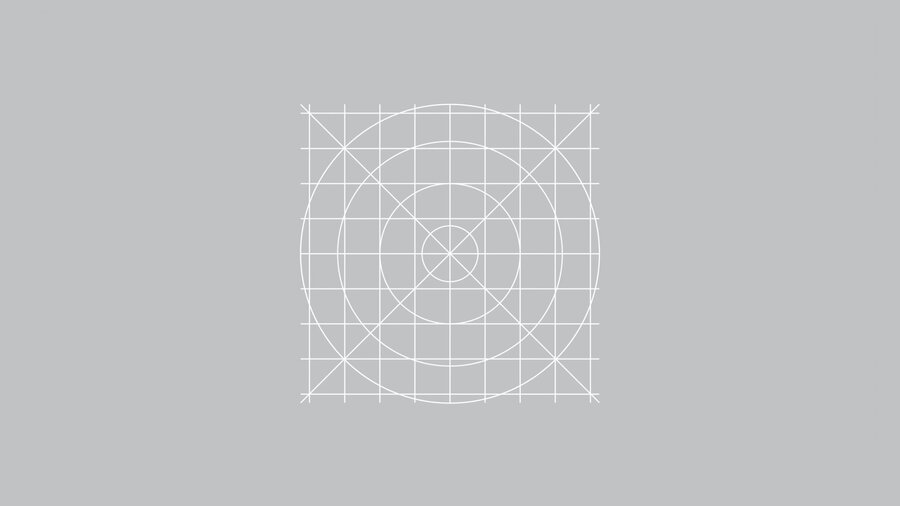
  • Updated 1024px canvas for rounded rectangles and circles, with simpler, evenly spaced grids and rounder corners.

  • macOS icons now use the canvas shape as a mask, automatically fitting artwork and removing irregularities.

  • Recommended to redraw icons to fully utilize the new canvas for best results.

  • watchOS circular icons use a 1088px canvas aligned with the rounded rectangle grid for visual consistency.
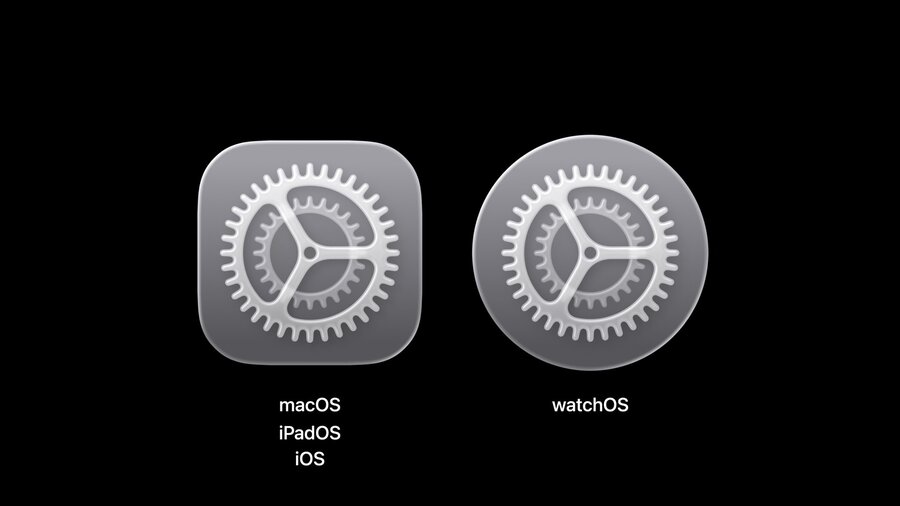
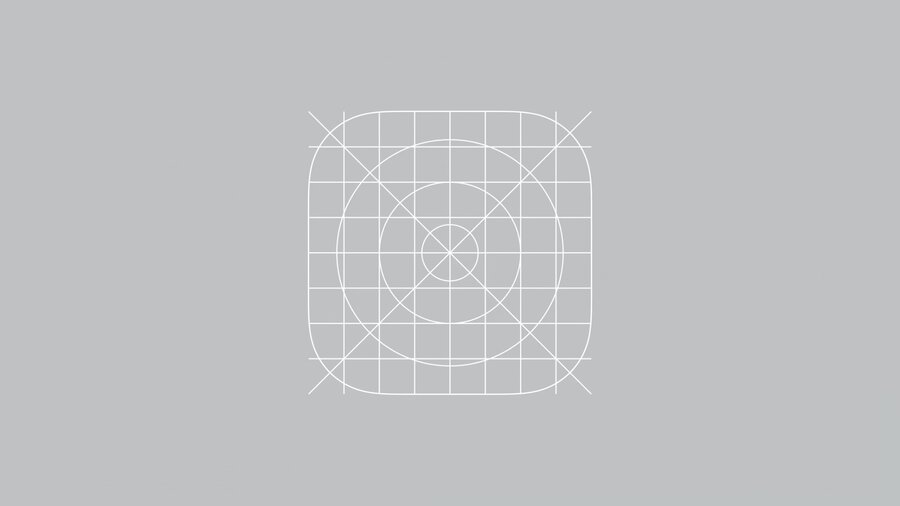
Settings app icon showing the new unified design with liquid glass material
Default icon grid canvas showing 1024px rounded rectangle with simplified grid structure
watchOS circular icon grid showing 1088px canvas aligned with rounded rectangle grid
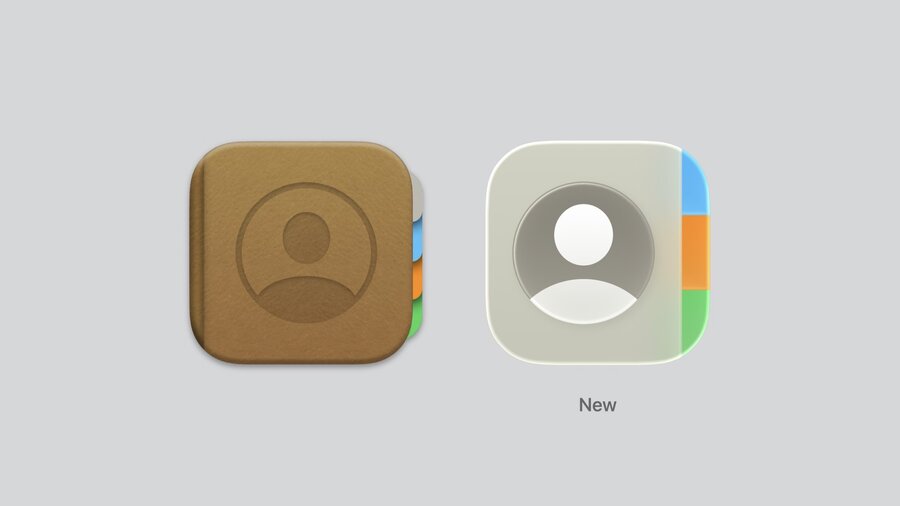
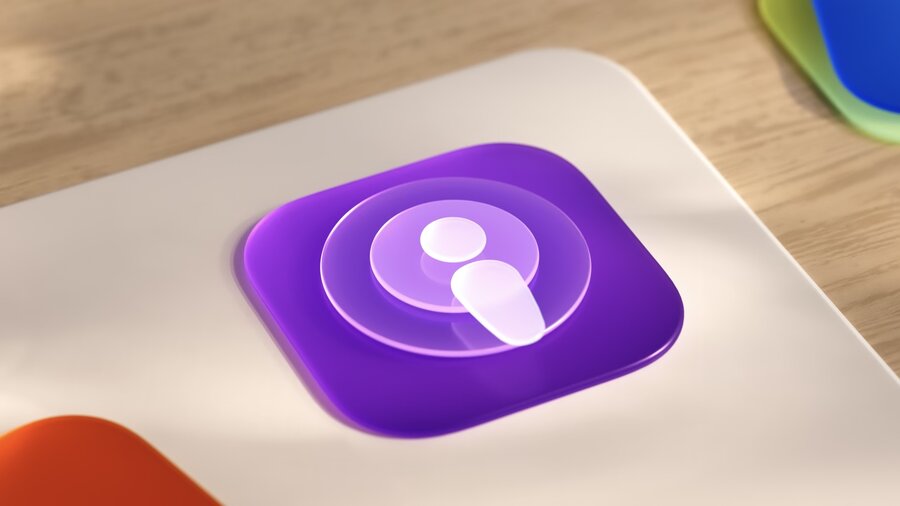
Contacts app icon demonstrating layering and simplified design with liquid glass effect
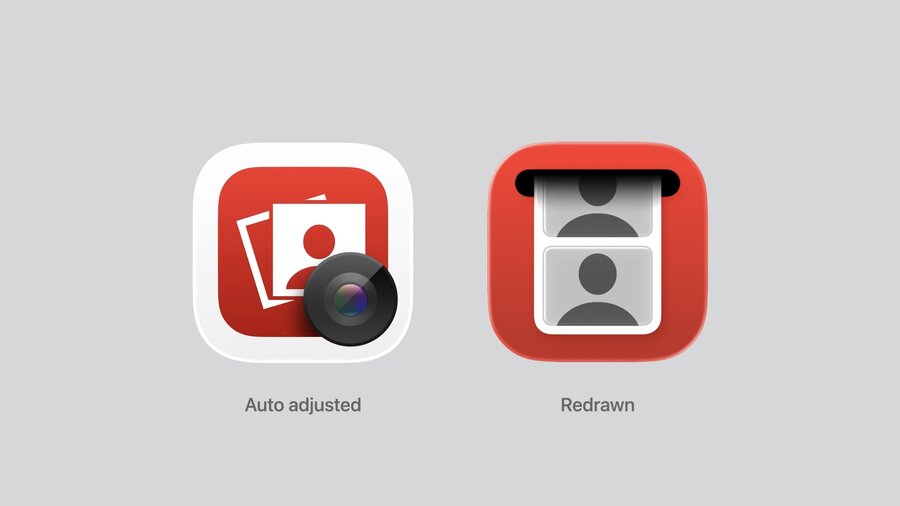
Photo Booth app icon example with new unified icon design system

Design Principles

Layering

  • Icons consist of one background and multiple foreground layers to add dimensionality.

  • Layer stacking enhances richness and depth (e.g., Podcasts icon).
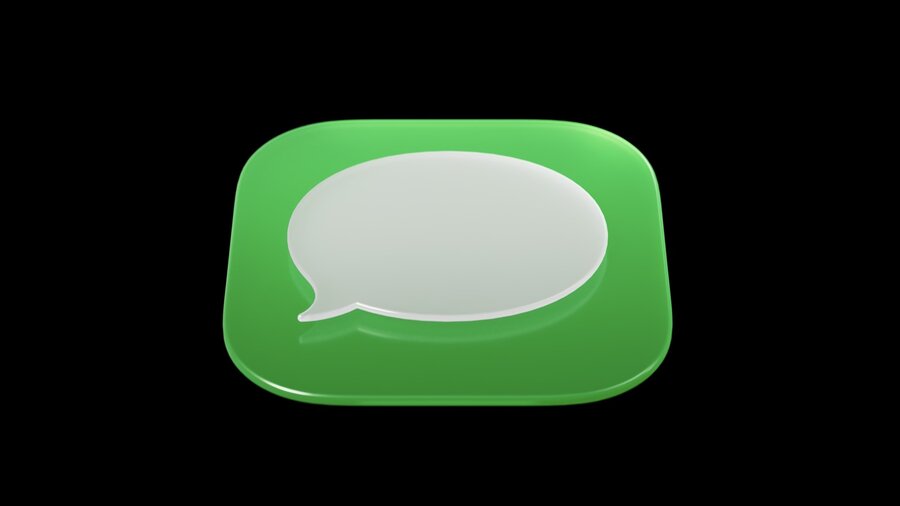
Messages app icon showing layered design with foreground and background elements
Podcasts app icon demonstrating multiple layered elements creating dimensionality and depth

Illustration Style

  • Avoid complex 3D perspectives that compete with material effects.

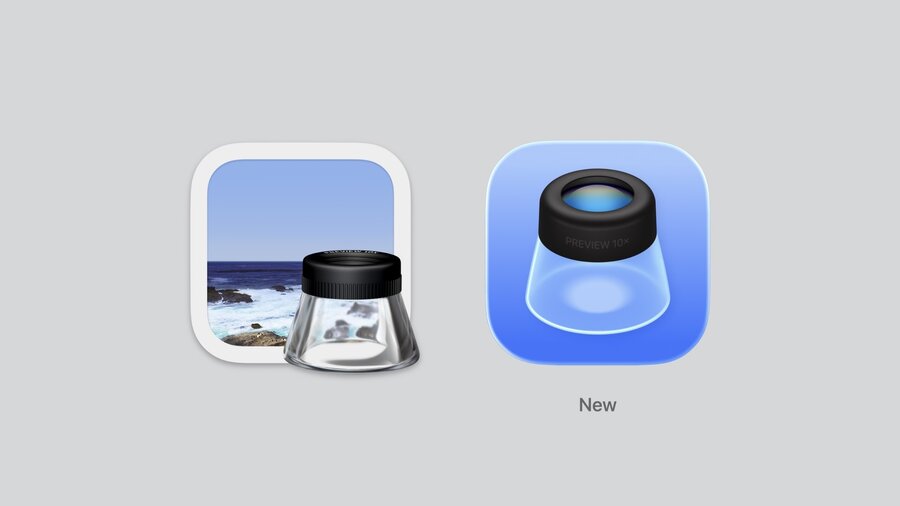
  • Prefer flatter, frontal views that complement translucency and lighting.
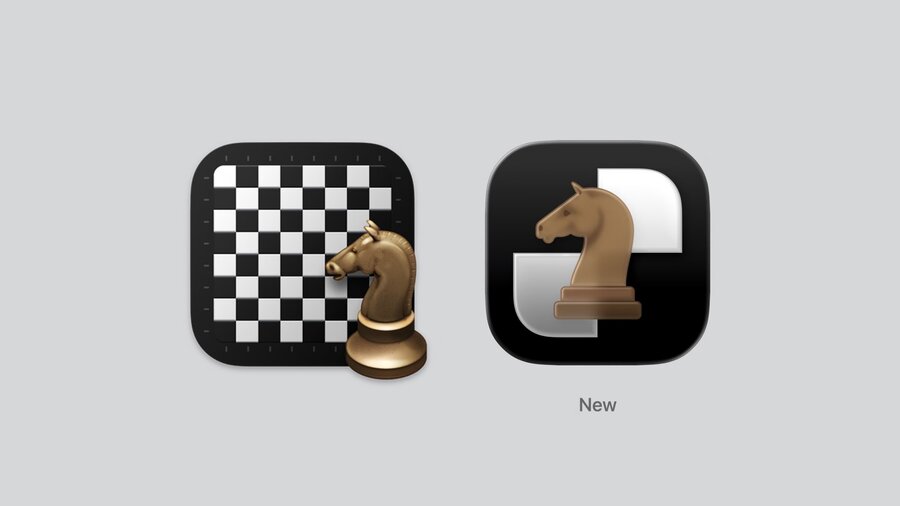
Chess app icon with flatter frontal view complementing translucency and material effects
Preview app icon example with frontal illustration style avoiding complex 3D perspectives

Translucency & Blur

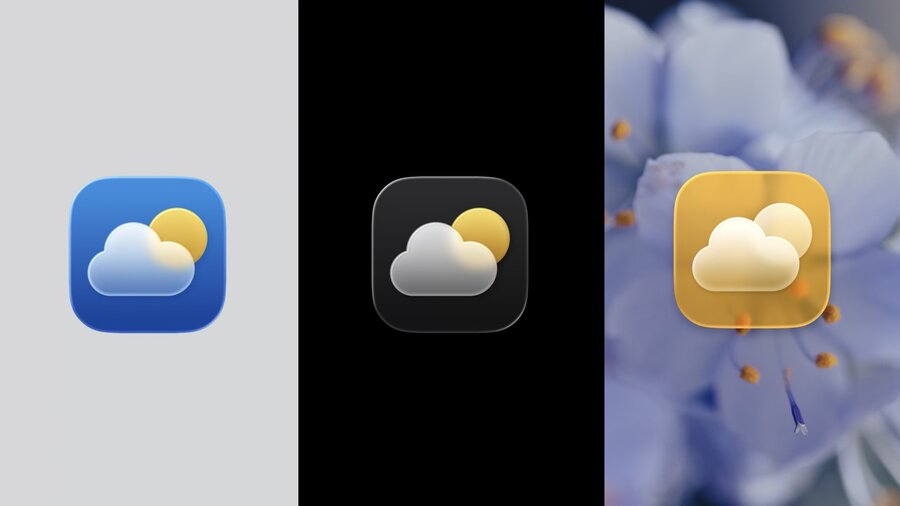
  • Easy to apply with new materials, adds lightness and multi-layer depth.

  • Works well in all modes including transparent backgrounds.
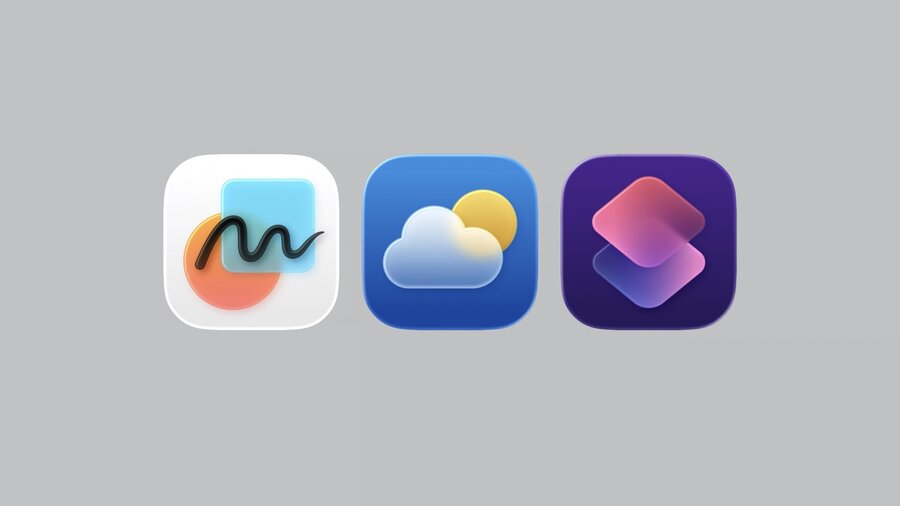
Freeform, Weather, and Shortcuts app icons demonstrating translucency and blur effects
Weather app icon in different appearance modes showing translucency applied across variants

Simplicity

  • “Less is more”: reduce overlapping layers to let material nuances shine.

  • Remove baked-in effects like shadows or bevels from source artwork.

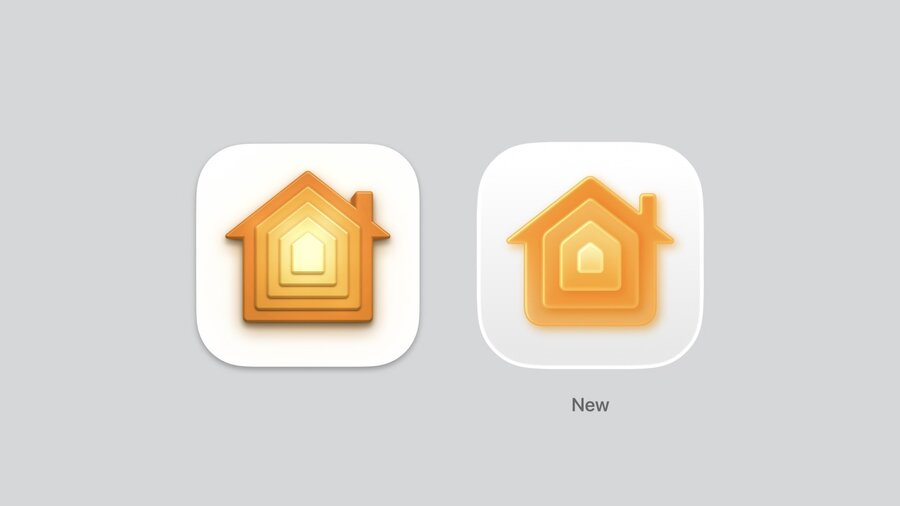
  • Example: Photos and Home icons simplified for better glass effect.
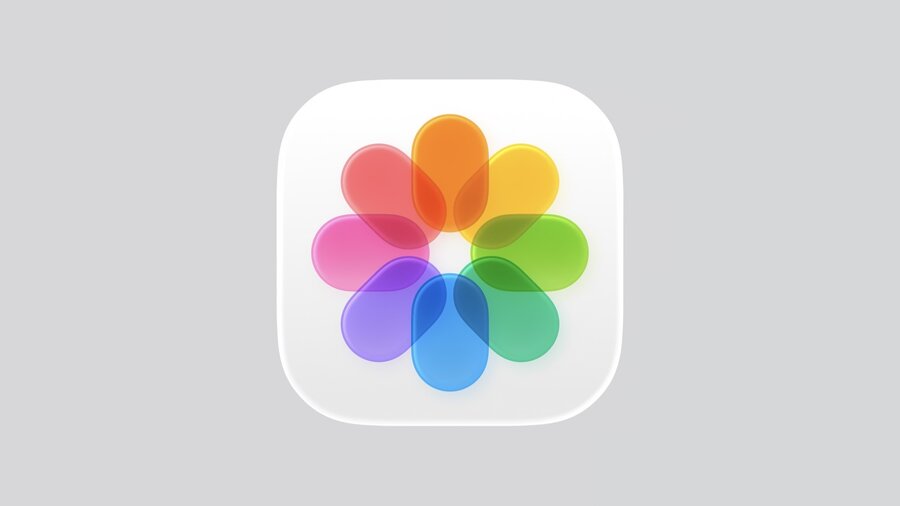
Photos app icon simplified for better glass effect without baked-in shadows or effects
Home app icon demonstrating simplified design to enhance liquid glass material appearance

Details

  • Avoid sharp edges and thin lines.

  • Use rounder corners and bolder strokes for better light travel and clarity at small sizes (e.g., Settings icon).

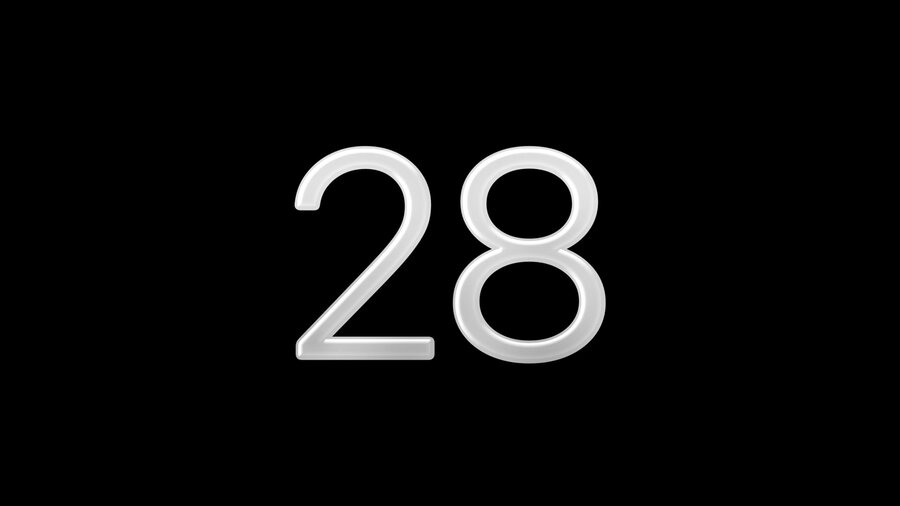
Settings icon detail showing rounder corners and bolder strokes for better light travel and clarity
Numbers with corner details demonstrating improved stroke weight and rounded edges

Backgrounds

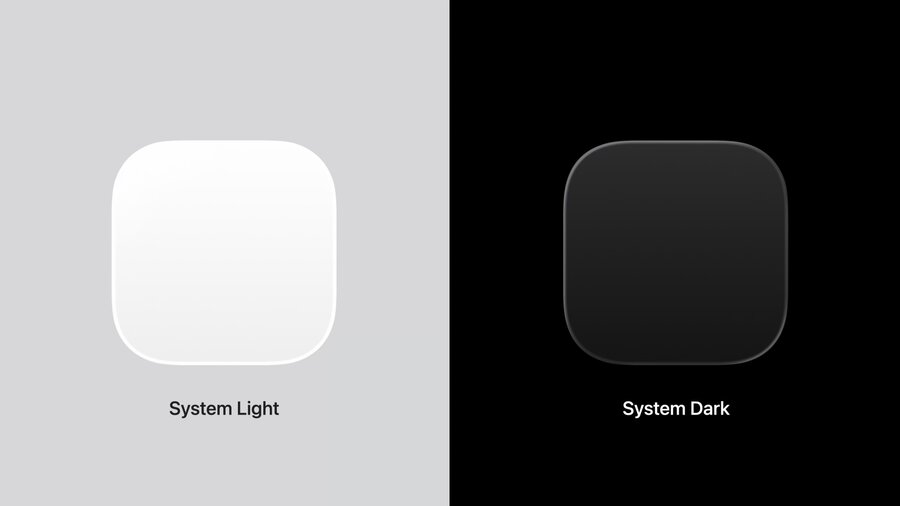
  • Use soft light-to-dark gradients (System Light and Dark) instead of pure white or black.

  • Gradients harmonize with lighting direction and enhance contrast.

  • Colored backgrounds recommended to improve distinction in dark mode.
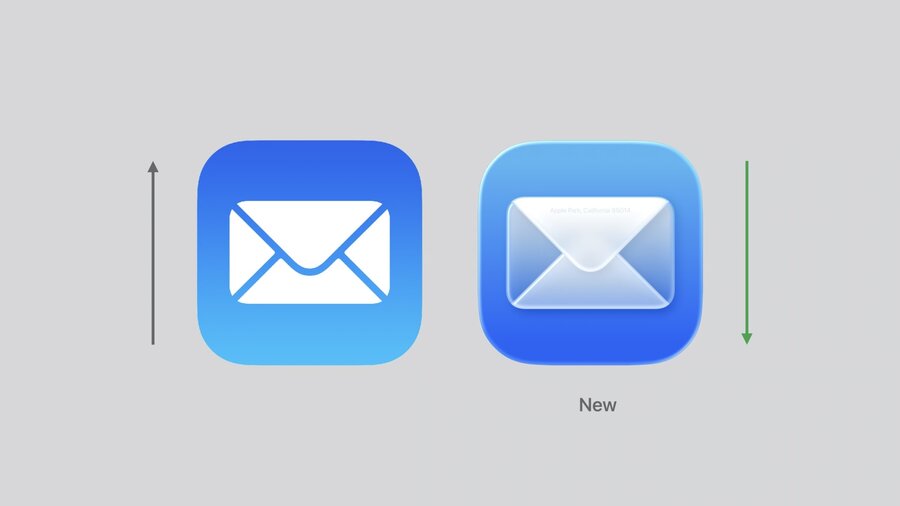
Mail app icon with soft gradient background demonstrating light-to-dark gradient technique
Collection of icon backgrounds showing soft light-to-dark gradients instead of pure colors
Icon tint examples showing colored backgrounds for improved distinction in dark mode

Resources

  • Updated templates for Figma, Sketch, Photoshop, and Illustrator available on Apple Design Resources.

  • Companion talk “Make app icons with Icon Composer” recommended for building icons with the new material.

Missing anything? Corrections? Contributions are welcome!

Written By

VictorPuga
VictorPuga
8 notes contributed