
Key Takeaways
Bring your app’s core features to users with App Intents
😇 Allow your apps to flow and not generate friction
🧠 Empower user’s creativity & flexibility
🌊 Embed your app’s features into the system
Presenters
Christopher Nebel, App Intents Engineering
Session
This session is broken down into the following sections:
Friction versus flow
Understanding the framework
Building the code
Throught this session an example app is references that allows users to list and interact with their favourite hiking trails.
Friction versus Flow
Flow is the melding of thought and action
when applied to a device: the next thing you need is nearby and easy to get to
Friction is the distracting extra steps in the way of your flow.
Users don’t just use one app to complete a task - they use many - and moving from app to app introduces friction. App Intents allows you to make the system aware of your core features and lift them up and outside of your app to increase flow.
These can include (for example):
Spotlight Search
showing app shortcuts action in Spotlight searches.
Siri
executing an app shortcut when the user requests it with their voice
Widgets
adding a widget to the Home or Lock screen
Control Center
adding a custom control to the Control Center
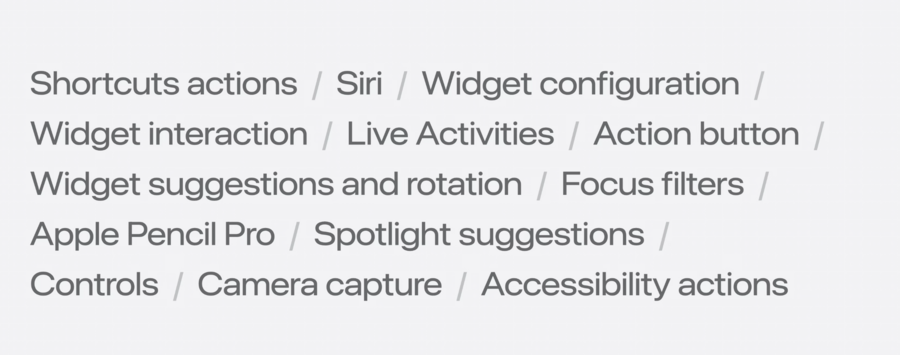
There are many more:
Shortcuts actions
Siri
Widget configuration
Widget interaction
Live Activities
Action button
Widget suggestions and rotation
Focus filters
Apple Pencil Pro
Spotlight suggestions
Controls
Camera capture
Accessibility actions
Who chooses which App Intent is shown?
With features like Spotlight, the developer chooses the actions to show and the system shows them automatically in the right spot.
With features like Widgets and Controls, the user chooses. The developer provides flexible components and the user chooses which ones matter and where they matter.
If you want this kind of interaction: adopt App Intents
Understanding the framework
App Intents is a common foundation for building features. It takes core features from inside your app, actions, or content that’s meaningful and presents them outside your app.
In order to do this, you need to expose actions and content to the App Intents framework which will handle communication with the system in order to execute actions or show content.
There are three top-level concepts:
Intents - Perform an action
i.e. opening a view or starting some work
described in the session as a verb
Entities - Data
i.e. a type in your app or some concept relating to your app’s data
described in the session as a noun
App Shortcuts
i.e. an intent and entity plus additional options to represent an important function of your app
described in the session as a sentence, packaging a verb and noun or blank to fill in a noun and whatever other options are needed into a single thing that describes an important function of your app.
With Intents, Entities, and App Shortcuts - you can define how your app appears across the system.
Building the code
This will cover 5 examples of an App Intent:
Shortcuts action
Parameterized action
Home Screen widget
Control Center control
Spotlight and Siri
App Intents will allow you to share a lot of code between these features.
This session uses an example app that allows users to store a collection of their favorite Trails.
Shortcuts action
Users may want a very specific feature that as a developer you may not want to prioritize, but you can add flexibility in the form of Shortcuts actions so users can build this themselves.
For this example, there’s a feature to pin a trail to the top of the trail list in the app, we will make a Shortcuts action to open the pinned trail details in the app.
An intent is a type that confirms to the App Intent protocol. It has two required pieces: a localizable title and a perform method.
struct OpenPinnedTrail: AppIntent {
	static let title: LocalizedStringResource = "Open Pinned Trail"

	func perform() async throws -> some IntentResult {
		NavigationModel.shared.navigate(to: .pinned)
		return .result()
	}

	// Tell App Intents to open the app when this Intent is run
	static let openAppWhenRun: Bool = true
}
This intent will now show as an action in the Shortcuts app library.
Parameterized action
For this example, we want to create an Intent that opens a specific, user-defined trail. To do this, we need an Intent with a parameter. This will use code that’s very similar to OpenPinnedTrail.
By adopting the
OpenIntentprotocol,openAppWhenRunis implied and can be removed.
struct OpenTrail: AppIntent, OpenIntent {
	static let title: LocalizedStringResource = "Open Trail"

	@Parameter(title: "Trail")
	var target: TrailEntity

	func perform() async throws -> some IntentResult {
		NavigationModel.shared.navigate(to: target)
		return .result()
	}
}
Entities and parameters should be meaningful to a user of the app. An Entity is a type that conforms to the AppEntity protocol. You can conform your type to this directly, or you can create a new Entity that refers to another type in your project - this is especially useful when your type might be expensive to create or use.
Entities must have 3 things:
A display representation
used by the system to draw the entity in a menu
A persistent ID
A query
struct TrailEntity: AppEntity {
	@Property(title: "Trail Name")
	var name: String

	static let typeDisplayRepresentation: TypeDisplayRepresentation = "Trail"

	var displayRepresentation: DisplayRepresentation {
		DisplayRepresentation(title: name, image: Image(named: imageName))
	}

	var id: Trail.ID

	static var defaultQuery = TrailEntityQuery()
}
Queries
A query turns a question asking for entities into actual entities. There are several subprotocol of EntityQuery that handle a variety of questions.
This example shows 2 of the query protocols:
struct TrailEntityQuery: EntityQuery {
	func entities(for identifiers: [TrailEntity.ID]) async throws -> [TrailEntity] { ... }
}

extension TrailEntityQuery: EnumerableEntityQuery {
	func allEntities() async throws -> [TrailEntity] { ... }
}
Parameter Summaries
Parameter summaries are natural language sentence that describes what the intent will do, including the values of all the essential parameters
This makes the intent easier to use and read:
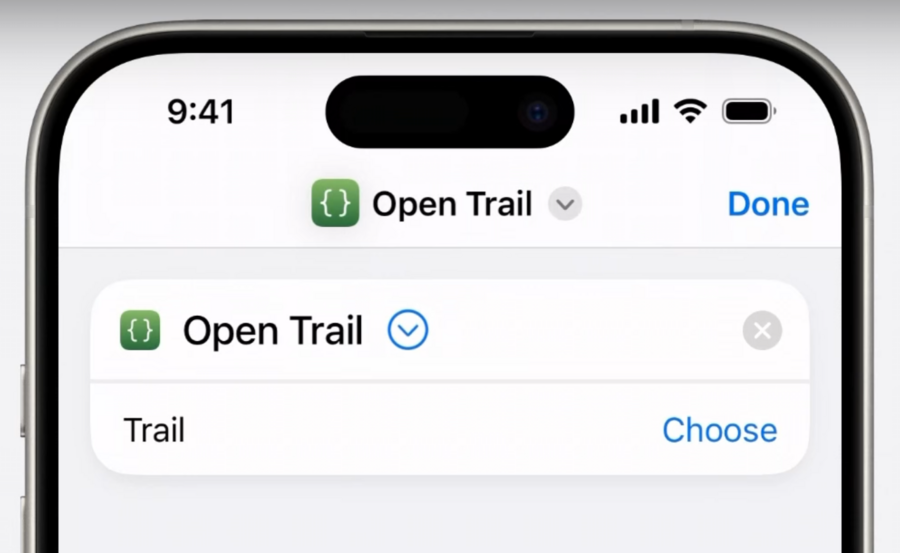
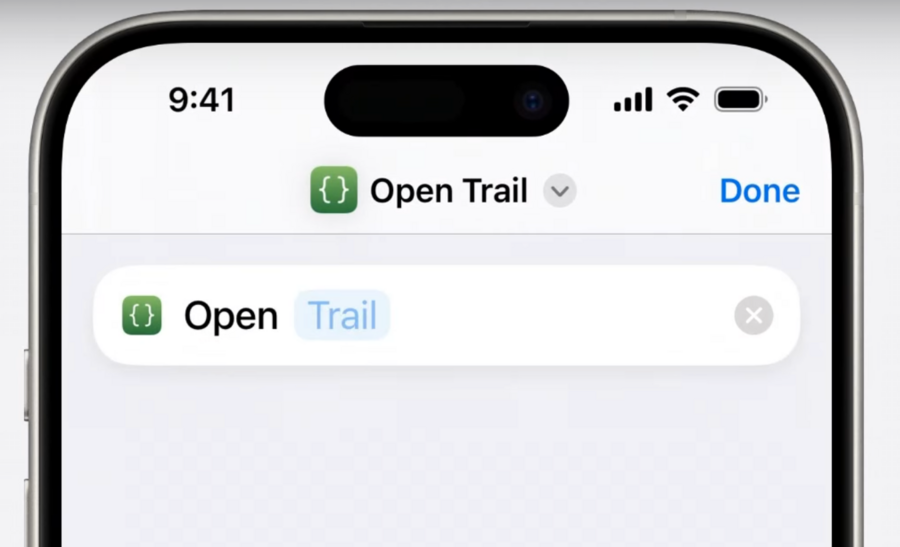
Adjusting the previous example, we can add a parameter summary:
struct OpenTrail: AppIntent, OpenIntent {
	...

	static var parameterSummary: some ParameterSummary {
		Summary("Open \(\.$trail)")
	}
}
Home Screen widget
Designed for glanceable information
Optionally configurable
struct TrailConditionsWidget: Widget {
	static let kind = "TrailConditionsWidget"

	var body: some WidgetConfiguration {
		AppIntentConfiguration(
			kind: Self.kind,
			intent: TrailConditionsConfiguration.self,
			provider: Provider()
		) {
			TrailConditionsEntryView(entry: $0)
		}
	}
}
Create a
AppIntentConfigurationand pass a configuration intent to theintentparameter.Configuration Intents conform to
WidgetConfigurationIntentTo make it configurable - add a parameter
struct TrailConditionsConfiguration: WidgetConfigurationIntent {
	static var title: LocalizedStringResource = "Trail Conditions"

	@Parameter(title: "Trail")
	var trail: TrailEntity?
}
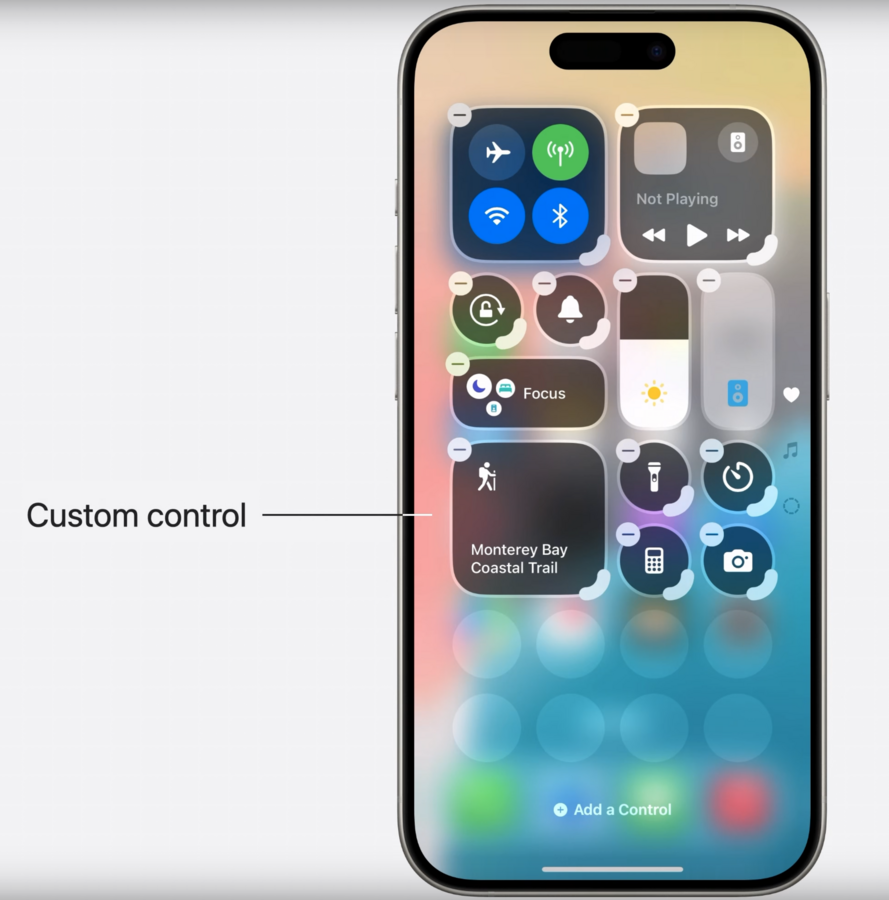
Control Center control
This is the basic shape for a configurable button control:
struct TrailConditionsControl: ControlWidget {
	var body: some ControlWidgetConfiguration {
		AppIntentControlConfiguration(
			kind: Self.kind,
			intent: ...
		) { configuration in
			ControlWidgetButton(action: ...) {
				...
			}
		}
	}
}
It still requires an intent to hold the configuration of the button contents and an intent instance to handle button taps.
We can reuse the OpenTrail intent from before by conforming it to ControlConfigurationIntent and then filling in the TrailConditionsControl template above:
extension OpenTrailConfiguration: ControlConfigurationIntent { }

struct TrailConditionsControl: ControlWidget {
	var body: some ControlWidgetConfiguration {
		AppIntentControlConfiguration(
			kind: Self.kind,
			intent: OpenTrail.self
		) { configuration in
			ControlWidgetButton(action: configuration) {
				Image(systemName: configuration.target.glyph)
				Text(configuration.target.name)
			}
		}
	}
}
Spotlight and Siri
To make an app action available to Siri and Spotlight:
make an App Shortcut
a wrapper around an intent created by the developer
system offers it in various features:
Spotlight
Action Button
Apple Pencil Pro
struct TrailShortcut: AppShortcutsProvider {
	static var appShortcuts: [AppShortcut] {
		AppShortcut(
			intent: OpenPinnedTrail(),
			phrases: [
				"Open my pinned trail in \(.applicationName)",
				"Show my pinned trail in \(.applicationName)"
			],
			shortTitle: "Open Pinned Trail",
			systemImageName: "pin"
		)
	}
}
Notice:
providing an instance of the intent
could customize it’s parameters to provide a specific experience
phrases are needed to invoke the shortcut from Siri
they must contain the application name
a short title and image are for when the shortcut is displayed visually
This is handled automatically by the system at app install - there is no need to register the shortcut, or even open the app for the user to access this shortcut.
This is great, but for Siri - it isn’t quite right. It will move the user into the app which requires them to break the flow of what they’re currently doing.
Instead, we can make a new intent that will show the content in a snippet and speak it if the user isn’t looking at their screen or is using a HomePod or AirPods.
struct GetPinnedTrails: AppIntent {
	static let title: LocalizedStringResource = "Get Pinned Trail"

	func perform() async throws -> some IntentResult & ProvidesDialog & ShowsSnippetView {
		let pinned = TrailDataManager.shared.pinned
		return .result(
			dialog: "The latest reported condition of \(pinned.name) is \(pinned.currentCondition)",
			view: trailConditionsSnippetView()
		)
	}
}
Wrapping Up
Using App Intents lets you:
Make your app flow
Adopt features like Siri, Shortcuts, widgets, and more
All based on App Intents
