
Key features
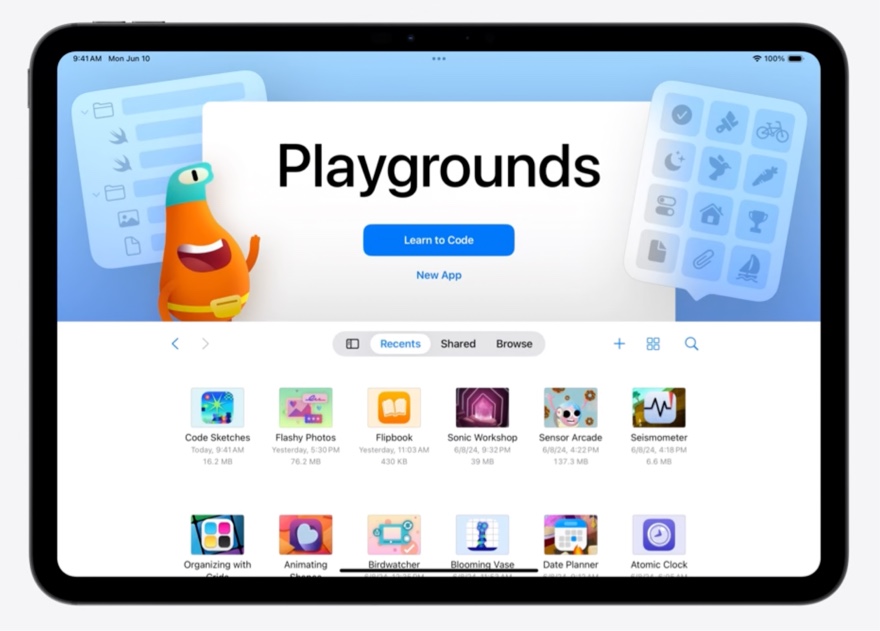
Document launch experience
The launch experience for document-based apps has been redesigned
Get full control over the launch view’s design
To learn more, watch Evolve your document launch experience
Tabs and sidebars
on iPadOS, tab bars have visual updates and have more customization features
The new compact look reduces empty space
Combined tab bar and sidebar experience
See new
UITabBarControllerAPIs
The sidebar and tab bar can be personalized by the user using drag and drop
See new
UITabandUITabGroupAPIs
Native experience on both Mac Catalyst and visionOS
Fluid transitions
On iOS 18, there is a new zoom transition
It works with navigation and presentations
The transition is fully reversible and interruptible
SwiftUI interoperability
Animations
You can now use SwiftUI animations to animate UIKit views
UIView.animate(.spring(duration: 0.5)) { ... }Includes SwiftUI custom animations
Can be used to animate views with gestures
To do this, animate both when the gesture changes and when it ends
switch gesture.state {
case .changed:
    UIView.animate(.interactiveSpring) { ... }
case .ended:
    UIView.animate(.spring) { ... }
}
Gesture recognizers
The gesture systems have been unified across SwiftUI and UIKit
Support for coordination between gestures across both frameworks
Refer to SwiftUI gestures in UIKit
Specify a name when setting up your SwiftUI gesture
SomeView()
    .gesture(doubleTap, name: "SwiftUIDoubleTap")
In UIKit, check the name associated with a
UIGestureRecognizerThis can, for example, be used to set up failure cases for SwiftUI animations in UIKit
Add UIKit gesture recognizers to SwiftUI
Adopt new protocol:
UIGestureRecognizerRepresentableSee What’s new in SwiftUI for adoption advice
Enhancements
Automatic trait tracking
It’s now easier to use traits and handle changes
View and view controller update methods now track which traits are used
When any of the used traits change value, UIKit automatically performs an associated invalidation
For example, if
layoutSubviews()implementation accesseshorizontalSizeClasstrait, there is no need to callsetNeedsLayoutmanually – it will be called by the automatic trait tracking system for you
List improvements
Updating cells is now easier
All views in
UICollectionViews andUITableViews now have theUITraitCollection.listEnvironmenttrait set.Use the trait to style your cells
With this, you don’t need to know the style of the list at the time of configuration of a cell
Update link
Similar to
CADisplayLink, but has more features, like view tracking, as well as the ability to use low latency mode and better performance
let updateLink = UIUpdateLink(
    view: view,
    actionTarget: self,
    selector: #selector(update)
)
Activates automatically when the associated view is added to a visible window, and invalidates when removed
Symbol animations
SF Symbols and UIKit have 3 new animation presets:
.wiggle,.breathe,.rotate
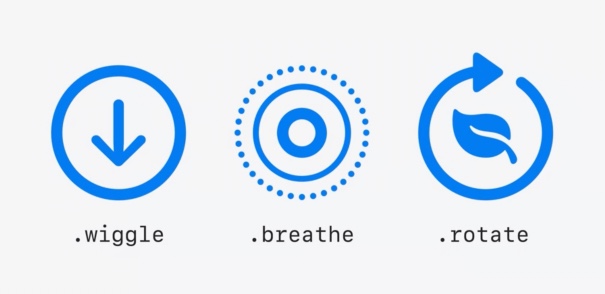
New periodic behavior allows to repeat animations a set number of times, or continuously
.replacenow seamlessly animates badges and slashes using Magic replace, and automatically falls back to existing behavior if neededWatch What’s new in SF Symbols 6 and Animate symbols in your app
Sensory feedback
Sensory feedback is supported on iPad with Apple Pencil Pro and Magic Keyboard
UIFeedbackGeneratorsupports these interactionsNew:
UICanvasFeedbackGenerator, which is perfect for drawing and canvases
You should now pass the location within the view where the feedback has occurred
Provide the context to
UICanvasFeedbackGeneratorusing thealignmentOccurred(at:)method
Text improvements
New formatting panel
UITextViews that support rich text automatically support the new panel via a new Edit menu actionSet
allowsEditingTextAttributestotrue
Developers can customize the formatting panel and disable features
Text highlighting is supported by default by
UITextViewsubclasses that support rich textControlled by attributed string attributes (
.textHighlightand.textHighlightColorScheme)
Writing Tools
Text views get the new Writing Tools UI by default
There are new APIs to customize the behavior
Menu actions
With iOS 18, menu actions are more useful for iPhone only apps
UICommand,UIKeyCommand, andUIActioncan be invoked by the system for automation
Apple Pencil
PKToolPickernow lets you define the available toolsNew APIs for building custom tools into the tool picker
