
Key Takeaways
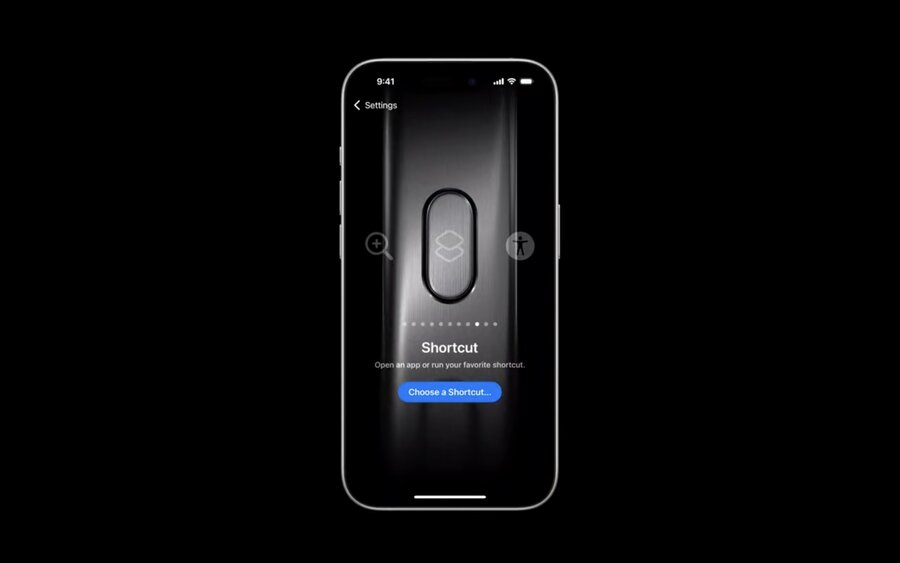
🕵️ Create app intents to expose your app to spotlight, widgets, controls, Siri, Shortcuts and the action button
🎛️ Use parameters for flexibility
✍️ Strive for readability
🔦 Offer toggles
👀 Open the app where appropriate
What should be an app intent?
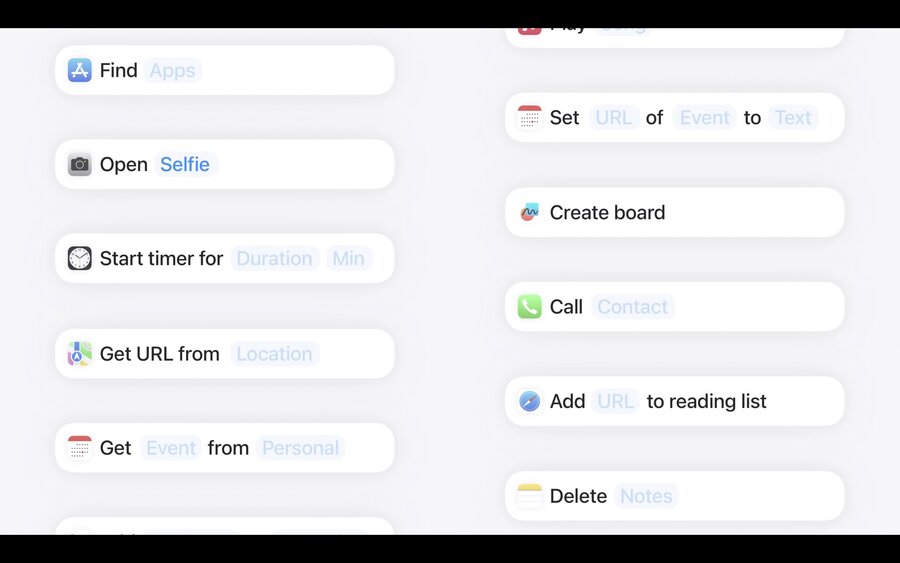
Where previously Apple recommended creating an app intent for each “habitual action” of an app, this guideline has broadened in iOS 18 to recommend that “anything your app does should be an app intent.”
When designing app intents, use these verbs as a starting point:
Get
Edit
Create
Delete
Open
Avoid creating multiple app intents that do similar things. Combine similar functionality into a single, flexible app intent and use a parameter to differentiate behaviour.
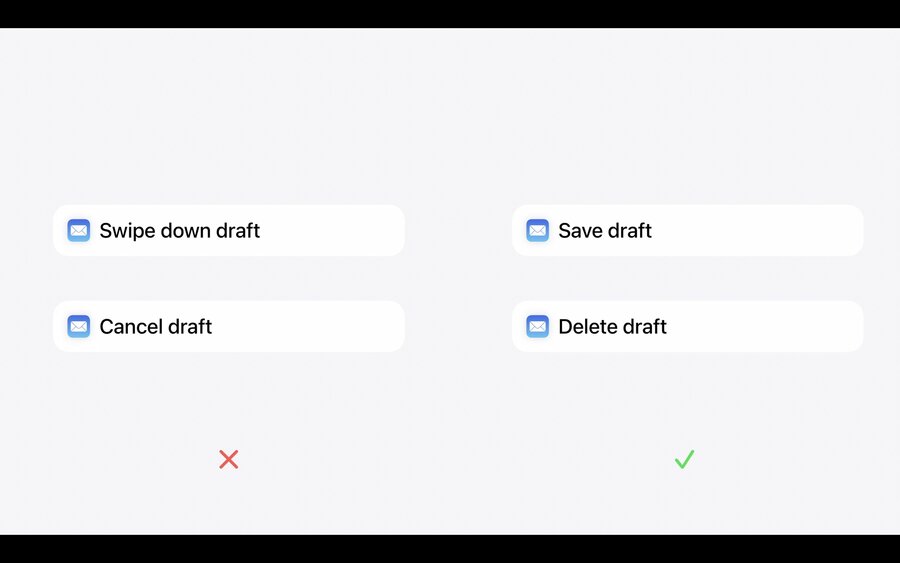
Avoid app intents that simply perform a UI action e.g. “Swipe down” or “Cancel”. Instead, perform the underlying action e.g. “Delete draft”.
Create app intents for audio playback, recording and live activities so that these tasks can be triggered from the background without further interaction.
Structuring app intents
Parameter types
Keep app intent parameter summaries readable by carefully choosing a verb and naming parameter options to fit with their verb as a sentence.
Parameters can be built-in parameters (numbers, text, dates, …), custom static parameters aka app enums (e.g. tabs of the app) or dynamic parameter aka app entities that update over time (e.g. notes folders).
Optional/required parameters
Prefer optional parameters over required parameters. Optional parameters allow the app intent to perform a useful, default behaviour even if the user doesn’t provide the parameter.
If your parameter is required, write a concise, clear follow-up question for the user to provide it.
Toggles
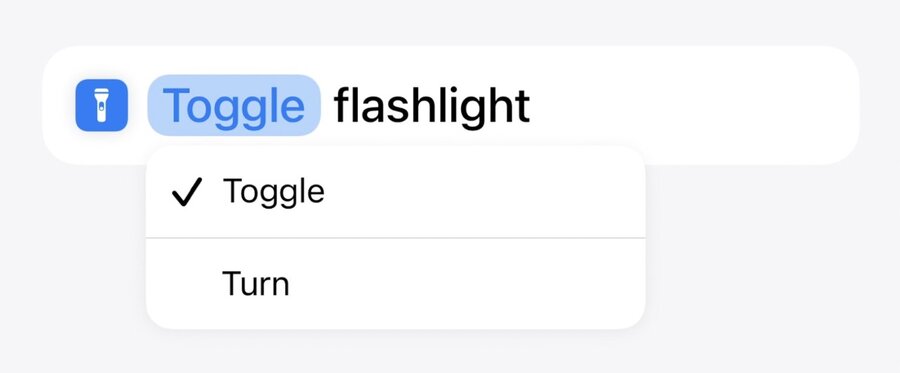
If your app intent allows switching between two states (e.g. Flashlight can either be “on” or “off”), always provide “Toggle” as the default parameter so that the user can easily switch between states without using a parameter.
Open Intents
In iOS 18, Apple no longer discourages bringing an app to the foreground as part of an app intent. Apple now recommends foregrounding an app to show the effect of an app intent (e.g. “Create new Freeform board”) or to navigate to a view in your app (e.g. “Open Stopwatch”).
The toggle “Open When Run” of an action allows users to opt-out of this behaviour, if they want to perform multiple actions per shortcut.
For more information on how to create App Intents check out the session: doc:WWDC22-10032-Dive-into-App-Intents.

