
New macOS Features
Writing Tools
Apps get the features automatically, but can customize behavior using new APIs
Genmoji
Genmoji are images, so some adoption may be needed
Image Playground
Instantiate
ImagePlaygroundViewControllerand assign its delegateCan customize the behavior by specifying initial
conceptsandsourceImageUsers can still choose different images and concepts as part of the experience
Get the generated image from the app’s sandboxed temporary directory
Consider adding Image Playground as an image source
Window Tiling
Makes it very fast to move windows into some common arrangements
Holding
Optionwhile dragging shows a preview of the window immediatelyAvailable in the Window > Move & Resize menu, and accessible using keyboard shortcuts
Can resize windows at the same time while they are side by side
Can select pre-built window arrangements from the Window menu
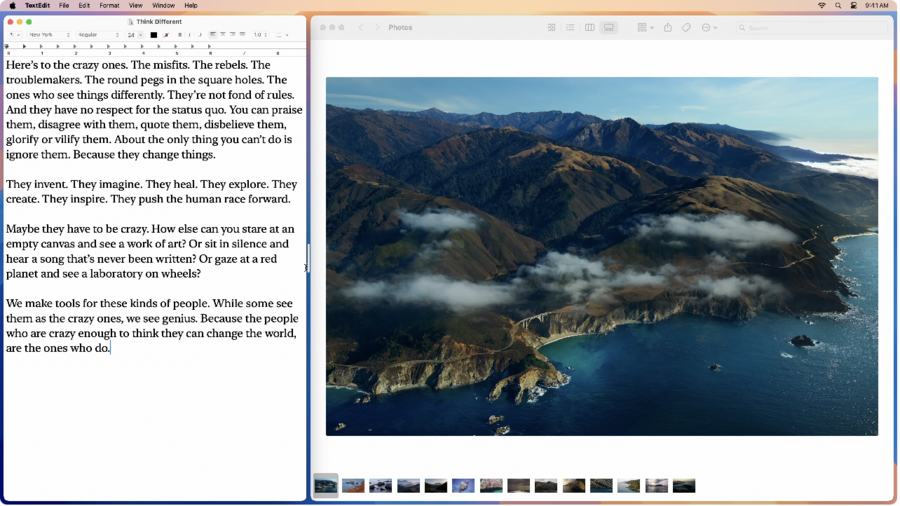
Making apps work best with Window Tiling
Consider your window’s minimum and maximum sizes
Use the
resizeIncrementspropertyWhen opening windows, consider the new
cascadingReferenceFrameThis gets you an existing window’s untiled frame
Cascade newly-opened windows relative to that frame
More SwiftUI integrations
Build menus with SwiftUI
New
NSMenusubclass:NSHostingMenuCreate the menu definition using SwiftUI, then instantiate
NSHostingMenuusing the SwiftUI viewUse in any AppKit context accepting
NSMenu
SwiftUI animations
You can now use SwiftUI animations to animate AppKit views
Use
NSAnimationContext, passing in the SwiftUI animation typeInterruptible by default
For more info, watch Enhance your UI animations and transitions
API refinements
Context menus
Use keyboard to open any context menus
Control-Returnby defaultCustomize where the menu appears by implementing
NSViewContentSelectionInfoprotocol
Text and SF Symbols
Text highlighting
Text highlighting is supported by default by
NSTextViewsubclasses that support rich textControlled by attributed string attributes (
.textHighlightand.textHighlightColorScheme)
SF Symbols 6
New effects:
wiggle,rotate,breatheRepeating animations
Dynamically replace the symbols badge and slash
Check out What’s new in SF Symbols 6 and Animate symbols in your app
Saving documents
Standard file format picker for
NSSavePanelSet
showsContentTypesproperty onNSSavePanelto trueTo provide custom display names for formats, implement a new delegate method
Customizable toolbars
Cursors
System cursors are now available in SDK
Access resize cursors using
frameResize(position:directions:)Use
zoomInandzoomOutto indicate magnificationPrefer using standard system cursors
System cursors automatically support accessibility sizes and colors
NSToolbar
Use
allowsDisplayModeCustomizationto let the user customize display modes of your toolbars, even if they are not customizableMake sure that your toolbar has an identifier
Check that all your toolbar items have good labels
Conditionally show and hide items using the new
isHiddenpropertyUseful for situationally meaningful changes
Hidden items still appear in the customization panel
Text entry suggestions
Works on any
NSTextFieldGet started by setting
suggestionsDelegateproperty onNSTextFieldCan provide results synchronously or asynchronously
Design tips
Ensure suggestions are responsive
Preserve muscle memory by making results predictable
Keep it simple
Next steps
Adopt new macOS features, like Intelligence and Window Tiling
Improve SwiftUI integration by using menus and animations
Explore new APIs and consider adopting
