
Recap
When app in “Full Space”, you can use ARKit to get “anchors”
Anchor is a position and orientation in 3D space, such as
PlaneAnchorAnchors provided through data providers, such as
PlaneDetectionProviderProviders are run in an
ARKitSession
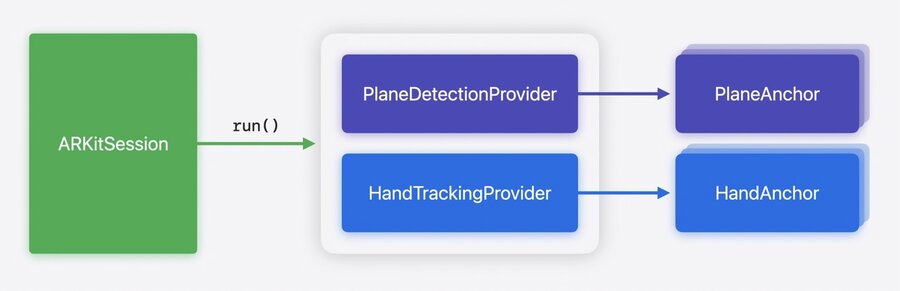
Learn more at least year’s session Meet ARKit for spatial computing.
Room tracking
ARKit detects the boundaries of the room:
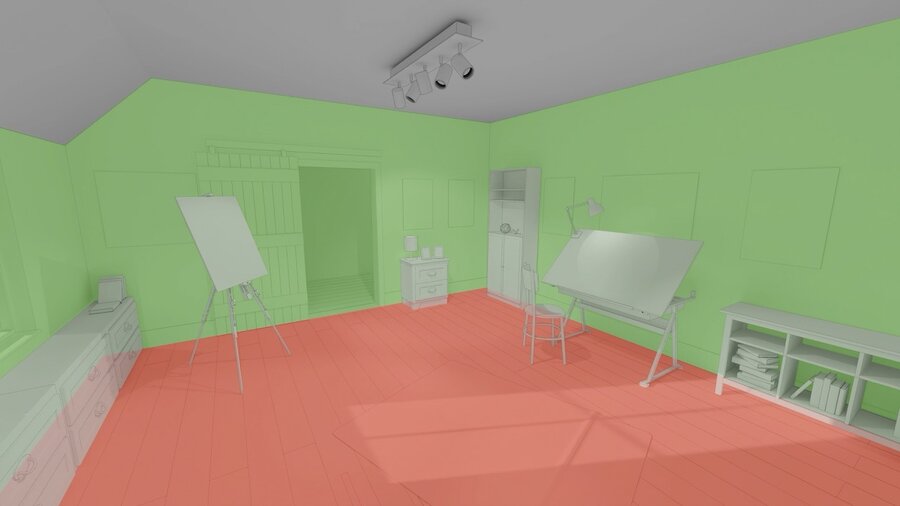
It also recognizes transitions between rooms (when walking throught the door). Apps can provide different experiences per room.
Use the new RoomTrackingDataProvider which requires world sensing authorization. The available properties are currentRoomAnchor and anchorUpdates to get a stream of RoomAnchor changes.
A RoomAnchor has the properties isCurrentRoom, geometry/geometries(of classification:), contains(_ point:), planeAnchorIDs and meshAnchorIDs.
Plane detection
ARKit detects planes and surfaces as PlaneAnchors.
These are useful for placing virtual content around surfaces (like a board game on a table) or walls (like virtual posters on the wall).
The detected surface types are:
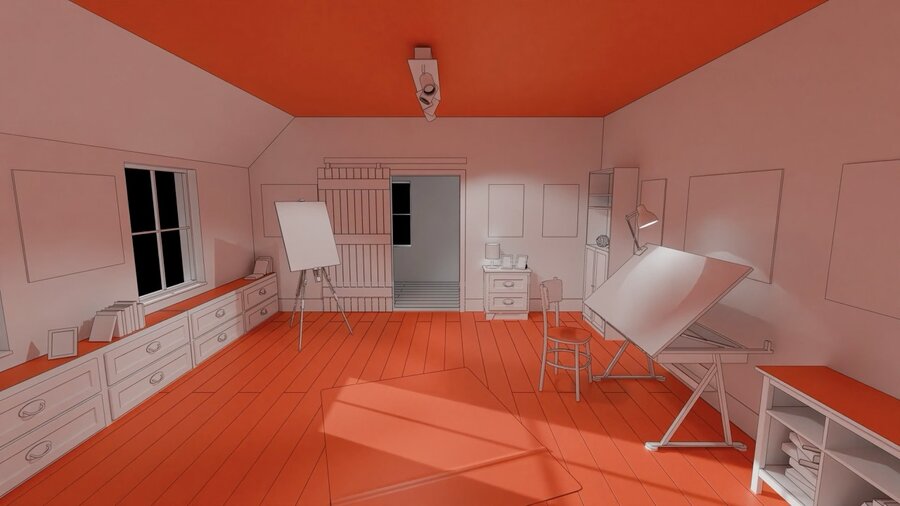
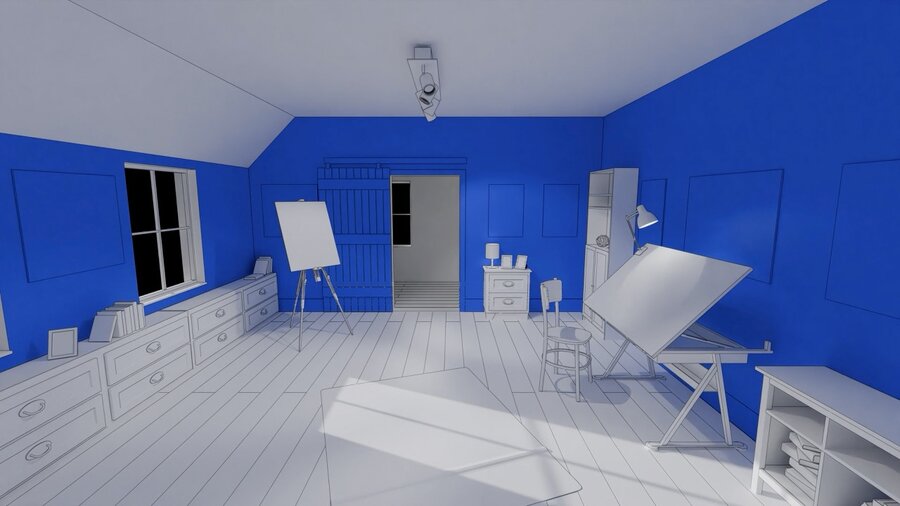

To get the new slanted (angled) plane anchors, include .slanted in the alignments parameters like so:
let planeDetection = PlaneDetectionProvider(alignments: [.horizontal, .vertical, .slanted])Object tracking
ARKit can now give you the position and orientation of objects in your environment to anchor virtual content to them.
A USDZ-formatted 3D object needs to be converted to a reference object using Create ML which then gets passed to ARKit to detect the objects you want. Learn more in the session Explore object tracking for visionOS.
Once this is done, you can pass the reference object to ARKit like this:
Task {
    do {
        let url = URL(fileURLWithPath: "/path/to/globe.referenceobject")
        let referenceObject = try await ReferenceObject(from: url)
        let objectTracking = ObjectTrackingProvider(referenceObjects: [referenceObject])
    } catch {
        // Handle reference object loading error.
    }
    ...
}
You’ll receive detected objects as ObjectAnchor instances which have a boundingBox property of type AxesAlignedBoundingBox containing the coordinates.
World tracking
The sensors of the device detect world conditions such as low lighting and provides warnings about limited capabilities. Now, apps can hook into these world conditions via the new worldTrackingLimitations SwiftUI Environment value like so:
struct WellPreparedView: View {
    @Environment(\.worldTrackingLimitations) var worldTrackingLimitations

    var body: some View {
        ...

        .onChange(of: worldTrackingLimitations) {
            if worldTrackingLimitations.contains(.translation) {
                // Rearrange content when anchored positions are unavailable.
            }
        }
    }
}
In ARKit, the DeviceAnchor now holds a trackingState property.
Hand tracking
New this year: The HandAnchor now updates with a higher rate.
Because there’s still some delay, ARKit will now try to predict future hand anchor positions and provide them in real-time, which is also available in RealityKit.
There’s a new trackableAnchorTime propertly on the LayerRenderer which you can use to get ARKit to provide forward prediction like so:
func submitFrame(_ frame: LayerRenderer.Frame) {
    ...

    guard let drawable = frame.queryDrawable() else { return }

    // Get the trackable anchor time to target.
    let trackableAnchorTime = drawable.frameTiming.trackableAnchorTime

    // Convert the timestamp into units of seconds.
    let anchorPredictionTime = LayerRenderer.Clock.Instant.epoch
      .duration(to: trackableAnchorTime).timeInterval

    // Predict hand anchors for the time that provides best content registration.
    let (leftHand, rightHand) = handTracking.handAnchors(at: anchorPredictionTime)

    ...
}This is a low-latency prediction, so it may be somewhat inaccurate.
To learn more about rendering with compositor services, watch Render Metal with passthrough in visionOS and Meet ARKit for spatial computing.
In RealityKit, pass the new predicted tracking mode instead of the slower but more accurate continuuous mode to an AnchorEntity for a lower-latency prediction.
A detailed RalityKit example is provided in Build a spatial drawing app with RealityKit.
