
Introduction
Container views like
Listuse a trailing closure to wrap their content.@ViewBuilderallows content to be defined both statically and dynamically.Some containers have additional features, like grouping content into sectinos.
Container-specific modifiers can be defined to cusotmize content, such as
.listRowSeparator(.hidden).
Composition
Composition means you can define different kind of views inside and it still works. Such as explicit Text views and a ForEach loop creating them together in one body.
To do that, use a single @ViewBuilder var content: Content property in your custom views and (if in a module) create a public initializer that takes a @ViewBuilder argument.
Use the new ForEach(subviewOf:) initializer to wrap subviews of the content into your custom UI wrappers, such as cards:
@Viewbuilder var content: Content

var body: some View {
   DisplayBoardCardLayout {
      ForEach(subviewOf: content) { subview in
         CardView { subview }
      }
   }
}
It’s important to understand the difference between Declared subviews and Resolved subviews:
Declared subviews: What you define as direct subviews in a content closure.
Resolved subviews: The resulting subviews when SwiftUI rendered the contents.
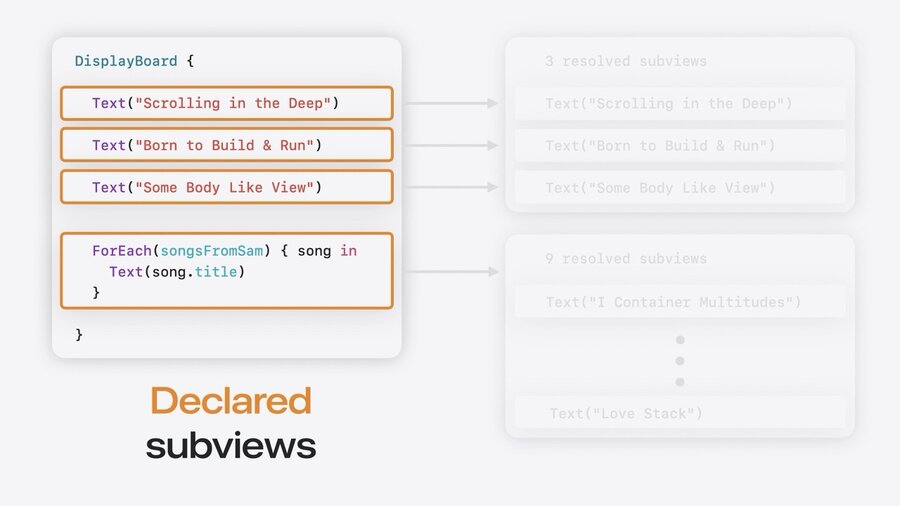
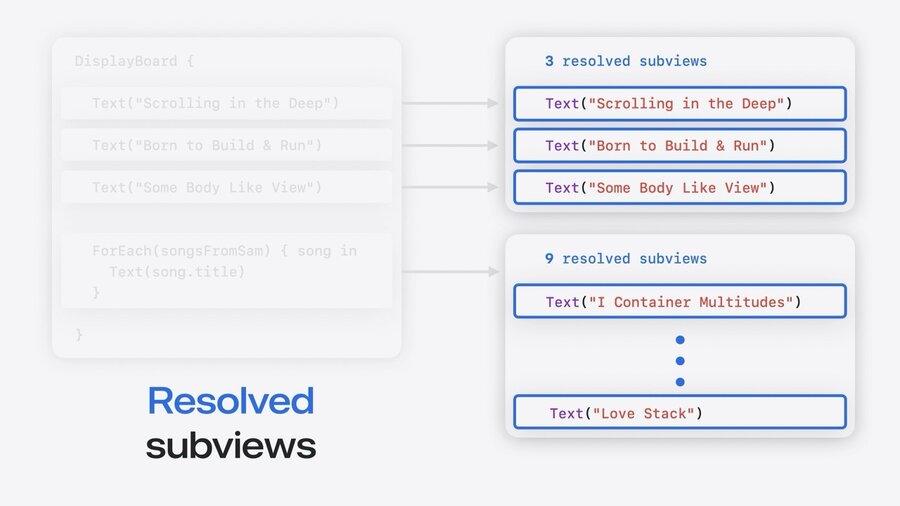
The purpose of some declared views like ForEach or Group is to produce a collection of resolved subviews. It’s even possible to produce zero resolved subviews, which EmptyView does.
Conditions like if in SwiftUI views can influence the number of resolved subviews based on which branch is entered.
To apply different modifiers based on the number of subviews, you can use Group(subviewsOf:) like this:
@Viewbuilder var content: Content

var body: some View {
   DisplayBoardCardLayout {
      Group(subviewsOf: content) { subviews in
         ForEach(subviews) { subview in
            CardView(scale: subviews.count > 15 ? .small : .normal) { subview }
         }
      }
   }
}
The main difference to ForEach(subviewsOf:) is that it passes the entire collection of subviews rather than each subview separately. This allows to do logic based on knowledge about the entire collection, such as resizing contents of your collection to fit in all elements properly.
Sections
Sections behave like groups, but with extra metadata title header or footer text. Custom containers don’t support sections by default. You need to call ForEach(sectionOf:) explicitly to add support with your own styling around each section:
@Viewbuilder var content: Content

var body: some View {
   ForEach(sectionOf: content) { section in
      DisplayBoardSectionContent { section.content }
   }
}
The section has properties named header and footer which you can call isEmpty on to check if a header or footer is present to show it.
@Viewbuilder var content: Content

var body: some View {
   ForEach(sectionOf: content) { section in
      VStack(spacing: 20) {
         if !section.header.isEmpty {
            DisplayBoardSectionHeaderCard { section.header }
         }

         DisplayBoardSectionContent { section.content }
      }
   }
}
The resulting custom container could render a list of cards with sections like this:
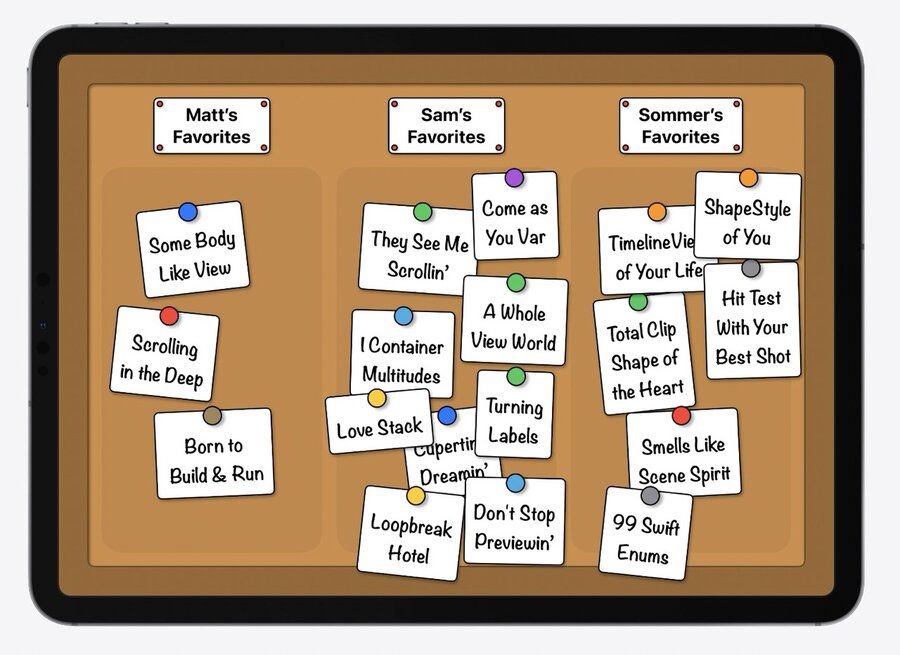
Customization
To create a modifier like .listRowSeparator(.hidden) for customization, you need to create container-specific modifiers, called Container values.
Container values
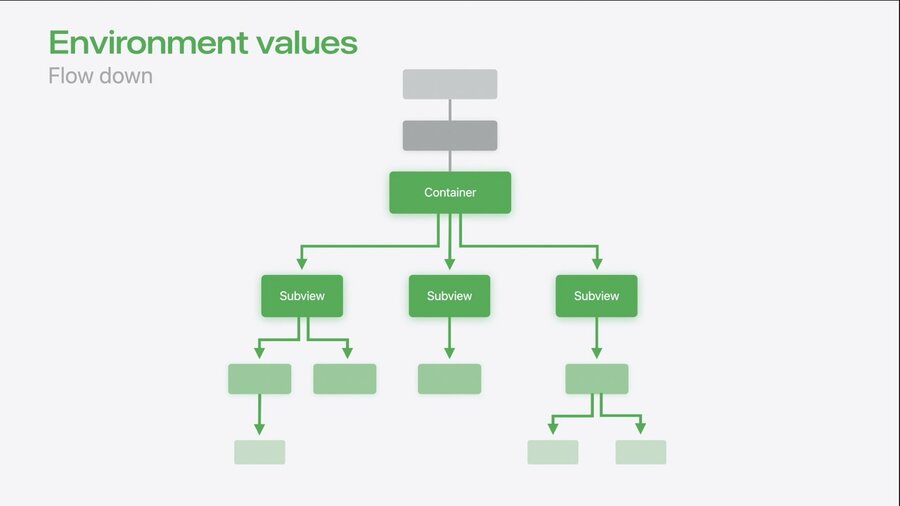
A new kind of keyed storage similar to environments or preference values. But it’s neither passed down the view hierarchy like environment values, nor passed up like preference values. Container values stay within the container.
In other words, one could say that container values are like preference values, but the values are only passed up one level to the next direct container in the view hierarchy.
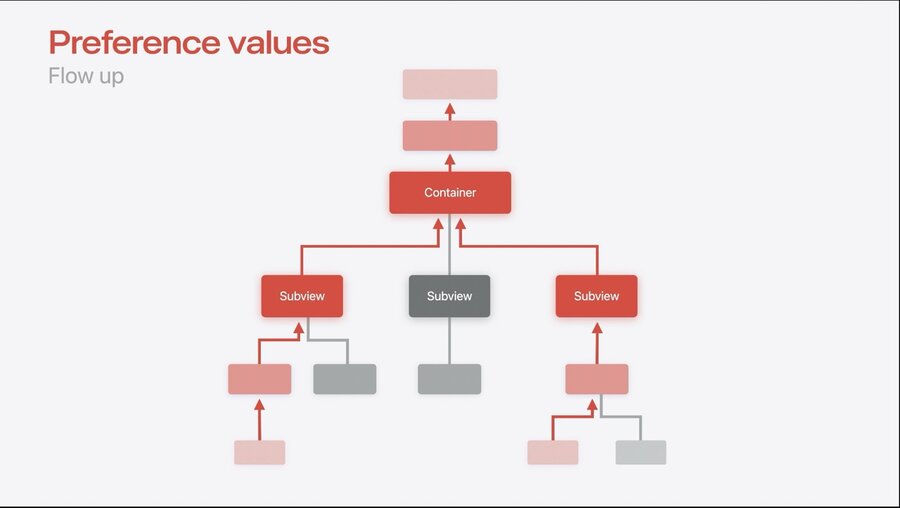
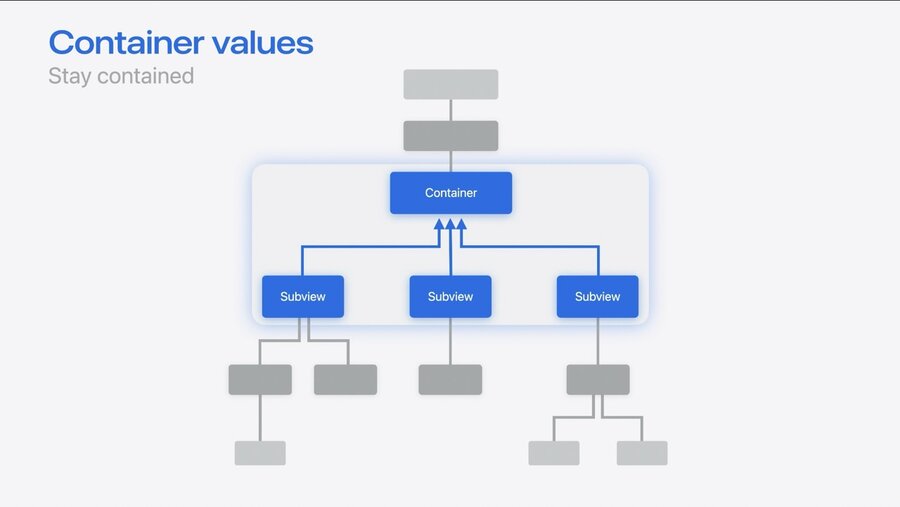
Defining a new container value is done in two steps:
First, you define an @Entry property in a ContainerValues extension like this:
extension ContainerValues {
   @Entry var isDisplayBoardCardRejected: Bool = false
}
Second, you define a function in a View extension where you access containerValue like this:
extension View {
   func displayBoardCardRejected(_ isRejected: Bool) -> some View {
      containerValue(\.isDisplayBoardCardRejected, isRejected)
   }
}
Now you can call the new containerValues property on section or subview passed to a ForEach and adjust your custom views with the new field like so:
@Viewbuilder var content: Content

var body: some View {
   DisplayBoardCardLayout {
      Group(subviewsOf: content) { subviews in
         ForEach(subviews) { subview in
            CardView(
               scale: subviews.count > 15 ? .small : .normal,
               isRejected: subview.containerValues.isDisplayBoardCardRejected  // <== this is new
            ) { subview }
         }
      }
   }
}
Now you can call your custom modifier on some of your subviews to apply custom styles, like for crossing off songs from the card board in this image:
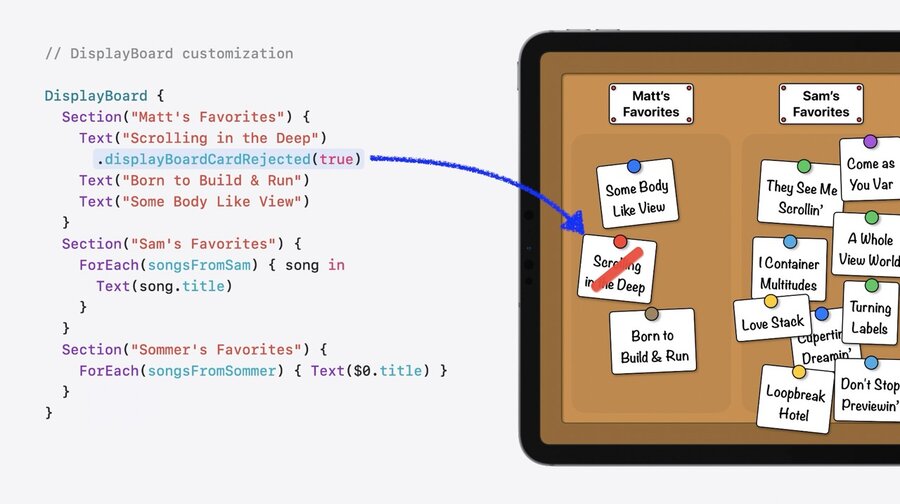
Calling the modifier on a section sets the modifier on all views within the section.
