
Prerequisites
What’s new in SF Symbols 4 from WWDC2022 explains variable color in SF Symbols, automatic choice of rendering mode and more.
Kodeco also offers a fairly recent tutorial, SF Symbols 3 for iOS: What’s New, to get you started working with SF Symbols including the SF Symbols app while building a London Transport-themed sample app.
What’s New? Animation!
A quick look back:
2021: three new rendering modes beyond monochrome:
Hierarchical
Palettes
Multicolor
2022: variable color, used to communicate
Different strength levels, or
A sequence over time
By default, symbols animate by layer. You can optionally animate a whole symbol.
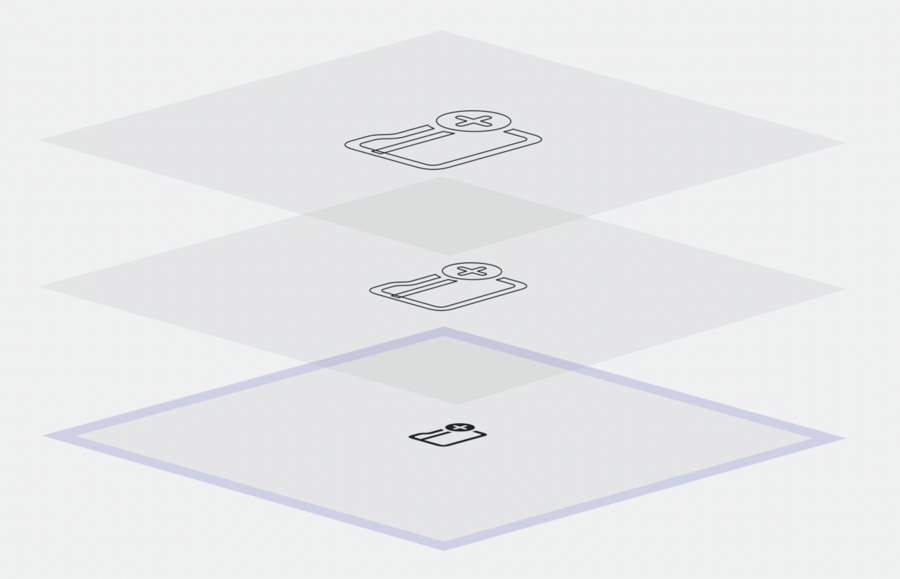
Symbols animate conceptually through front, back and middle planes, with the ability to move up (appear bigger), down (appear smaller, like a more distant object) or even disappear entirely.
Configurable Animation Presets
Appear: use when a symbol appears in the interface.
Disappear: use when a symbol is removed from the interface.
Bounce: confirm a successful interaction or completed action, reinforce a concept, add playfulness.
Scale: confirm an action or highlight importance, provide focus or feedback. Scale is stateful, meaning its effect persists until it is removed.
Pulse: convey ongoing activity by changing opacity. Works well with a single layer in a symbol.
Variable Color: Conveys varying levels of strength and relies on color to communicate a state of a symbol changing over time.
Cumulative: Highlights the layers one after the other while keeping its previous state - a great way of representing the Wi-Fi symbol enabling a wireless connection.
Iterative: Highlights the layers in a sequence, but one at a time, which is an effective way of representing the Wi-Fi symbol searching for available networks.
Reversing: Makes the highlighted layers reverse to its original point, immediately starting the sequence once again, until the action is interrupted.
Replace: One symbol is swapped with another. Used to communicate changes in the state of a symbol, indicating a shift in functionality.
Down/Up: The initial symbol is scaled down, replaced with the new symbol, and then scaled up.
Up/Up: The initial symbol is scaled up, it disappears, and the new symbol appears scaling up.
All these new presets can serve as a communication tool between a person and the interface and have a crucial role in enhancing the user experience, but it’s important to work on achieving the right balance between attention-grabbing animations and a functional interface, so that the experience doesn’t result in something overwhelming. So always aim to prioritize functionality and keep your intended goal in mind.
Animating Your Own Symbols
Symbols are vector drawings.
Draw paths as completely enclosed paths.
Use erase layers for better animation.
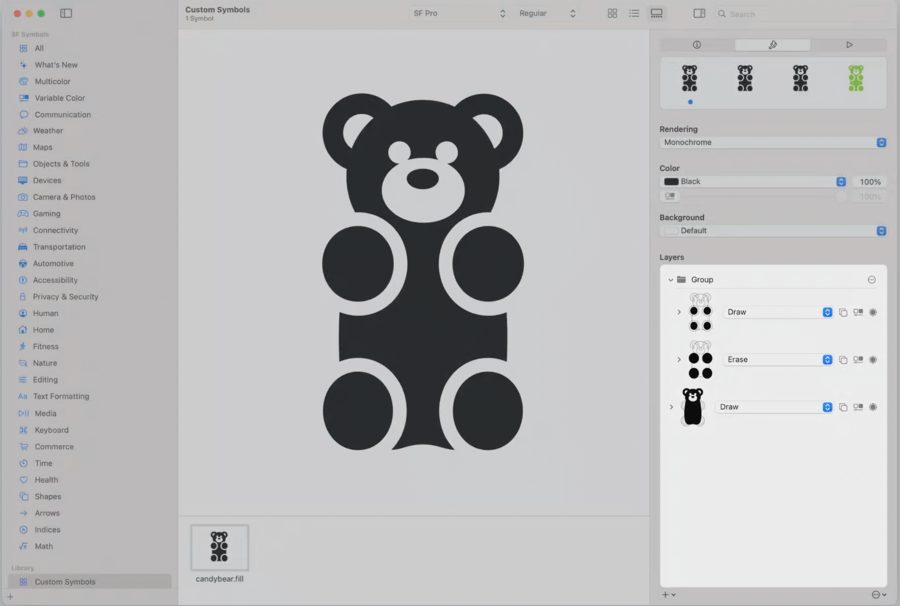
Bring your custom symbol into the SF Symbols app to set Draw and Erase layers. This is also where you can set layer colors for multicolor animations.
See more in the session “Create animated symbols”.
New Symbols
NEW: Over 700 new symbols (now over 5000 unique symbols available).
NEW: Expanding of the Automotive category with symbols like steering wheels, car seats, and seated figures.
NEW: Expanding of the Gaming category, with arcade consoles, arcade sticks, and different types of buttons.
NEW: New symbols representing the different types of EV plugs.
NEW: New weather symbols like moonrise, moonset and rainbow.
NEW: A new an improved SF Symbols app is available at https://developer.apple.com/sf-symbols.
Further Resources
See Apple’s developer site for a more professional summary of SF Symbols 5.
There are two related sessions coming in WWDC2023:
You’ll want to download the latest (beta at the time of this writing) SF Symbols app.
You may also want to check out one of the many third-party SF Symbol tools. One fun new one currently in TestFlight beta is Symbolsaurus, which lists which apps on your device use a particular symbol so you can see it in context.

