
Chapters
0:00 - Welcome
1:21 - Overview
2:55 - Principles
4:40 - Your app
5:23 - Optimized for Assistive Access
Overview
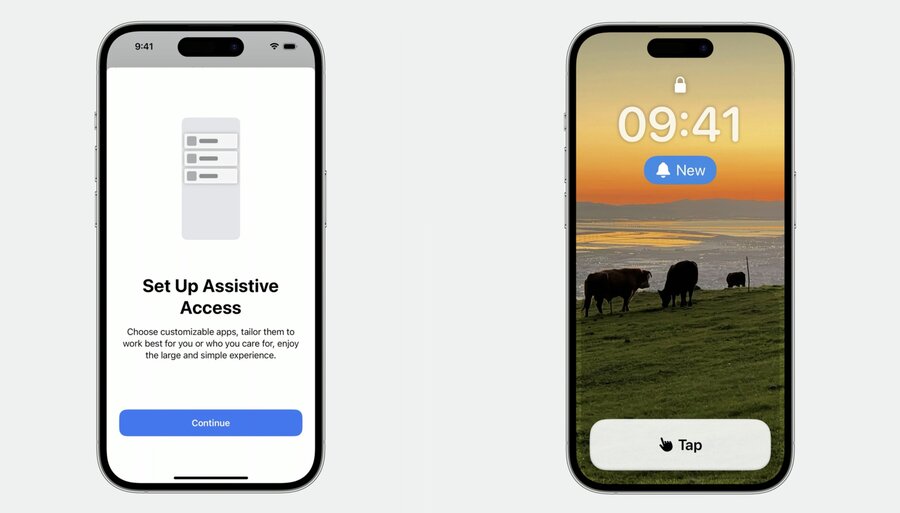
Setup
Customizable interface
Easy-to-add preferred apps
Assistive Access can be turned on in the Settings app. It helps parents or guardians to configure the device to the person that is going to use it.
Lock Screen
Customizable wallpapers
Quick look at notifications
Once entering into Assistive Access, the system displays a new lock screen with the capability to change its wallpaper in settings and an interface to inform people of notifications.
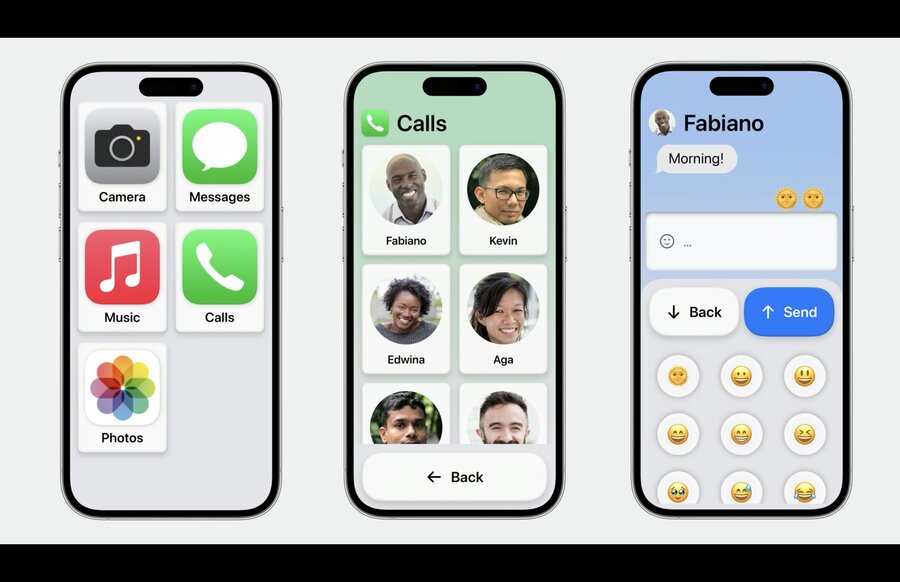
Home screen
Large Icons
Large text
Apps
Calls
Messages
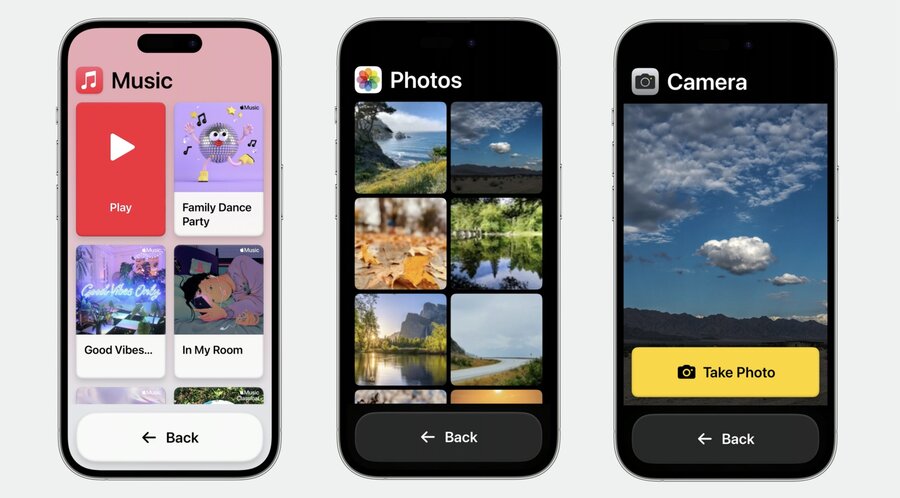
Music
Camera
Photos
The Home screen is now displaying larger app icons and larger text, and apps adopting it, displays larger content.
Principles of Assistive Access
Streamlined task completion
Error prevention and recovery
Consistency
Streamlined task completion
People should be able to complete a task without distractions. Assistive Access reduces the available options, so people can find and navigate to their items of interest. Fewer steps and fewer options can help provide a clear path to success in completing a task.
Error prevention and recovery
Recognizing and recovering from errors can be difficult. When people encounter significant actions, such as deleting a file, they should be given clear instructions and given the opportunity to understand what is happening before continuing. This also includes reducing actions that are time-dependent and make it easy to go back at any time.
Consistency
Creating familiar interactions and patterns is crucial to Assistive Access. It establishes a sense of predictability and comfort, while also engaging in a multi-modal experience, like seeing both text and images. This helps reduce cognitive strain, makes the interface familiar, and increases the chance the interface will be understood.
Your app
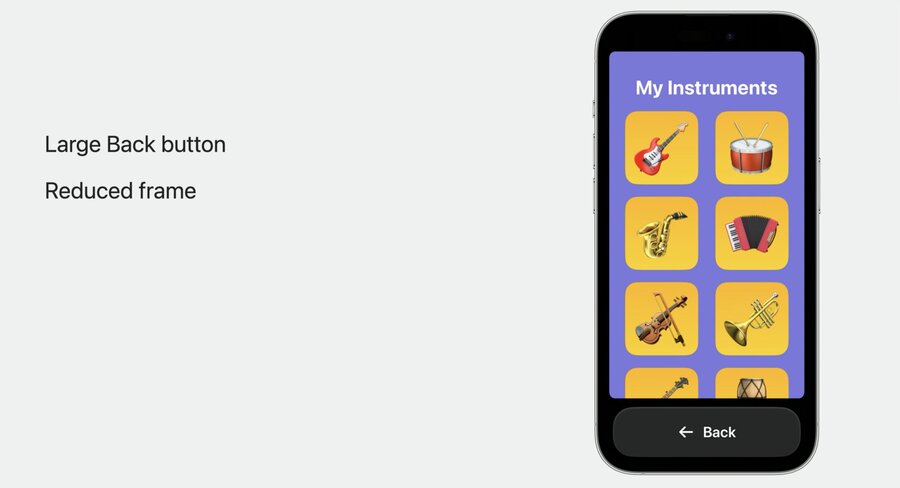
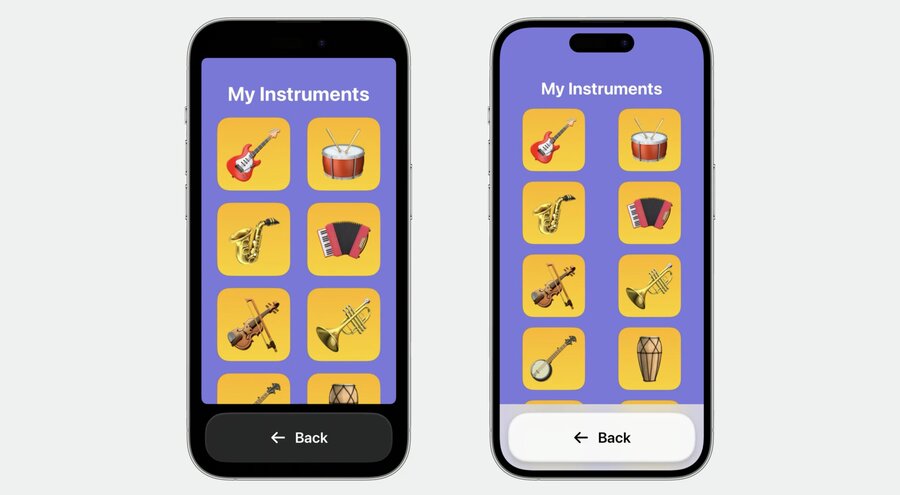
When opening an app with Assistive Access a large “Back” button is added to the bottom of the screen. The button takes the user back to the Home screen.
The app is displayed in a reduced frame by default.
Optimized for Assistive Access
If your app is adaptive to varying devices and screen sizes add the new UISupportsFullScreenInAssistiveAccess key to your app’s Info.plist and set its value to Yes.
Great apps on iPhone and iPad are designed to have a consistent layout that adapts regardless of your user’s device. This means that your app does not hard code layout based on the device or screen size.
SwiftUI
In SwiftUI use the HStack, VStack, Grid and GridRow views to arrange views, and the layout modifiers .alignmentGuide and .safeAreaInset.
See more in the session:
Compose custom layouts with SwiftUI - WWDC22
UIKit
In UIKit use AutoLayout and the safeAreaInsets and safeAreaLayoutGuide properties to position and adjust views.
See more in the session “UIKit: Apps for Every Size and Shape” from WWDC18.
Resources
Have a question? Ask with tag wwdc2023-10032
Search the forums for tag wwdc2023-10032
UISupportsFullScreenInAssistiveAccess
Check out also
Compose custom layouts with SwiftUI - WWDC22
UIKit: Apps for Every Size and Shape - WWDC18

