
While spatial computing experiences are often built with stunning visual features and a variety of hand inputs, that doesn’t mean that vision or physical movement are required to engage with them. In fact, these experiences have the potential to be incredibly impactful to people who are blind or low vision, have limited mobility, or limb differences.
visionOS has the biggest list of accessibility features ever included in a first generation of a product.
Some of the most popular assistive technologies have been reimagined for spatial computing.
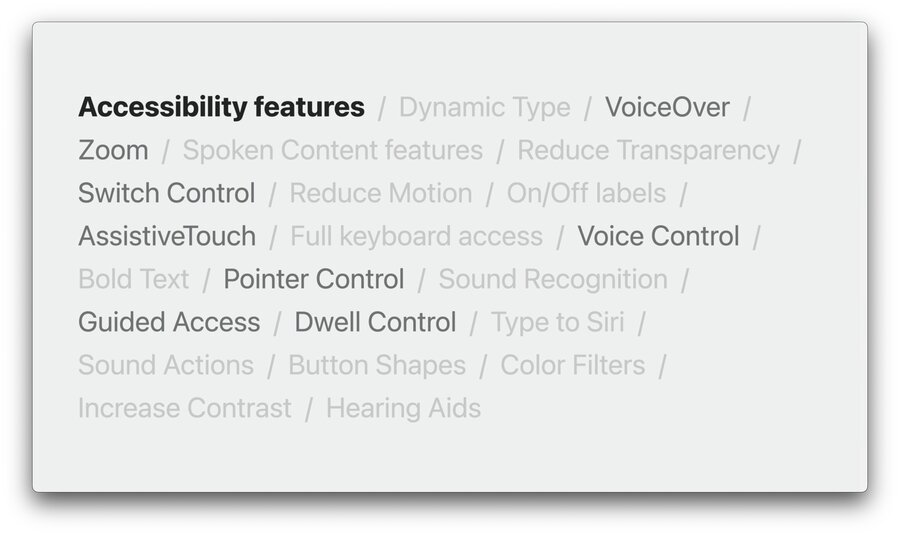
Vision accessibility
Support people who are blind or low vision
VoiceOver support
VoiceOver is the built-in screen reader on all Apple platforms. It has also been included in visionOS.
Can be added to the Accessibility Shortcut in
Settings > Accessibility > Accessibility Shortcut
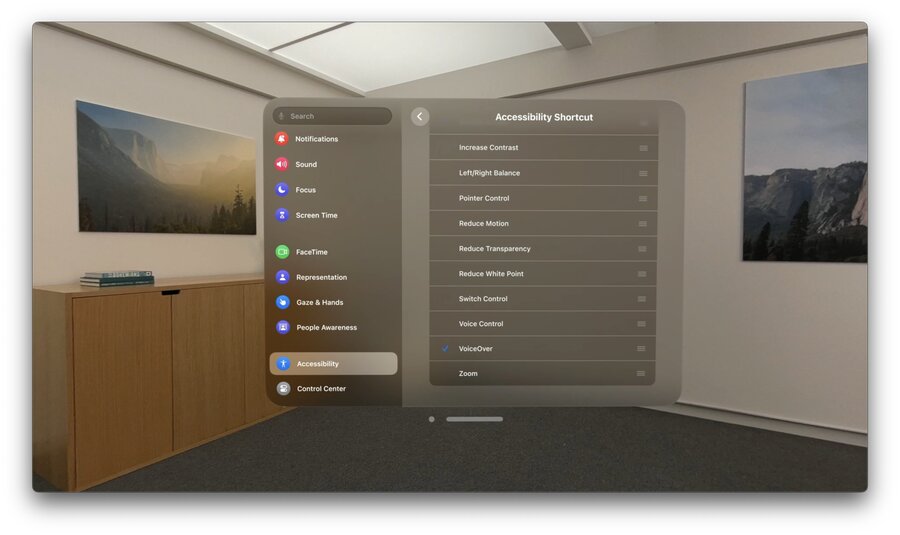
Triple-press on the Digital Crown will turn on or off VoiceOver
Use different finger pinches on different hands to perform different actions
Pinching your right index finger or right middle finger shifts focus to the next or previous item
To activate an item, pinch your right ring finger or left index finger
SwiftUI can be used to build visionOS apps[^1]
It’s best to use standard controls
Adopt accessibility modifiers
NEW Accessibility component in RealityKit allows to configure accessibility properties on RealityKit entities
Label, value, traits[^2]
Custom rotors, custom actions, custom content[^3]
System actions
// RealityKit AccessibilityComponent API

var accessibilityComponent = AccessibilityComponent()
accessibilityComponent.isAccessibilityElement = true
accessibilityComponent.traits = [.button, .playsSound]
accessibilityComponent.label = "Cloud"
accessibilityComponent.value = "Grumpy"
cloud.components[AccessibilityComponent.self] = accessibilityComponent
Whenever the app state changes, update the relevant property on the accessibility component
var isHappy: Bool {
  didSet {
    cloudEntities[id].accessibilityValue = isHappy ? "Happy" : "Grumpy"
  }
}
Warning In spatial experiences, it’s critical to provide information about what items are available and where they are located
VoiceOver uses Spatial Audio to provide cues as to where objects are located
When VoiceOver is enabled, it does not receive hand input by default
NEW Direct Gesture Mode
App receives hand input
VoiceOver does not process its own gestures
People can choose to run your app in Direct Gesture Mode or Voice Overs default interaction mode
Post announcements that describe the scene
Announce meaningful events
Announce changes in context
Use sounds
Visual design[^4]
Support Dynamic Type
Alternate layouts at largest accessibility text sizes
4:1 contrast ratio between foreground and background color
Head anchors
Use them sparingly
Zoom accessibility feature is head anchored
Avoid critical information in head-anchored UI
NEW Provide alternatives
// SwiftUI
@Environment(\.accessibilityPrefersHeadAnchorAlternative)
private var accessibilityPrefersHeadAnchorAlternative

// UIKit
AXPrefersHeadAnchorAlternative()
NSNotification.Name.AXPrefersHeadAnchorAlternativeDidChange
Motion
Even when motion effects are used subtlety, it can be a jarring experience for some people to wear a headset. Avoid:
Rapid movement
Bouncing/wave-like movement
Zooming animations
Multi-axis movement
Spinning/rotation effects
Persistent background effects
Provide alternatives when Reduce Motion is enabled
// SwiftuI
@Environment(\.accessibilityReduceMotion)
private var accessibilityReduceMotion

// UIKit
UlAccessibility.isReduceMotionEnabled
UlAccessibility. reduceMotionStatusDidChangeNotification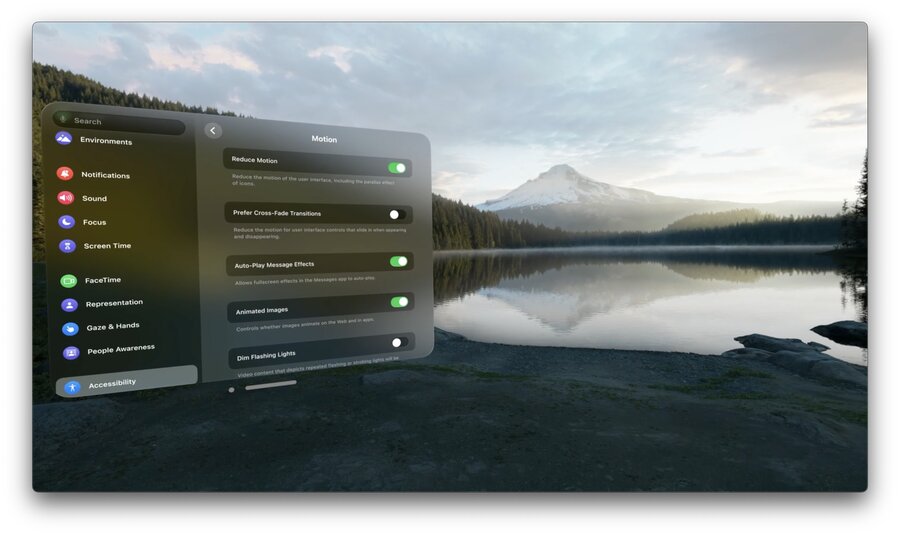
If you can’t find a good replacement for the motion in your app, try using a crossfade.
Motor
Dwell Control
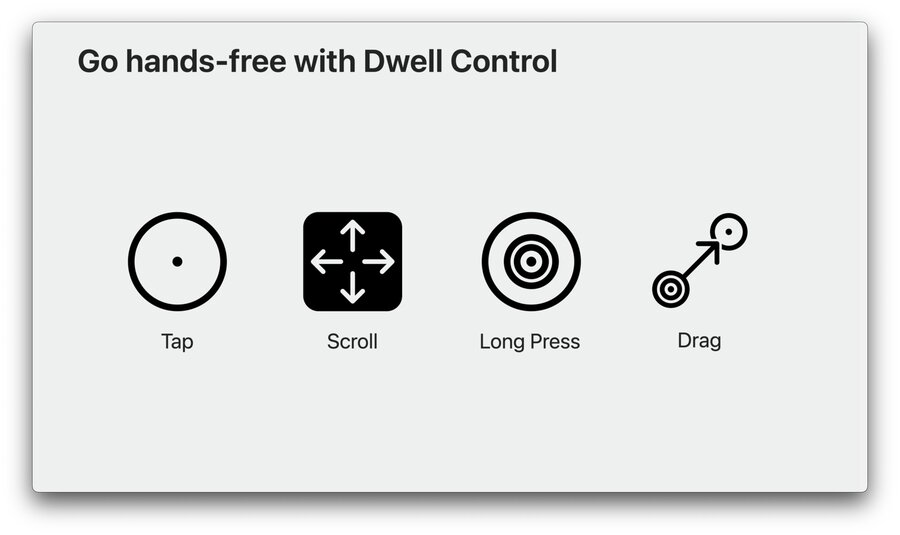
Allows people to select and interact with the UI without using their hands. Dwell Control provides support for gestures such as:
Tap
Scroll
Long press
Drag
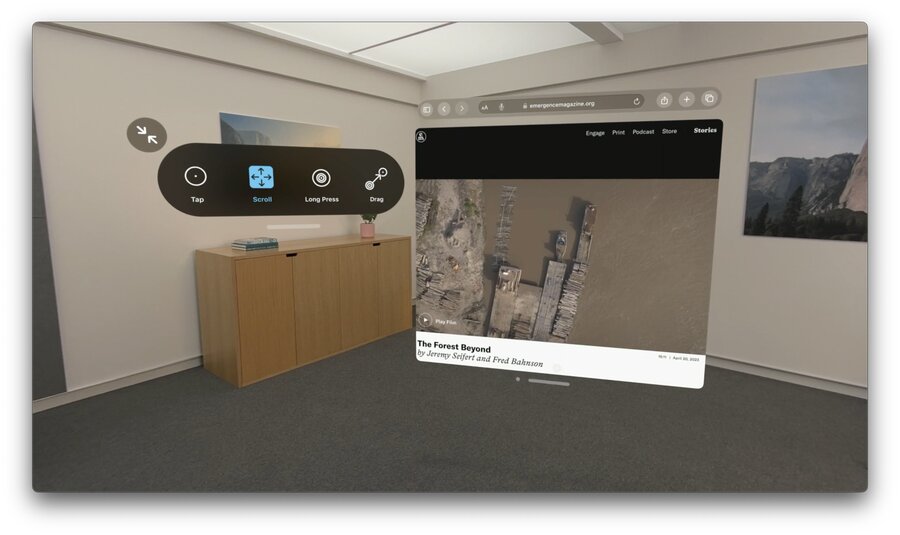
Note Plan and design for your app to support different inputs. This is the best way to ensure you don’t accidentally exclude people
Pointer Control
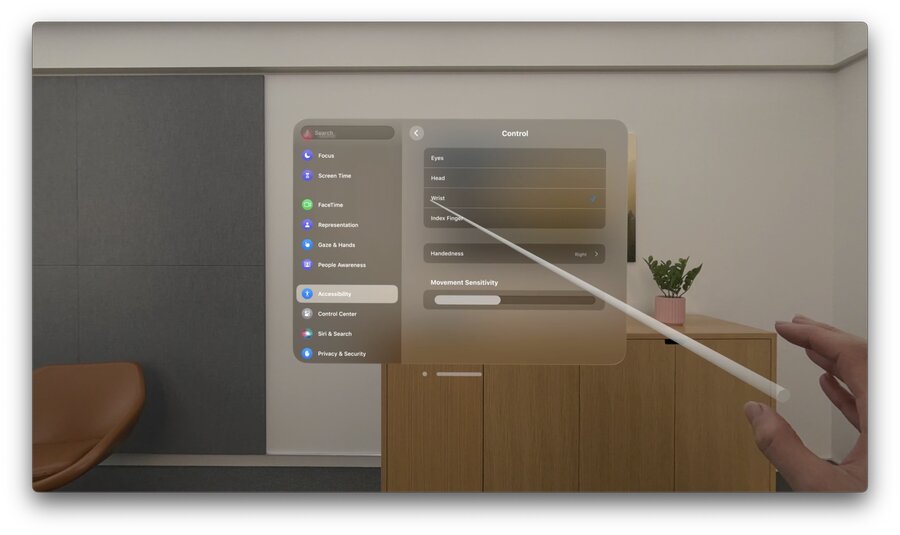
Lets people control the system focus with different input sources instead of using their eyes. People can change the system focus to be driven by:
Head position
Wrist position
Index finger
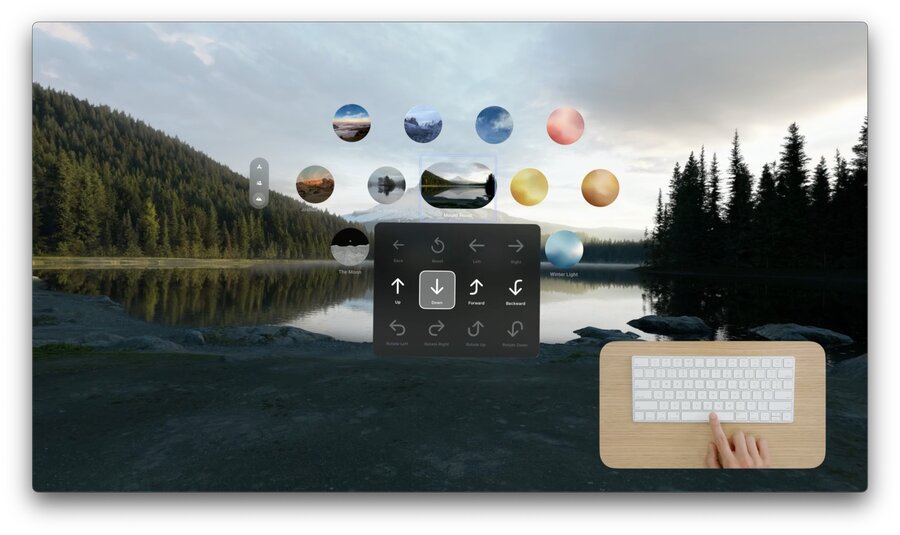
Switch Control
Menu options for adjusting the camera’s position in world space
Let people skip experiences that require movement
Cognitive
Cognitive accessibility can support people with disabilities that affect their learning, memory, and processing abilities
Guided Access[^5]
Restricts people to a single app
Backgrounds other apps
Removes ornamental UI
Suppresses hardware buttons
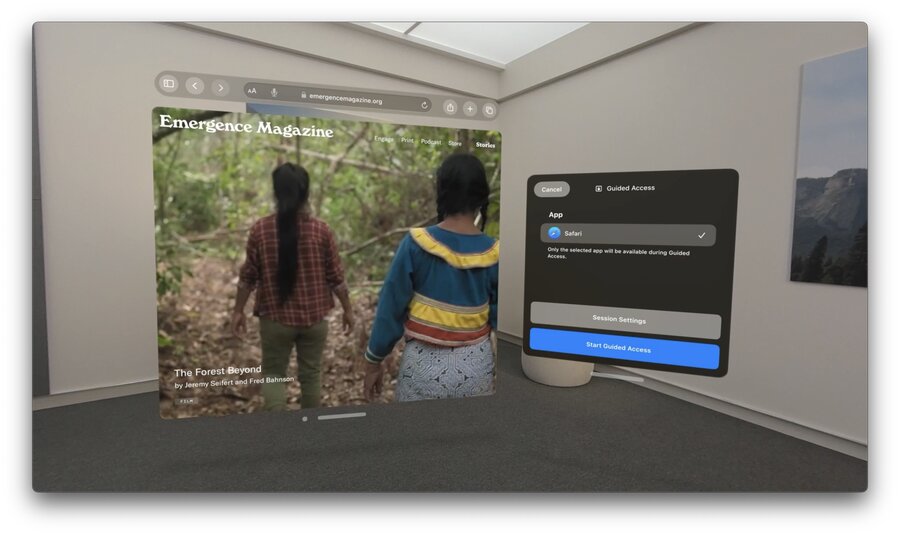
Note Immersive content can promote focus and attention, which is a fantastic way to create a comfortable environment for someone with sensory processing disorders
Hearing
Quality captions are one of the most impactful things you can do for people with hearing loss or auditory processing disorders
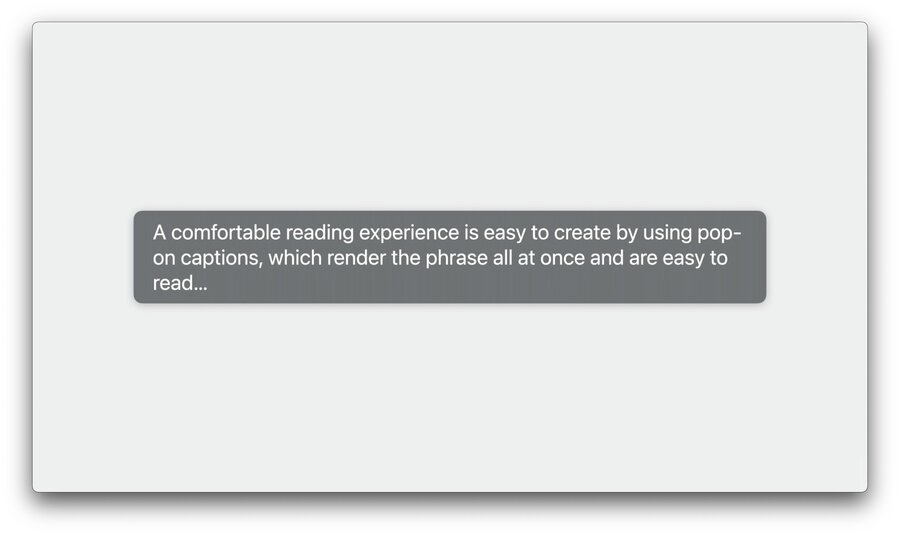
Captions can be changed in many ways
Using these options, people can make their captions easy to see and read
If you are not using AVFoundation, implement:
isClosedCaptioningEnabledto check whether someone already has Closed Captions enabled in Accessibility settings.Media Accessibility framework to access each style attribute
Captions should represent all audio content, including music and sound effects
Visually indicate audio source if directionality is important to your experience
[^1]: Learn more about accessibility in SwiftUI: - Accessibility in SwiftUI - WWDC19 - SwiftUI Accessibility: Beyond the basics - WWDC21
[^2]: Labels and values are stored as LocalizedStringResources
[^3]: Learn more about actions, rotors and custom content:
- Making Apps More Accessible With Custom Actions - WWDC19
- VoiceOver efficiency with custom rotors - WWDC20
- Tailor the VoiceOver experience in your data-rich apps - WWDC21
[^4]: Learn more about visual accessibility:
- Make your app visually accessible - WWDC20
[^5]: Learn more about guided access:
- Create accessible Single App Mode experiences - WWDC22
