
“As with every Apple platform, the best way to build an app is with SwiftUI”
SwiftUI in the Shared Space
Most system applications on visionOS are written with SwiftUI
First, add
visionOSas a new platform in “Supported Destinations”Moving the cursor in the visionOS simulator replaces eye-tracking
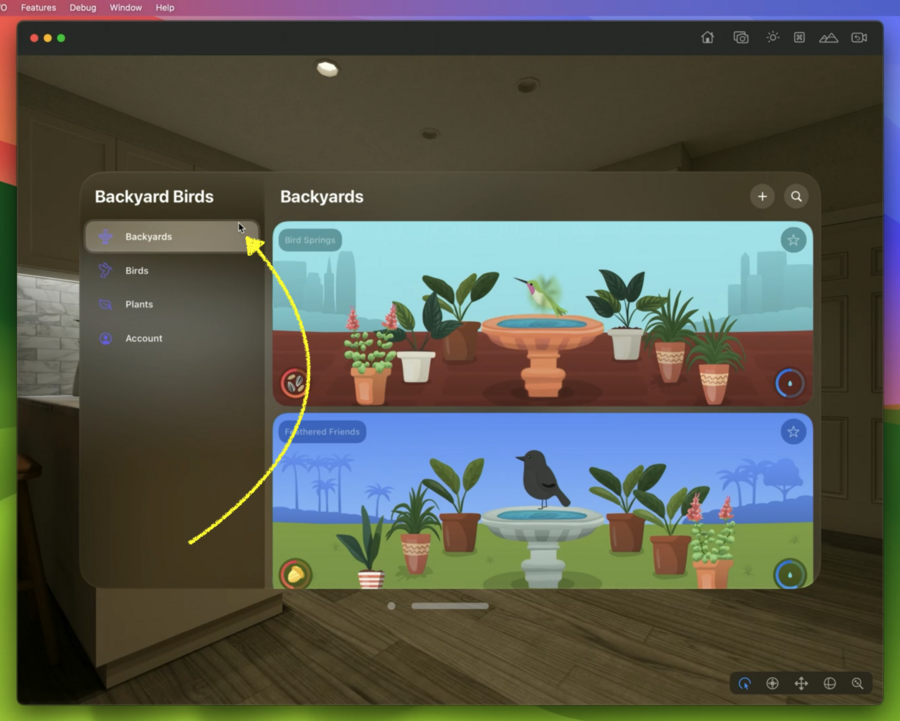
Glass is the standard background provided to windows by default
No distinction between light and dark appearances (glass takes care of both)
A lot of things work out of the box when your app is written in SwiftUI
Polishing your app
Apps can be positioned everywhere, so there’s no specific number of pixels – visionOS scales content dynamically
Prefer vectors over bitmaps to allow them to scale to any size
Make sure to check “Preserve Vector Data” in Asset catalog for vector PDF files
Solid colors have a fixed contrast against glass and can’t adjust to surroundings, so avoid them, adopt vibrancy instead
4 semantic styles for
.foregroundStylemodifier:.primary,.secondary,.teriarty,.quaternayFor color fills, use semantic
Color.fill.tertiaryfor example, instead ofColor.gray4 ways of interaction: Eyes, Hands, Pointer, Accessibility – most common is pinch gesture
When close enough, you can simply directly touch a UI element in space
Hover effects are crucial to make app feel responsive and give users confidence in interactions
Standard controls have them automatically, but double-check custom views
Add
.hoverEffect()which by default brightens views and is rectangularProvide
contentShape(.hoverEffect, .rect(cornerRadius: 16))to change the shape of the hoverBut consider simply wrapping custom views into a
ButtonofbuttonStyle(.plain)Hover effects were built for privacy – they are “the only way to make your app react to where people are looking”
App is only told about “tap” or “hover” action, nothing else
Brand new concepts
iPad encourages sidebars, on visionOS consider a TabView (on the left) to switch between top-level views instead
Toolbar ornaments should be commonly used, simple to add:
.toolbar { ToolBarItem(placement: .bottomOrnament) { ... } }
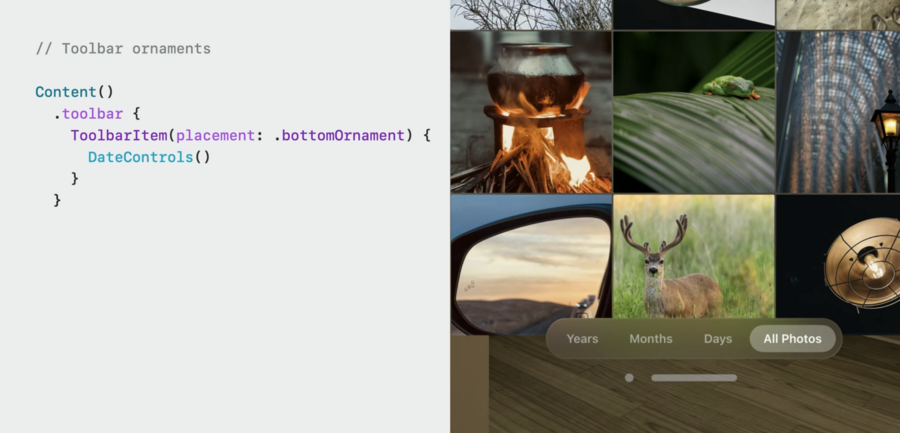
Toolbar ornaments provide a glass capsule background automatically
Custom ornaments can be provided via
.ornament(attachmentAnchor: .scene(alignment: .bottom), contentAlignment: .center)SwiftUI does not give custom ornaments a glass background by default, to opt-in, use:
.glassBackgroundEffect(in: .capsule)
