
Live Activities are a great way to display glanceable information to someone about an ongoing activity. ActivityKit enables your app to start, update, and end Live Activities. Then, by utilizing WidgetKit and SwiftUI, you can build the UI that displays the information to the user. Check out Meet ActivityKit session to learn more about these technologies. Live Activities can now be updated with push notifications, providing real-time updates without significantly impacting battery life.
Preparation for push updates
To start updating Live Activities with push notifications, the interaction between the app, server, and Apple Push Notification service (APNs) must be understood. When a new Live Activity begins, ActivityKit obtains a unique push token from APNs, which the app must send to the server to enable push updates.
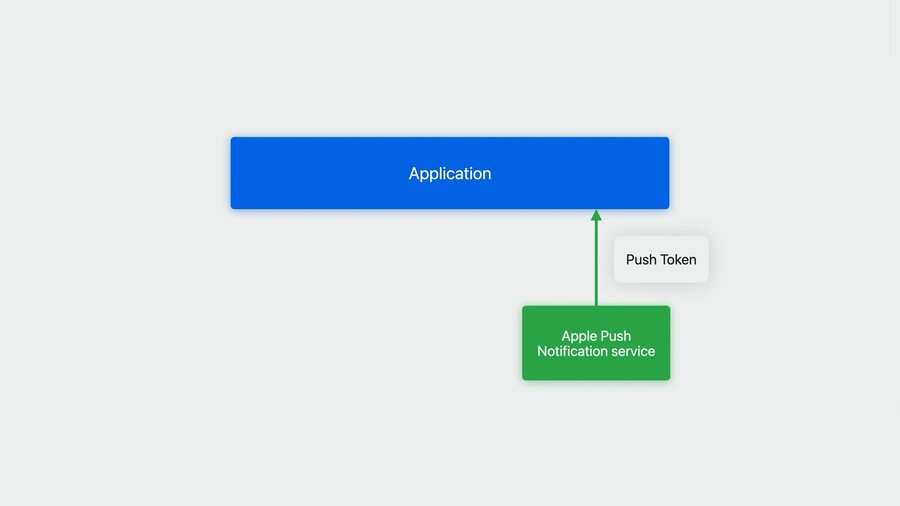
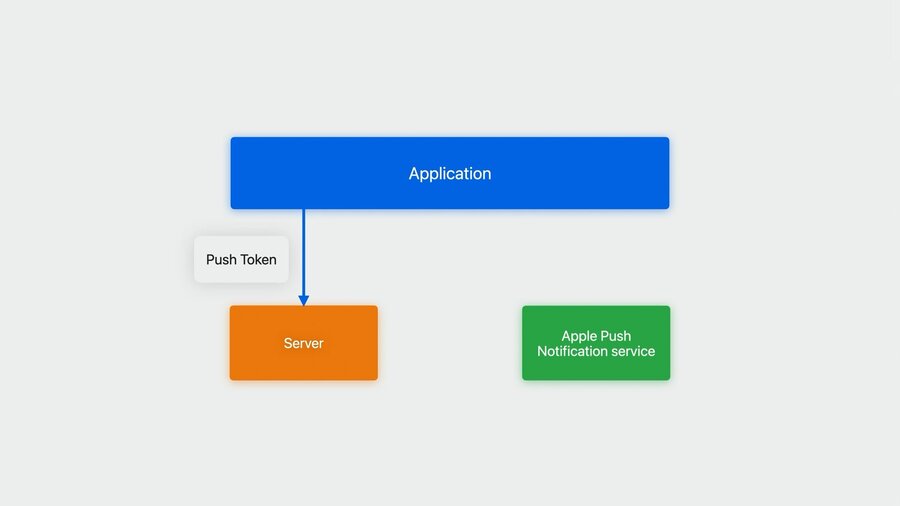
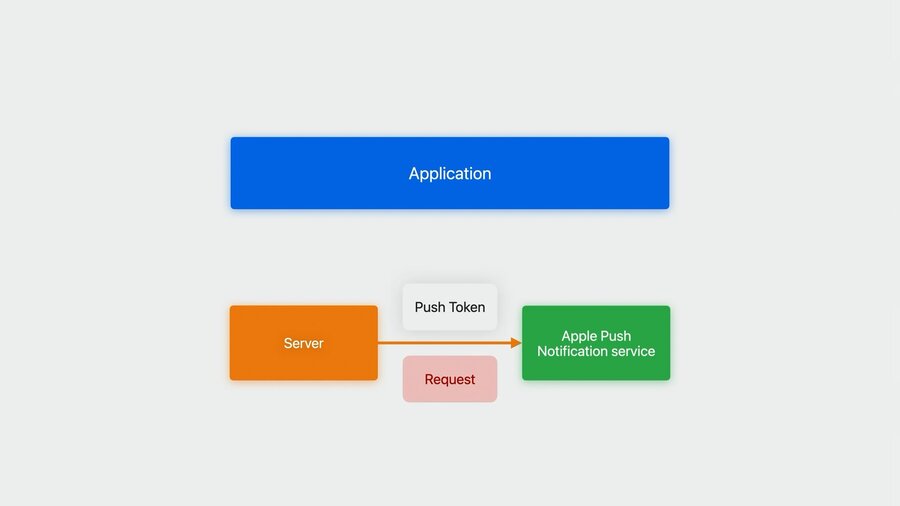
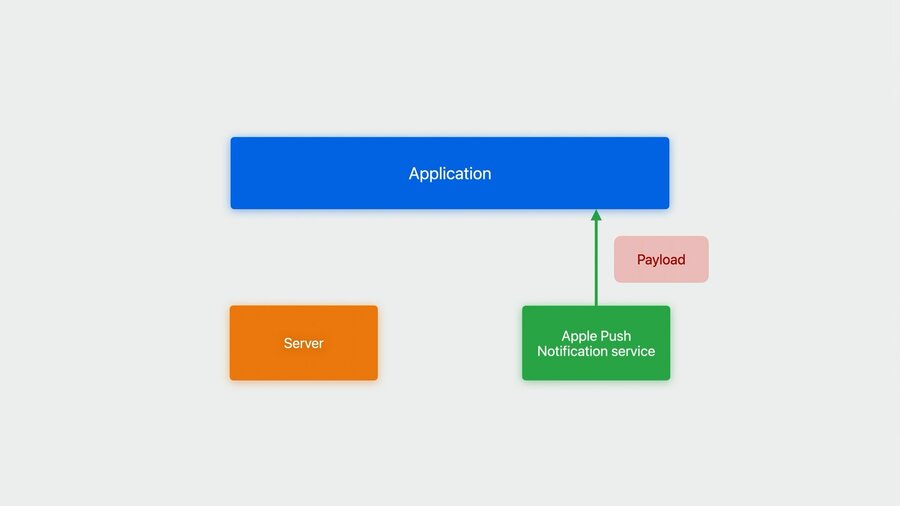
APNs connection
New APNs
liveactivitypush typeToken-based connection only
Learn more in the Sending notification requests to APNs and Establishing a token-based connection to APNs documentation
Configure an app
Under the “Signing & Capabilities” tab, add the push notifications capability. This will allow ActivityKit to request push tokens on the app’s behalf.
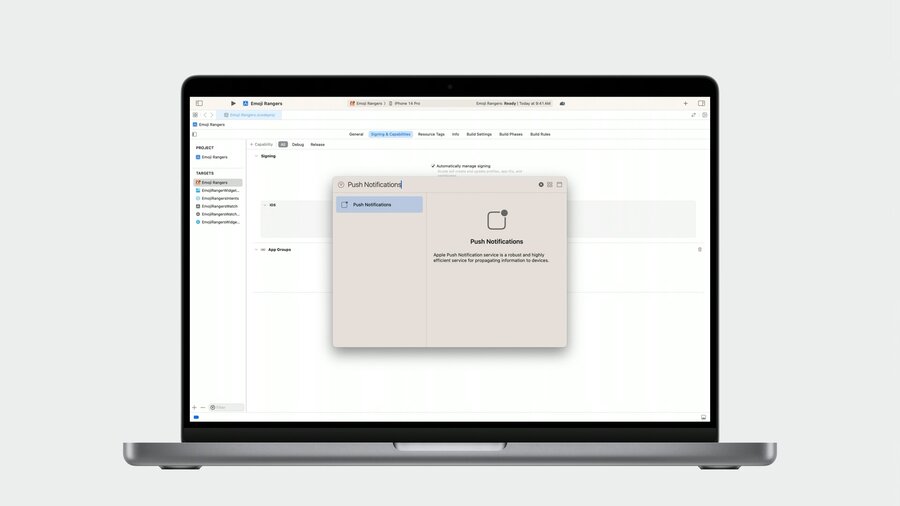
Handle push tokens
To support receiving push updates, add the pushType parameter to the method and set its value to token. This will let ActivityKit know to request a push token for the Live Activity upon its creation.
// Handling push tokens

func startActivity(hero: EmojiRanger) throws {
  let adventure = AdventureAttributes(hero: hero)
  let initialState = AdventureAttributes.ContentState(
    currentHealthLevel: hero.healthLevel,
    eventDescription: "Adventure has begun!"
  )

  let activity = try Activity.request(
    attributes: adventure,
    content: .init(state: initialState, staleDate: nil),
    pushType: .token
  )
}
Do not access pushToken property on the Activity type immediately after the activity’s creation. The value will be nil most of the time, because requesting a push token is an asynchronous process and it is possible for the system to update the push token throughout the lifetime of the activity
// Handling push tokens

func startActivity(hero: EmojiRanger) throws {
  ...

  // ❌ Will return nil
  let pushToken = activity.pushToken

  // ✅ Proper way to handle push tokens with an asynchronous Task
  Task {
    for await pushToken in activity.pushTokenUpdates {

      // Convert the token to a hexadecimal string
      let pushTokenString = pushToken.reduce("") { $0 + String(format: "%02x", $1) }

      // Log the push token to the debug console, this will come in handy during testing
      Logger().log("New push token: \(pushTokenString)")

      // Send the push token to the server alongside any other data that is required for the app
      try await self.sendPushToken(hero: hero, pushTokenString: pushTokenString)
    }
  }
}Push tokens are unique for each activity, it’s important to keep track of them for each Live Activity. When the system requests a new push token for an existing activity, the app will be given foreground runtime to handle it accordingly
First push update
HTTP request must contain appropriate APNs headers and APNs payload.
APNs headers
apns-push-type: liveactivity
apns-topic: <BUNDLE_ID>.push-type.liveactivity
apns-priority: 5 (low priority) or 10 (high priority)Use high priority during testing because it makes the Live Activity update immediately
APNs payload
{
  "aps": {

    // Time interval in seconds since 1970
    // The system uses timestamp to make sure it's always rendering the latest content state
    "timestamp": 1685952000,

    // Action to perform on the Live Activity
    // Its value is either "update" or "end"
    "event": "update",

    // JSON object that can be decoded into activity's content state type
    "content-state": {
      "currentHealthLevel": 0.941,
      "eventDescription": "Power Panda found a sword!"
    }
  }
}Content state JSON will always be decoded using a JSONDecoder with default decoding strategies. So don’t use any custom encoding strategies, like snake_case keys for example. Otherwise, JSON will be mismatched, and the system will fail to update Live Activity.
Configure terminal for APNs pushes
Set up with authentication token
Check everything is set up correctly with
echo $AUTHENTICATION_TOKENCheck more info in the Sending push notifications using command-line tools documentation.
Set push token
Get push token from the debug console
Set as environment variable
$ ACTIVITY_PUSH_TOKEN = "ABC1234567890ABCDEF"Send APNs request from terminal
# Constructing curl command

curl \
  --header "apns-topic: com.example.apple-samplecode.Emoji-Rangers.push-type.liveactivity" \
  --header "apns-push-type: liveactivity" \
  --header "apns-priority: 10" \
  --header "authorization: bearer $AUTHENTICATION_TOKEN" \
  --data '{
    "aps": {
      "timestamp": '$(date +%s)',
      "event": "update",
      "content-state": {
        "currentHealthLevel": 0.941,
        "eventDescription": "Power Panda found a sword!"
      }
    }
  }' \
  --http2 https://api.sandbox.push.apple.com/3/device/$ACTIVITY_PUSH_TOKEN
When you execute this curl command, your Live Activity will be updated with the new content state provided in the payload.
Debugging update failures
Ensure curl command was successful
View device logs in Console app
liveactivitiesdapsdchronod
Priority and alerts
To ensure the best user experience, it’s important to choose the correct push priority for each update. The priority to always consider using first is low priority.
Low update priority
Opportunistic delivery
Less time-sensitive updates
No limit
Low priority updates are delivered opportunistically, which lowers the impact on the user’s battery life. However, this means the Live Activities might not be updated immediately when the push request is sent, making it suitable for updates that are less time-sensitive. Another benefit of using low priority is that there is no limit on how many updates can be sent.
High update priority
Immediate delivery
Time-sensitive updates
Budget depending on device condition
Certain updates require the user’s immediate attention. For these updates, high priority is preferred. High priority updates are delivered immediately, making them perfect for time-sensitive updates.
Due to their impact on the user’s battery life, the system imposes a budget depending on the device condition. If the app exceeds its budget, the system will throttle the push updates, dramatically impacting the user experience.
It is important to carefully consider which priority to use for which updates.
Enable frequent updates
Requires frequent high-priority updates
Get higher update budget
Can still get throttled
Add NSSupportsLiveActivitiesFrequentUpdates=YES to Info.plist
Detecting frequent updates
Users can disable frequent updates independently of Live Activities in Settings. The status of the frequent updates feature can be detected by accessing the ActivityAuthorizationInfo property.
ActivityAuthorizationInfo().frequentPushesEnabledThe server should adjust its update frequency according to this value, ensuring it is sent to the server before it starts sending push updates. This value only needs to be checked once after an activity has started. If this value changes, the system will end all ongoing activities, so the server doesn’t need to worry about frequent updates being toggled during the lifetime of an activity.
Alerts
In addition to updating the Live Activity, it is also possible to send alerts to the user by adding an additional alert object to the APNs payload
// Adding alert to APNs request

{
  "aps": {
    "timestamp": 1685952000,
    "event": "update",
    "content-state": {
      "currentHealthLevel": 0.0,
      "eventDescription": "Power Panda has been knocked down!"
    },
    "alert": {
      "title": "Power Panda is knocked down!",
      "body": "Use a potion to heal Power Panda!",
      "sound": "default"
    }
  }
}
Alert title and body can be localized depending on the user’s locale.
// Alert localization

{
  "aps": {
    ...
    },
    "alert": {
      "title": {
        "loc-key": "%@ is knocked down!",
        "loc-args": ["Power Panda"]
      },
      "body": {
        "loc-key": "Use a potion to heal %@!",
        "loc-args": ["Power Panda"]
      },
      "sound": "default"
    }
  }
}
Custom sounds can be used for alerts by adding sound files to the app’s target as a resource.
// Alert localization

{
  "aps": {
    ...
    },
    "alert": {
      ...
      "sound": "HeroDown.mp4"
    }
  }
}
Enhancements
End Live Activity
To end the Live Activity and dismiss it after a certain amount of time provide end event and optional dismissal-date and content-state.
// Ending a Live Activity

{
  "aps": {
    "timestamp": 1685952000,

    // End event
    "event": "end",

    // Custom dismissal date to control when the Live Activity
    // should be removed from the lock screen
    "dismissal-date": 1685959200,

    // Final content state for the Live Activity
    // Optional - if left out, the activity will continue
    // to display the previous content state until it's dismissed
    "content-state": {
      "currentHealthLevel": 0.23,
      "eventDescription": "Adventure over! Power Panda is taking a nap."
    }
  }
}
Mark as outdated
If the user’s device fails to receive push notifications, the Live Activity might be displaying an out-of-date state. In these scenarios, it is possible to warn the user in the Live Activity UI that it might be displaying inaccurate information.
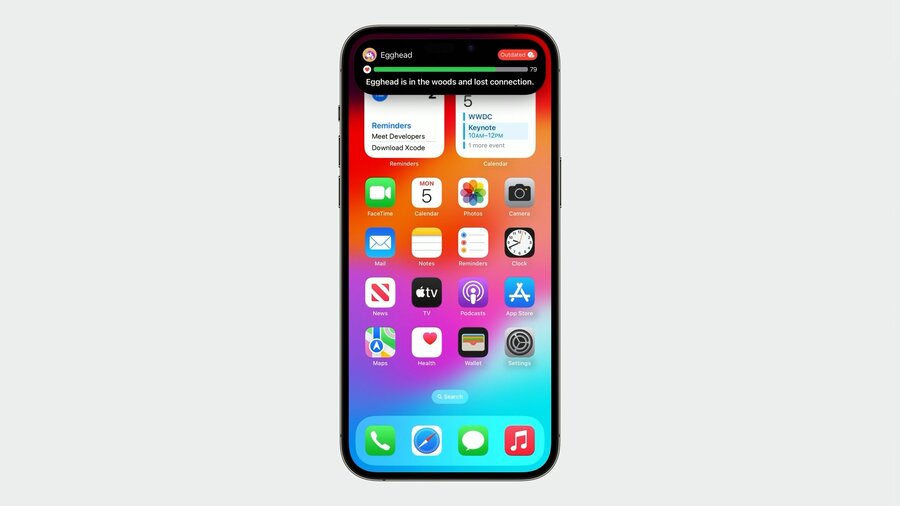
To achieve this, add a stale-date field to the payload. The system will use this date to decide when to render your stale view.
// Adding stale date

{
  "aps": {
    "timestamp": 1685952000,
    "event": "update",

    // Date after which the state will be considered out of date
    "stale-date": 1685959200,

    "content-state": {
      "currentHealthLevel": 0.79,
      "eventDescription": "Egghead is in the woods and lost connection."
    }
  }
}
Use isStale property on ActivityViewContext to provide stale view from the ActivityConfiguration declared in the widget extension.
// Showing stale content

struct AdventureActivityConfiguration: Widget {
  var body: some WidgetConfiguration {
    ActivityConfiguration(for: AdventureAttributes.self) { context in
      AdventureLiveActivityView(
        hero: context.attributes.hero,
        isStale: context.isStale, // Mark UI as out of date
        contentState: context.state
      )
      .activityBackgroundTint(Color.gameWidgetBackground)
    } dynamicIsland: { context in
      ...
    }
  }
}
Order multiple Live Activities
When multiple Live Activities are present, they should be ordered by importance. Use the optional relevance-score field, to ensure the most important updates are at the top and in the Dynamic Island.
// Adding relevance score

{
  "aps": {
    "timestamp": 1685952000,
    "event": "update",

    // Optional - higher the number indicates higher the relevance
    "relevance-score": 100,

    "content-state": {
      "currentHealthLevel": 0.941,
      "eventDescription": "Power Panda found a sword!"
    }
  }
}
Wrap-up
Add support for push updates
Test sending pushes from your terminal
Add end-to-end support on server
Consider priorities and alerts
Watch Meet ActivityKit and Bring widgets to life sessions to learn more about Live Activity.

