
What’s a simulator?
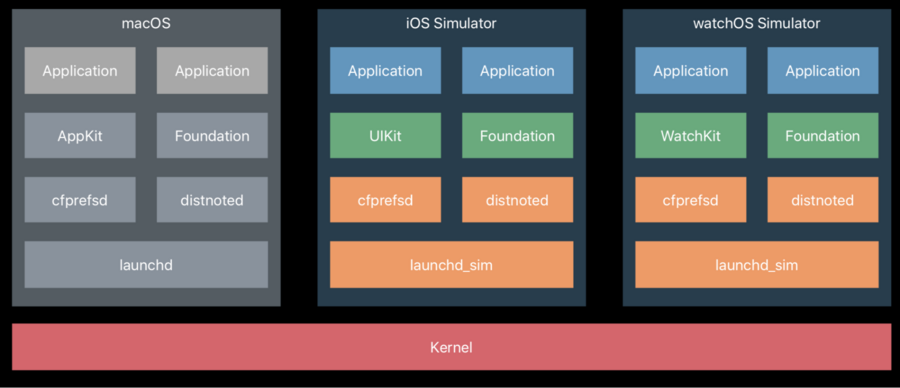
Apple simulators (iOS, watchOS, and tvOS) are completely separate user spaces that run on top of the macOS kernel.
They have separate
launchd, separate daemons, separate darwin notifications, separate URL sessions, and separate mach bootstrapSame filesystem as macOS but separate
$HOMEFrom
libSystemand up: built for iOS, watchOS, or tvOS Uses iOS, watchOS, or tvOS ABI built natively for x86 (not an emulator)
Simulator Details
Memory and CPU limits are not simulated (you get the memory and cpus of your Mac machine)
Different core counts, different threading behaviors
Application Sandbox is not enforced
Simulates case-sensitive filesystem (most platforms are case-insensitive, but this adds a nice extra safety net)
Thread Sanitizer supported (even on platforms that don’t support them natively)
FAQ
The talk continues with different tips and tricks on what you can do in the simulator.
Interesting bits:
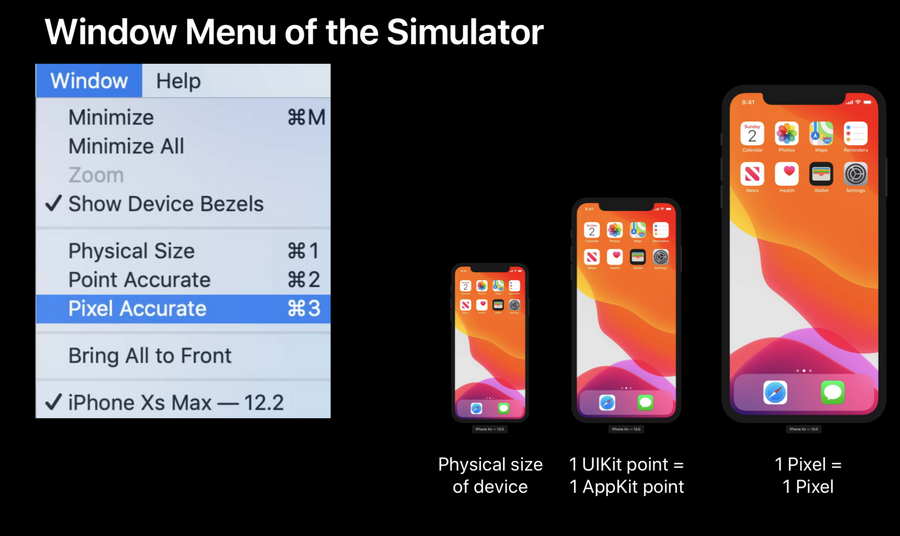
Simulator window size
Run new iOS simulators with old Xcode:
Launch new Xcode and boot its new iOS Simulator
Leave Simulator.app open while closing new Xcode
Launch old Xcode
Build/run to new Simulator (the new simulato will show as a build target in old Xcode)
Share between simulator and machine
The most common way is just drag and drop, however you can also use the share sheet:
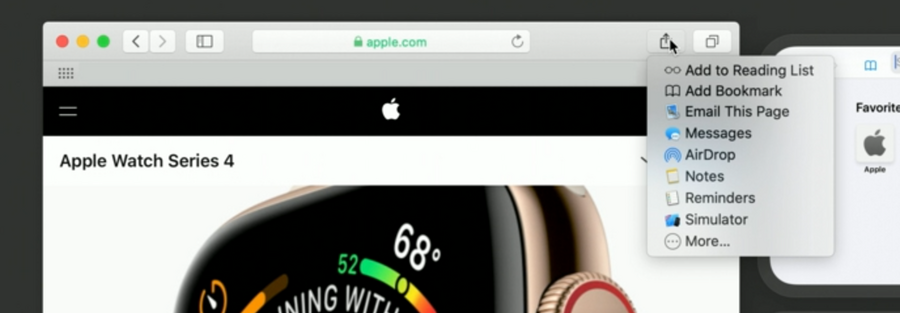 
You can then target a single simulator or to all the simulator at once.

You can then target a single simulator or to all the simulator at once.
Use the Simulator via Command Line
The talk then goes through an overview of the xcrun simctl command line:
$ xcrun simctl listshows installed devices and their statuses$ xcrun simctl create <name> <device type> <runtime>creates a new devicee.g.
$ xcrun simctl create "Test Watch" "Apple Watch Series 4 - 44mm" watchOS6.0$ xcrun simctl spawn <device> <command> <arguments>lets you launch and change the simulator behavior (logs, inject user defaults..)$ xcrun simctl diagnosecaptures logs and states useful especially on CI when a test fails$ xcrun simctl launch <device> <command> <arguments>launches the appe.g:
$ xcrun simctl launch --console-pty booted com.apple.example -MyDefaultKey YESlaunches the app, connect the logs to the terminal, writes the usersDefault value true for key “MyDefaultKey”$ xcrun simctl boot$ xcrun simctl shutdown$ xcrun simctl deletedeletes a device$ xcrun simctl delete unavailableremoves all simulators that are not available any longer (old Xcode installs)
…and more
The talk ends with an overview of Metal being available to the simulator and reasons why it is awesome, for us we will see all the places where we use it (a.k.a. UIKit) run smoothly in the simulator.
While cool, this might make things go well on the simulator, but lag on the real device (because now we can have better performance in the mac). Therefore always test on the real device when we have computation heavy tasks at hand.
