
Test Pyramid
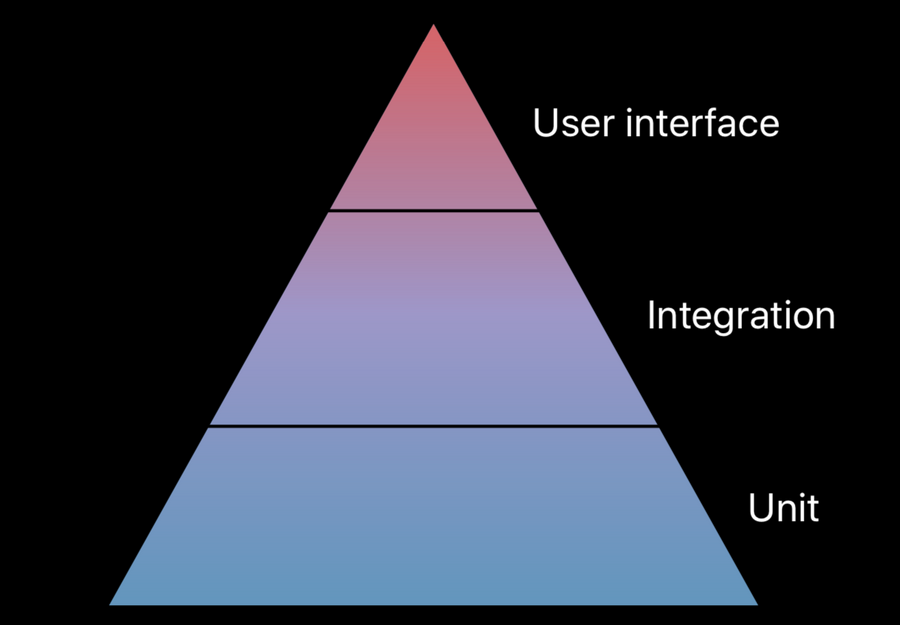
Manage better structure of Testing in terms of pyramid tests:
Unit tests are simple and fast tests.
Integration tests used to validate a larger section of the code (than unit tests), it involves clusters of classes and their communication
User Interface tests
Tests user facing behavior of the app. Makes sure that the app does what you expect it to do.
(not shown) Performance Tests
They run multiple times on a given test and they look at the average timing, memory usage and other parameters to make sure we do not introduce regressions.
Test Plans
Introducing new Test Plans to managing Unit / UI Testing in Xcode with multiple configuration in each test plans and can run tests more than once with different settings (e.g. with different localization).
Test plans allow to define multiple variants in one place, and then run the same scheme for all of them. This “one place” is a .xctestplan
Inside the .xctestplan we have two main tabs: test and configuration.
Tests tab
In here can see all the tests per test target, then per test class, and lastly per unit test (like you normally do on the navigator)
Configuration tab
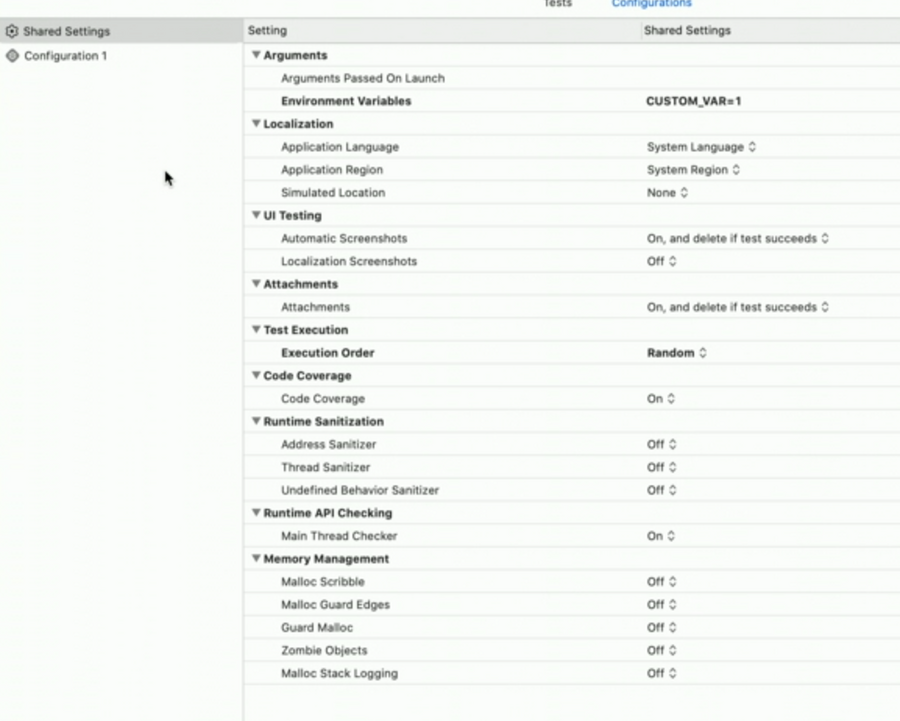
In the left column we can have different configurations for different situations (like different localization, sanitizers and more).
We have a basic “shared settings” configuration, where we can customize all the parameters shown above, that is inherited by all our configurations.
Each configuration can override any parameter (set by the shared configuration or the default value).
Running Specific Configurations Only
From now on, each test will be run for every configuration defined in the .xctestplan (obviously only on the configurations where the test is enabled).
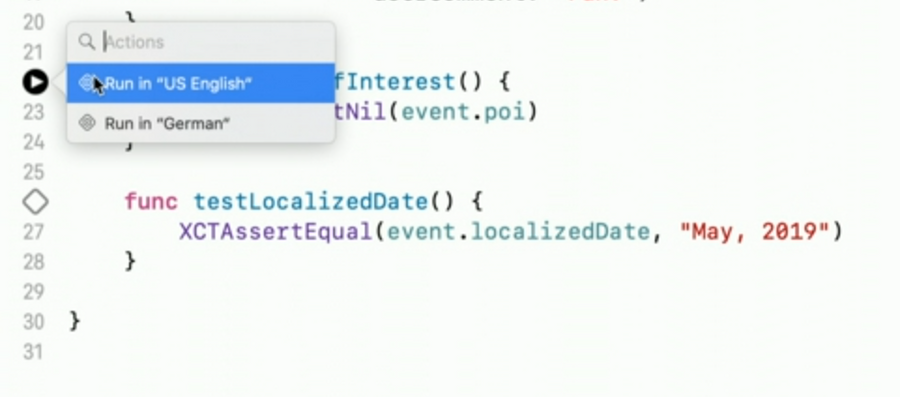
However, if we just want to run the tests in one configuration, we can option click on the test ribbon and choose the proper configuration:
Same can be done from the tests navigator:
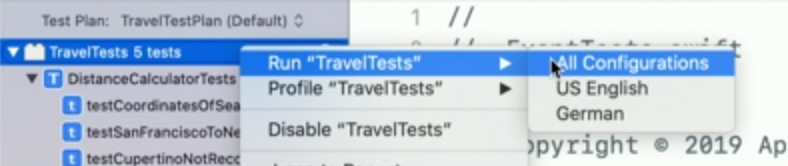
From the image above we can see also which test plan is currently active as well.
Result bundles
Result bundles are files containing results of building and testing our app, they contain data such as:
test coverage
test report (fail/success)
build log
test attachments (screenshots and more)
These bundles can be open in Xcode to navigate and see all the details, or can be accessed via scripts with the new xcresulttool command line. This command line also outputs json files for us to use in other tools.
Beside xcresulttool, this year we also get xccov, which extracts the code coverage from a result bundle. It can also compare two result bundles to see if the coverage has decreased over time.
