
Apple Accessibility Plug-in for Unity Developers
This presentation involves a plugin available on Unity’s GitHub.
https://github.com/apple/unityplugins
Accessibility Elements
In this demo, cards can be flipped by tapping the button. However, VoiceOver would not read the text on the screen and an external switch would not tap the button.
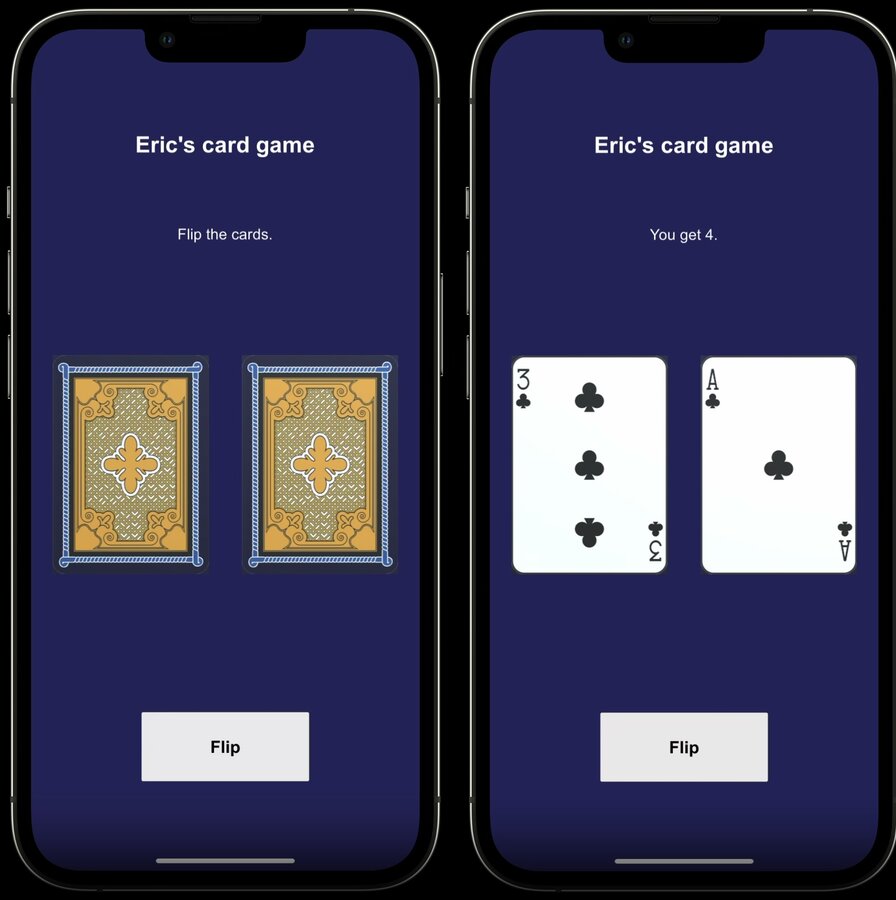
The text, cards, and button need to be accessibility elements so the user can understand what is on the screen.
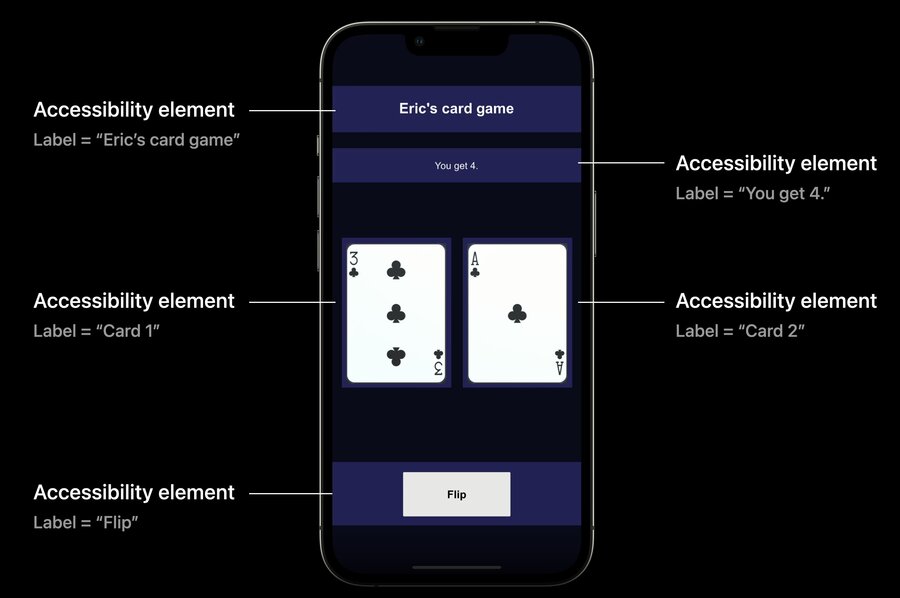
If the app supports multiple languages, the labels should also be localized.
With the labels added as accessibility elements, VoiceOver would now be able to read what is on the screen. However it would be unable to tell that there is a button.
By adding an accessibility trait, VoiceOver would read the button as “Flip Button” and an external switch would be able to control the button.
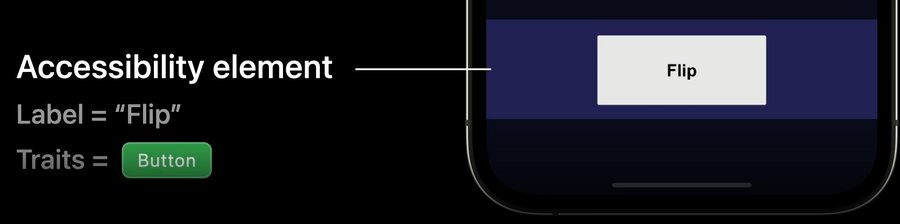
There are many different types of traits, full list can be found here:
https://developer.apple.com/documentation/uikit/uiaccessibilitytraits
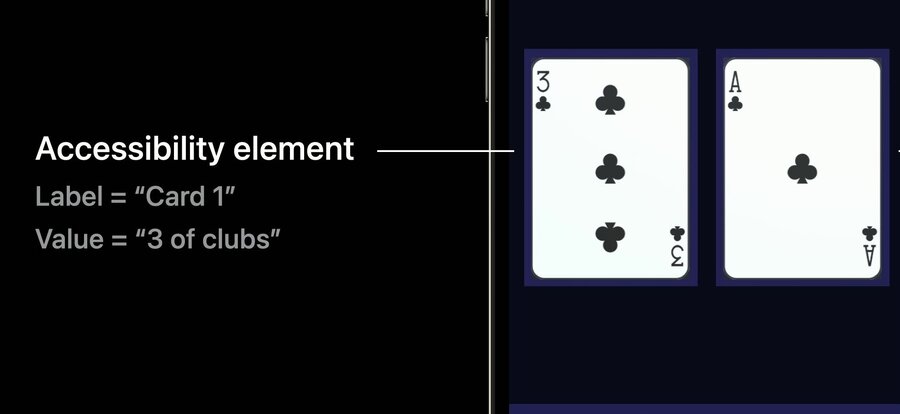
In this example, the cards would need a value trait to be able to provide the face value of the cards.
Unity Implementation
Accessibility elements are added using the Accessibility Node component. This component is added to any gameObject that the user wishes to add accessibility for. The script provides the following fields:
Traits
Label
Value
Hint
Identifier
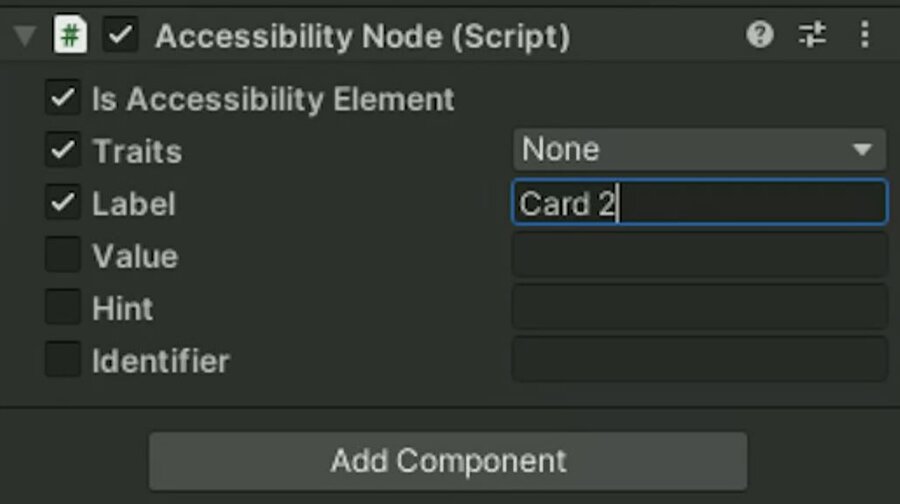
Buttons in Unity UI already have the Accessibility Node component by default.
Creating custom C# scripts using Apple’s Accessibility requires using Apple.Accessibility
In this example, the accessibility information is returned in the accessibilityValueDelegate lambda expression.
using Apple.Accessibility;
public class AccessibleCard : MonoBehaviour
{
    public PlayingCard cardType;
    public bool isCovered;
    void Start()
    {
        var accessibilityNode = GetComponent<AccessibilityNode>();
        accessibilityNode.accessibilityValueDelegate = () => {
            if (isCovered) {
              return "covered";
            }
            if (cardType == PlayingCard.AceOfSpades) {
              return "Ace of Spades";
            }
        }
    }
}
Dynamic Type
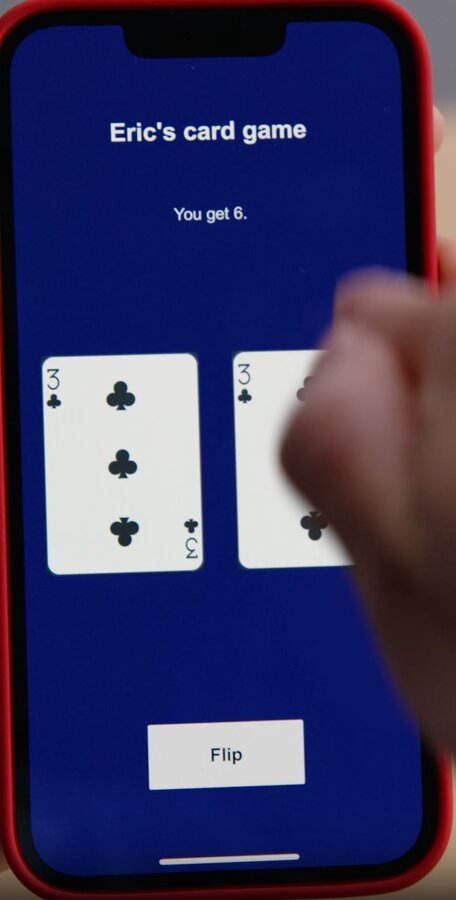
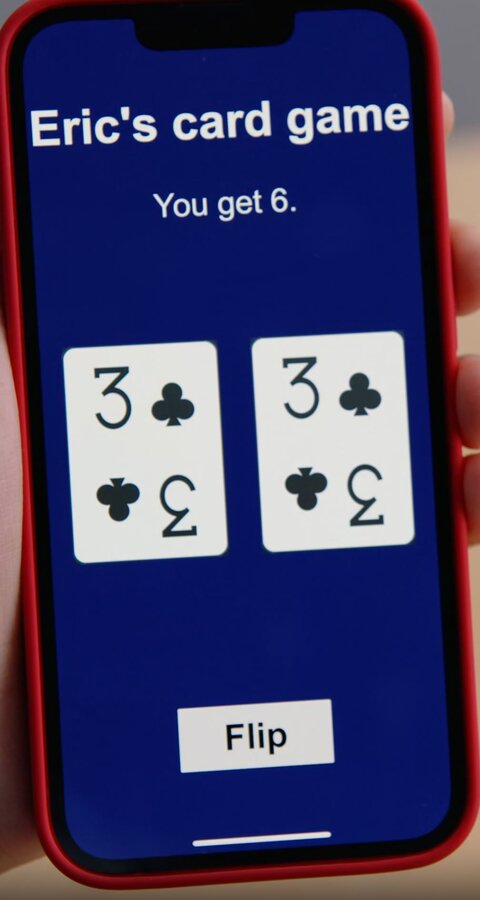
Dynamic Type allows users to adjust their font size.
To implement this in Unity, a new C# script can be made. The script can subscribe to the onPreferredTextSizesChanged event, and modify its font size when new events occur.
public class DynamicCardFaces : MonoBehaviour
{
    public Material RegularMaterial;
    public Material LargeMaterial;
    void OnEnable()
    {
        AccessibilitySettings.onPreferredTextSizesChanged += _settingsChanged;
    }

    void _settingsChanged()
    {
        GetComponent<Text>().textSize = (int)(originalSize * AccessibilitySettings.PreferredContentSizeMultiplier);
    }
}
In a similar way, the face of the cards could also be modified during these accessibility events.
    void _settingsChanged()
    {
        var shouldUseLarge = AccessibilitySettings.PreferredContentSizeCategory >=
            ContentSizeCategory.AccessibilityMedium;
        GetComponent<Renderer>().material = shouldUseLarge ? RegularMaterial :
            LargeMaterial;
    }
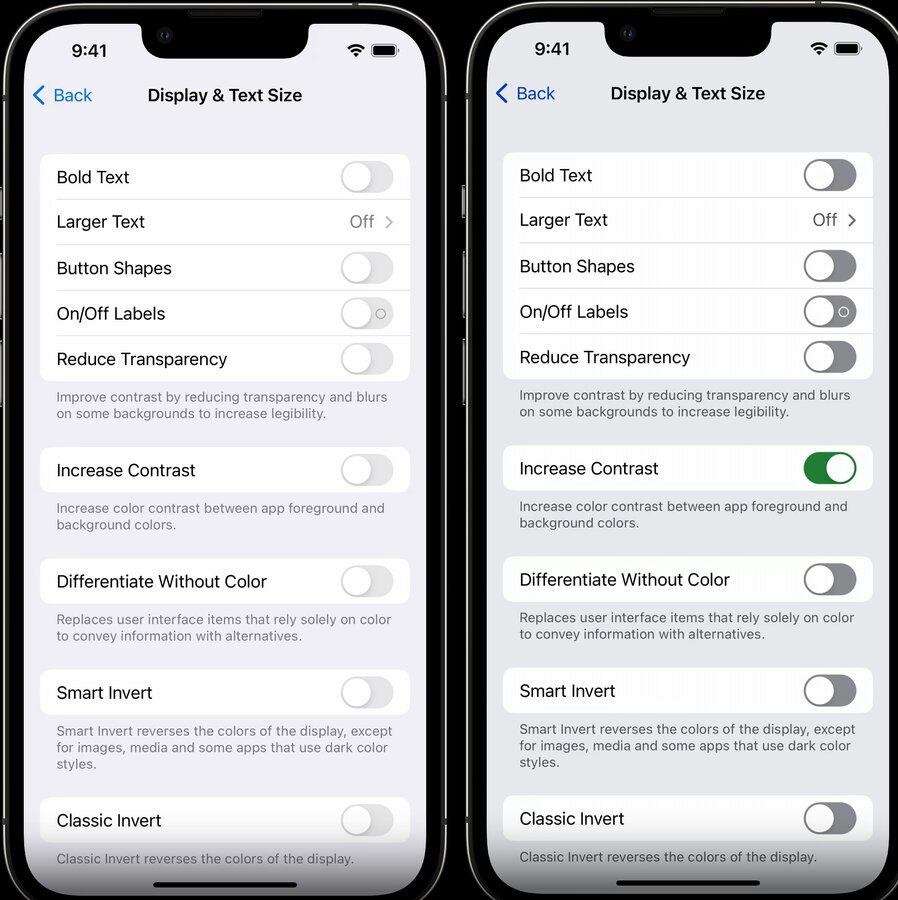
UI Accommodations
Reduce Transparency
Turns transparent objects more opaque
Helps improve legibility
Can be checked with
AccessibilitySettings.IsReduceTransparencyEnabled
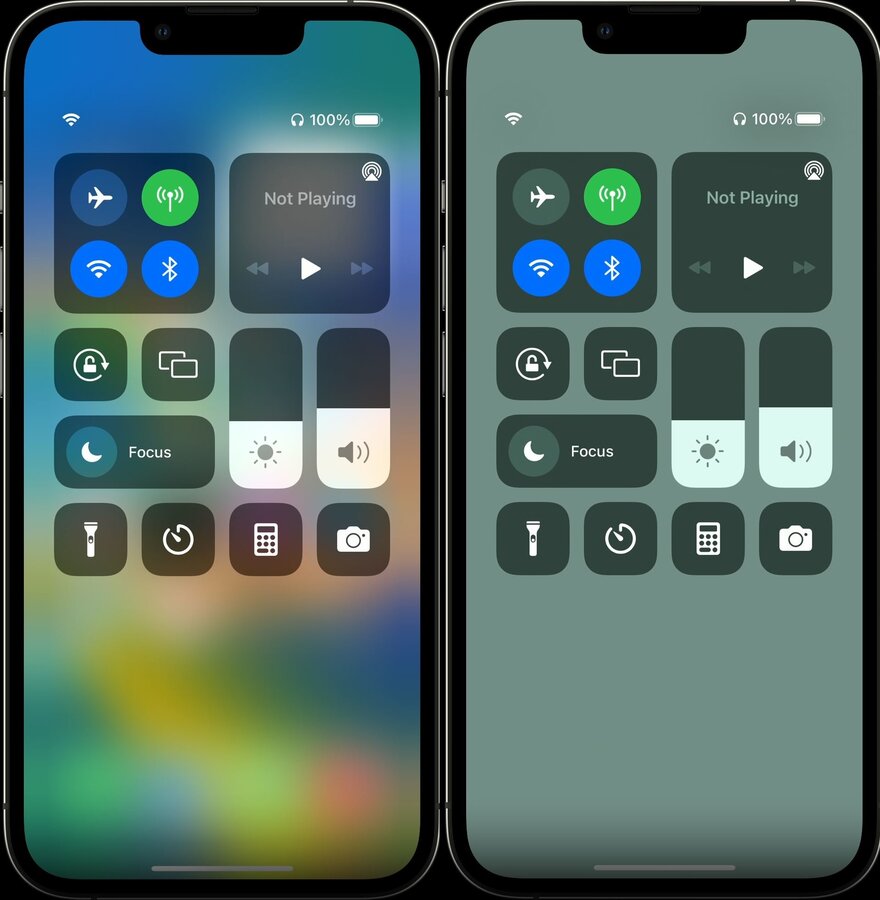
Increase Contrast
Colors stand out more
Makes controls easier to recognize
Can be checked with
AccessibilitySettings.IsIncreaseContrastEnabled
Reduce Motion
Animations should be removed if this is enabled
Can be checked with
AccessibilitySettings.IsReduceMotionEnabled
