
UIKeyboardLayoutGuide
Here is the old way of listening for keyboard notifications and adjusting your layout:
    //...
    keyboardGuide.bottomAnchor.constraint(
        equalTo: view.bottomAnchor
    ).isActive = true
    keyboardGuide.topAnchor.constraint(
        equalTo: textView.bottomAnchor
    ).isActive = true
    keyboardHeight = keyboardGuide.heightAnchor.constraint(
        equalToConstant: view.safeAreaInsets.bottom
    )
    NotificationCenter.default.addObserver(
        self,
        selector: #selector(respondToKeyboard),
        name: UIResponder.keyboardWillShowNotification,
        object: nil
    )
}

@objc func respondToKeyboard(notification: Notification) {
    let info = notification.userInfo
    if let endRect = info?[.keyboardFrameEndUserInfoKey] as? CGRect {
        var offset = view.bounds.size.height - endRect.origin.y
        if offset == 0.0 {
            offset = view.safeAreaInsets.bottom
        }
        let duration = info?[.keyboardAnimationDurationUserInfoKey] as? TimeInterval ?? 2.0
        UIView.animate(
            withDuration: duration,
            animations: {
                self.keyboardHeight.constant = offset
                self.view.layoutIfNeeded()
            }
        )
    }
}
New in iOS15. Here is the suggested new way using UIKeyboardLayoutGuide:
view.keyboardLayoutGuide.topAnchor.constraint(
    equalToSystemSpacingBelow: textView.bottomAnchor,
    multiplier: 1.0
).isActive = true
Use view.keyboardLayoutGuide
For most common use cases, simply update to use .topAnchor
Matches keyboard animations like bring up and dismiss
Follows height changes as the keyboard can be taller or shorter based on content (showing emojis, etc)
When the keyboard is undocked the guide will drop to the bottom of the screen and be the width of your window
Anything you’ve tied to the top anchor will follow
It accounts for safe-area insets
Why did Apple create a new custom layout guide vs a generic layout guide?
Answer: giving the developer more control over how their layout responds to keyboards
You have the ability to fully follow the keyboard in all its incarnations, if you so choose, by using a new property:
.followsUndockedKeyboard.If you set it to true, the guide will follow the keyboard when it’s undocked or floating, giving you a lot of control over how your layout responds to wherever the keyboard may be.
No more automatic drop-to-bottom. No listening for hide keyboard notifications when undocking. The layout guide is where the keyboard is.
UITrackingLayoutGuide
UIKeyboardLayoutGuide is a subclass of the new UITrackingLayoutGuide
Tracks the constraints you want to change when it moves around the screen.
You can give it an array of constraints that activate when near a specific edge, and deactivate when leaving it
You can give it an array that activates when specifically away from an edge, and deactivates when near it.
Example Code
Default keyboard with custom top actions:
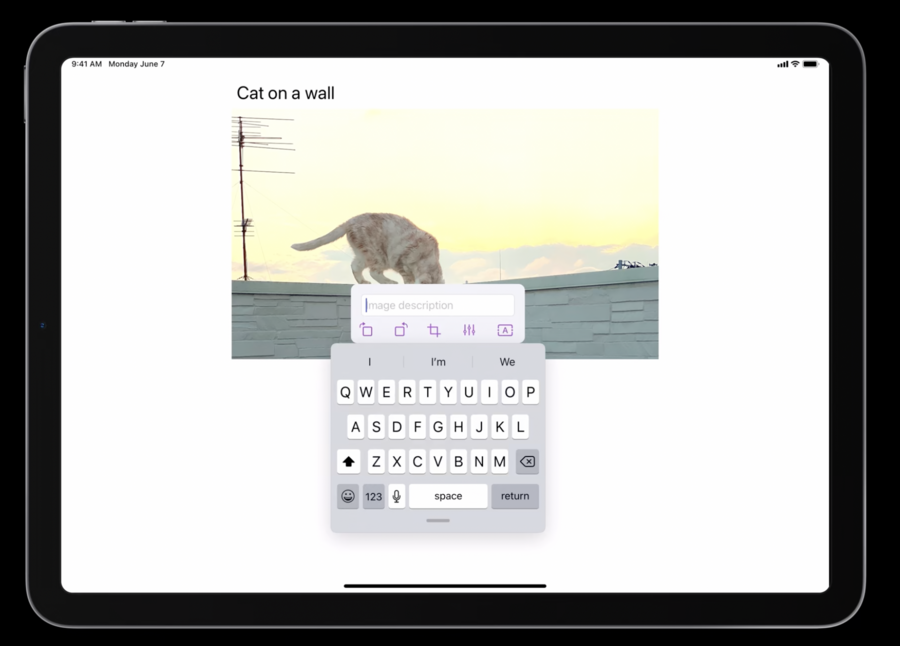
Example 1
Moving keyboard up causes top actions to shift to bottom:
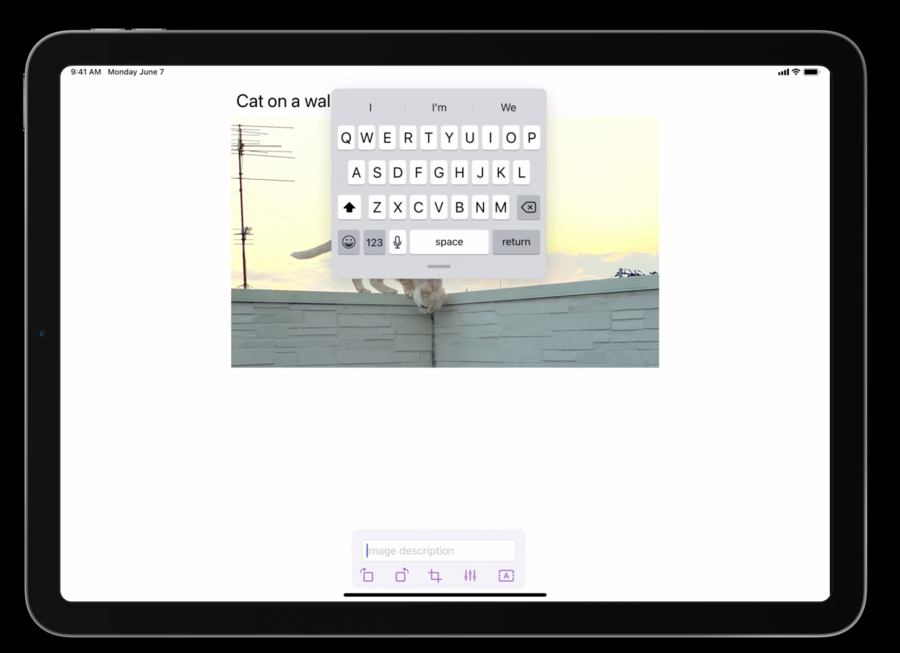
let awayFromTopConstraints = [
    view.keyboardLayoutGuide.topAnchor.constraint(
        equalTo: editView.bottomAnchor
    )
]
view.keyboardLayoutGuide.setConstraints(
    awayFromTopConstraints,
    activeWhenAwayFrom: .top
)
Code specifies that the constraint that anchors custom keyboard actions to the top of the keyboard is only active when keyboard is away from the top
let nearTopConstraints = [
    view.safeAreaLayoutGuide.bottomAnchor.constraint(
        equalTo: editView.bottomAnchor
    )
]
view.keyboardLayoutGuide.setConstraints(
    nearTopConstraints,
    activeWhenNearEdge: .top
)
Code specifies that the constraint that will anchor custom keyboard actions to bottom safe area of the view is only active when keyboard is near the top edge
Example 2
Moving keyboard to the right or left edge causes underlying content to shift into open area
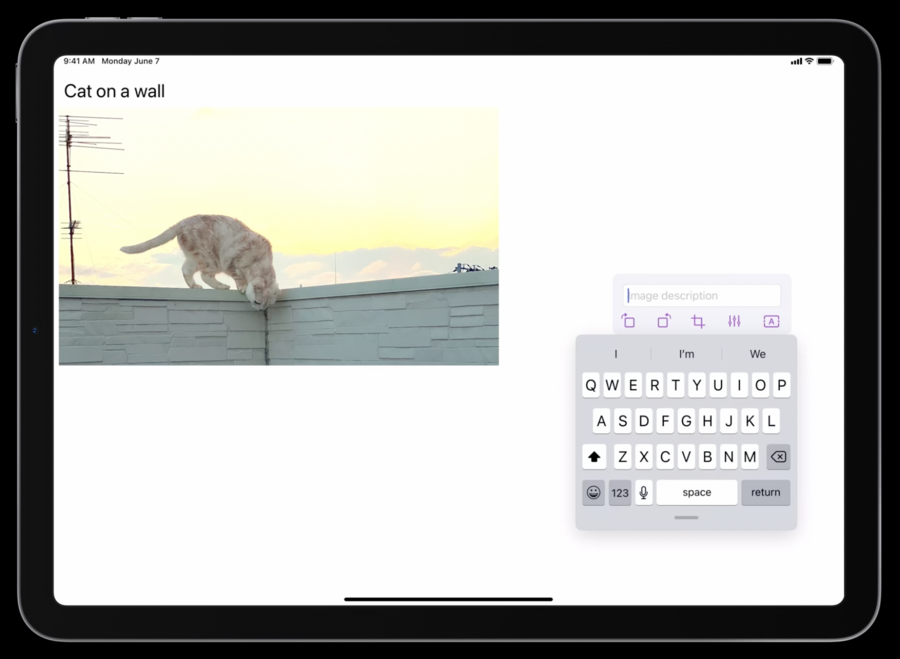
//set default behavior
let awayFromSides = [
    imageView.centerXAnchor.constraint(
        equalTo: view.centerXAnchor
    )
]
view.keyboardLayoutGuide.setConstraints(
    awayFromSides,
    activeWhenAwayFrom: [
        .leading,
        .trailing
    ]
)

//when nearing sides, shift imageView appropriately
let nearTrailingConstraints = [
    imageView.leadingAnchor.constraint(
        equalToSystemSpacingAfter: view.safeAreaLayoutGuide.leadingAnchor,
        multiplier: 1.0
    )
]
view.keyboardLayoutGuide.setConstraints(
    nearTrailingConstraints,
    activeWhenNearEdge: .trailing
)

let nearLeadingConstraints = [
    view.safeAreaLayoutGuide.trailingAnchor.constraint(
        equalToSystemSpacingAfter: imageView.trailingAnchor,
        multiplier: 1.0
    )
]
view.keyboardLayoutGuide.setConstraints(
    nearLeadingConstraints,
    activeWhenNearEdge: .leading
)
What is .near and .awayFrom?
A docked keyboard is considered to be near the bottom and awayFrom the other edges
Undocked and split keyboards can be awayFrom all edges, or they can get near the top edge.
When it’s the floating keyboard, it can be near or awayFrom any edge, and it can even be near two adjacent edges at the same time.
Above only applies when you set followsUndockedKeyboard to true.
Things to Know
Camera text input can be launched by most keyboards. This camera UI can be full screen and it’s behaviour conforms to
UIKeyboardLayoutGuideNew in iOS15, the shortcuts bar that shown at the bottom while a hardware keyboard is attached is no longer full width. Now it’s size adapts to language and how many buttons are present.
If you’re following the undocked keyboard, you can actually use the real leading and trailing edges of the bar
This is always
.nearthe bottom and, in its normal position, it’s.awayFromthe other three edges.If you collapse it into a small launch button, it can be moved around so it can be
.nearthe leading or trailing edge.
