
This topic is split in six topics:
External Display Support
Layout-Driven UI
Laser-Fast Launches
Smooth Scrolling
Continuing with Continuity
Debugging Like a Pro
External Display Support
As we know we screen mirroring on the apple tv we replicate our screen to the tv display.
It would be much nicer to have custom screens for example this in game:

When adding external display support, you should keep in mind that what is displayed on the phone is personal/private, while what is in the screen is public.
Also the external display is not interactive, only the phone one is.
When designing for external display, there are three topics to focus on:
Connectivity
How do you know that there’s a screen connected?
UIScreen.screens is an array of screens: if > 1 you have at least one external
We also get notifications when a new screen get connected/disconnected via:
UIScreen.didConnectNotification
UIScreen.didDisconnectNotification
What to do on connected and disconnected?
Connected:
if let externalScreen = UIScreen.screens.last {
  externalWindow = UIWindow()
  externalWindow.screen = externalScreen
  configureExternalWindow(externalWindow)
  externalWindow.isHidden = false
}
Disconnected:
externalWindow.isHidden = true
externalWindow = nil
Behavior
Update your app behavior (lots of if-else whether we have an external display or not)
Transitions
Make sure that the transitions between one screen to two and viceversa is graceful
Layout-Driven UI
Find and track state that affects UI
Dirty layout when state changes with
setNeedsLayout()Update UI with state in
layoutSubviews()
class MyView: UIView {
  // ...
  let coolView = CoolView()
  var feelingCool = true {
    didSet {
      setNeedsLayout()
    }
  }

  override func layoutSubviews() {
    super.layoutSubviews()
    coolView.isHidden = !feelingCool
  }
}
Regarding animations with
UIGestureRecognizers, see Building Interruptible and Responsive Interactions.
Laser-Fast Launches
What can we do to improve the app launches?
Process Forking
This is taken care by iOS, nothing we can do
Dynamic Linking
What we do here is:
Allocating memory for execution
Linking libraries and frameworks
Initialization of Swift, Objective-C, Foundation, etc.
Static object initialization
40–50% of typical app launch time
What we can do is:
Avoid code duplication
Limit use of third-party libraries
Avoid static initializers
More info: App Startup Time—Past, Present, and Future.
UI Construction
What we do here is:
Prepare UI
State restoration
Load preferences
Load model data
What we can do here is:
Return quickly from:
application(_:willFinishLaunchingWithOptions:)application(_:didFinishLaunchingWithOptions:)applicationDidBecomeActive(_:)
Avoid writing to disk
Avoid loading very large data sets
Check database hygiene
First Frame
What we do here is:
Core Animation renders your first frame
Text drawing
Image loading and decompression
What we can do here is:
Only prepare the UI you need
Avoid hiding views and layers
Extended Launch Actions
Smooth Scrolling
Why the app stutters?
Too much computation
Instrument’s Time Profile will help you with that (suggested session: Using Time Profiler in Instruments)
Solutions:
use
UICollectionViewandUITableViewpre-fetching (suggested session: What’s New in UICollectionView in iOS 10)Push some work off the main queue:
network and file system access
Image drawing
Text sizing:
UIGraphicsImageRenderer, and its distributed string, both have functions available that are safe to use on a background thread, that might just help you move some of that complex computation off of your main queue.
Complex Graphics
Instrument’s Core Animation will help you with that (session: Advanced Graphics and Animations for iOS Apps)
What do we mean by complex graphics? Probably Visual Effects (blur & vibrancy, avoid especially having blur over blur over blur) and Masking (and clipping)
Solutions:
Use opaque instead of blur/mask
Suggested session: Profiling in Depth.
Continuing with Continuity
Everything is built on top of
NSUserActivity, basically every device broadcast the activity it is doing to all other devices (of the same user) in the vicinity.
This makes an icon appear (on the dock on a mac, on the app switcher on the iPhone) and, if you tap it, iOS/macOS will launch that app and call.func application(_ application: UIApplication, continue userActivity: NSUserActivity, restorationHandler: @escaping ([Any]?) -> Void) -> Boolin your app delegate, passing the activity that was publicized by the other user (note that this takes a few seconds in iOS 10/11, should be much faster in iOS 12).This is an example of
NSUserActivity:
// NSUserActivity
// Originating Device

let activity = NSUserActivity(activityType:"com.apple.developer.video")
activity.title = "Adding, Delight to your iOS App"
activity.isEligibleForHandoff = true
activity.userInfo = ["session-id": "2018-223", "currentTime": 2340]
userActivity = activity
In the userInfo dictionary you must put all the necessary information that will enable the user/app to continue the activity in another device. the last line assign the activity to the ViewController userActivity, making it really the current activity
On the receiving device, this is what we need to do:
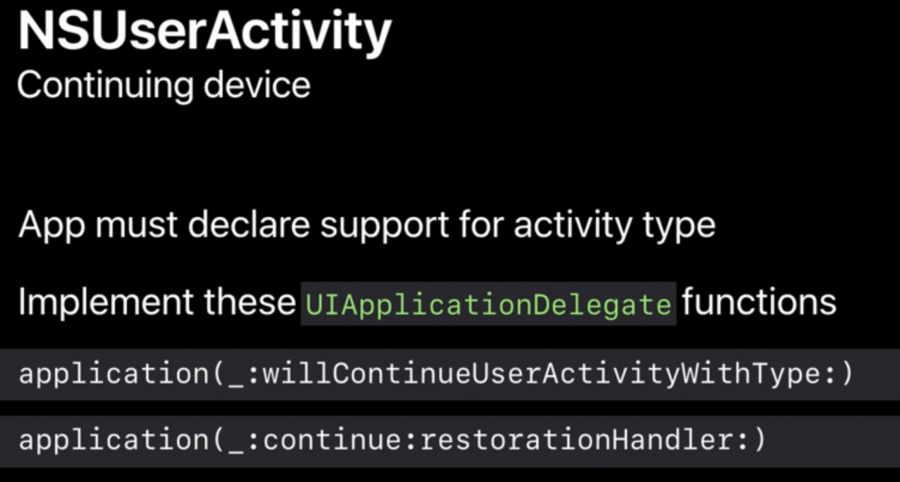 note how the first function is called right away when the user touches the icon (on the app switcher or the dock), while the second, as I said above, is called after a few seconds with the whole
 NSUserActivitypayload (it doesn’t matter how little info there is inside, it still will take a while 😑, in my apps I just put two or four strings of less than 20 chars each, and it still takes forever…)If we need more info that it can be fit in a dictionary, you can use
NSUserActivityContinuation Streams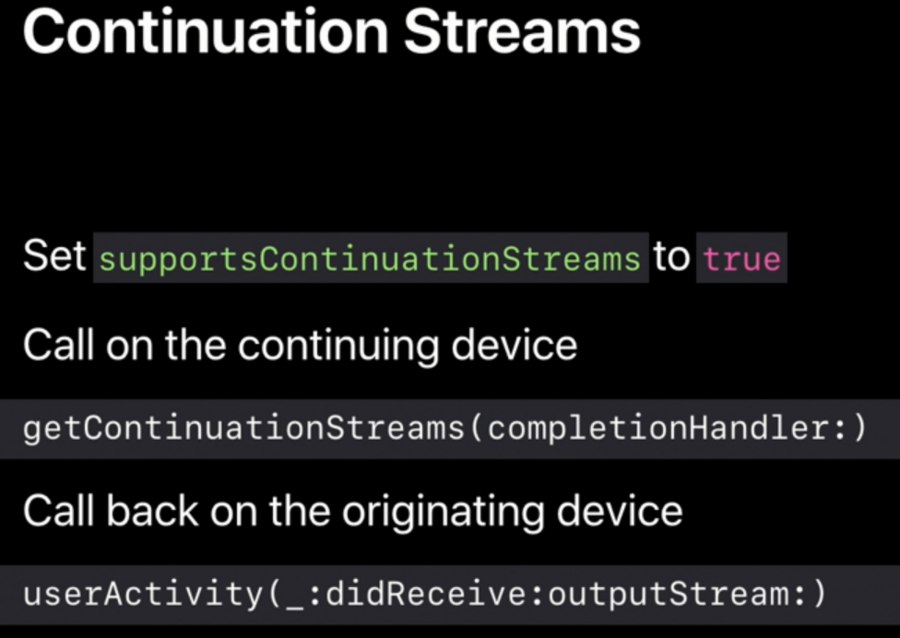 this stream allow a continuous talk between devices, but we need to do this fast, as probably the user is moving the two devices apart (like continuing the activity from a mac to an iPad because the user has to leave home)
Document based apps get this
NSUserActivityfor freeIf you don’t have a mac app, you can hand off to a website via safari! You’ll need to set the
webpageURLproperty to the user activity.You can also do the opposite, from website to app (session Adopting Handoff on iOS and OS X)
Debugging Like a Pro
⚠️These tools are meant to be used only during debugging, if you submit an app to the app store with these you’ll get rejected.
For Views debugging:
-[UIView recursiveDescription];will print the subviews hierarchy (with frame info, gesture recognizers, properties like isHidden)-[UIView parentDescription];like above, but for parents view instead of subviews+[UIViewController _printHierarchy];shows all of our presenting viewControllers, our presented viewControllers, our parentViewControllers and childViewControllers, and even our presentationControllers.
Debugging State Issues:
use expr (e) command on lldb (check sessions Debugging with LLDB, and Advanced Swift Debugging in LLDB)
use
dumpto print all your swift objects and properties (obj-c:-[NSObject _ivarDescription])
