
Key Takeaways
🧠 Memory cost scales with pixel size, not file size.
📉 Downsample images to their display size.
🔗 High memory raises CPU & battery cost.
🧵 Prefetch decoding on a serial queue to avoid thread explosion.
Decoding: the hidden cost of images
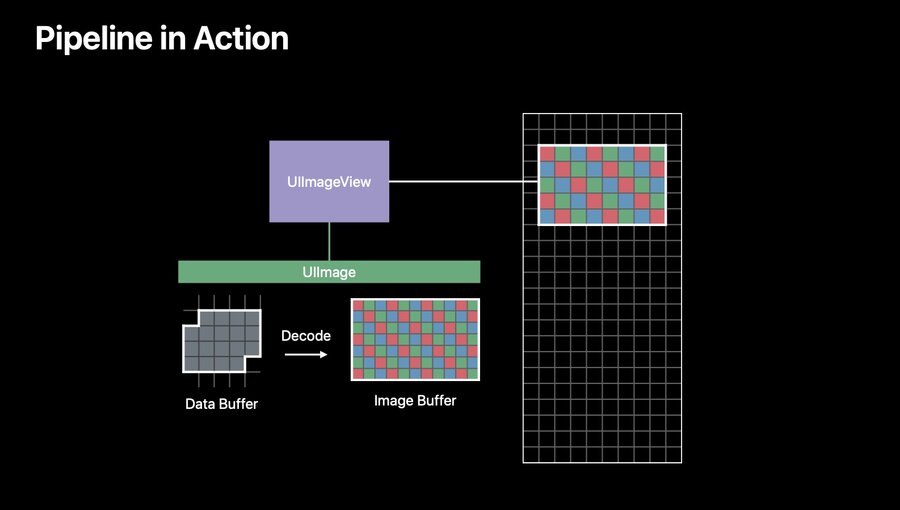
Displaying an image involves three different kinds of storage:
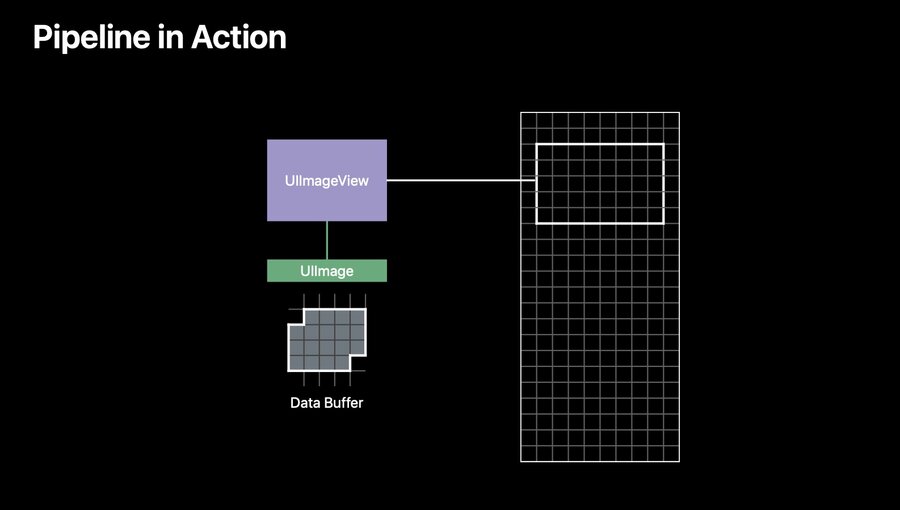
A data buffer contains the encoded file bytes, such as JPEG or PNG data.
An image buffer contains the decoded, uncompressed pixels.
The frame buffer contains the final pixels that the display hardware reads.

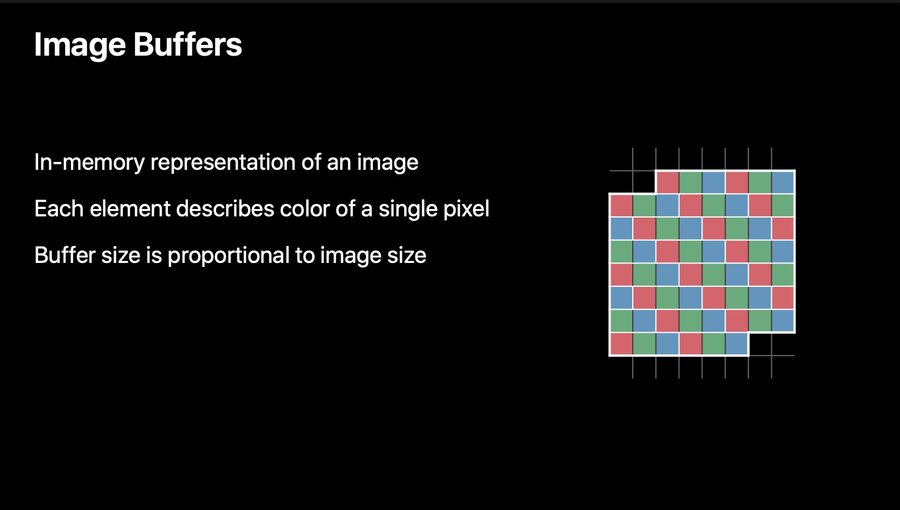
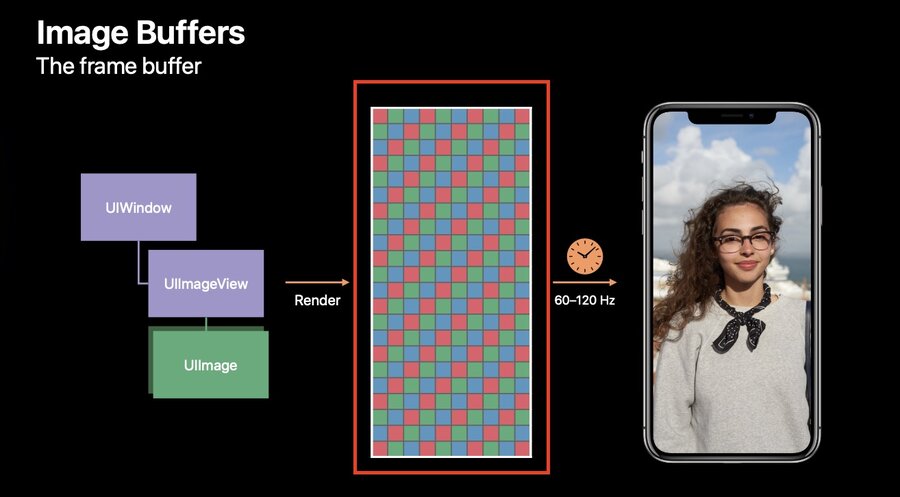
Decoding is the CPU-intensive step that turns the data buffer into the image buffer, and it allocates memory that persists for the life of the image.
Example: a 590 KB JPEG that is 2048 × 1536 pixels still needs a decoded buffer of roughly
width × height × 4 bytesin memory.
Memory and CPU are linked. Excessive memory usage isn’t only about running out of RAM — as pressure rises, memory fragments, iOS starts compressing memory (raising global CPU and battery cost), and may ultimately terminate your process. Reducing memory is therefore also a performance and battery win.
Downsampling
Don’t load a full-resolution image just to show it small. Decode a thumbnail sized for how it will actually be displayed.
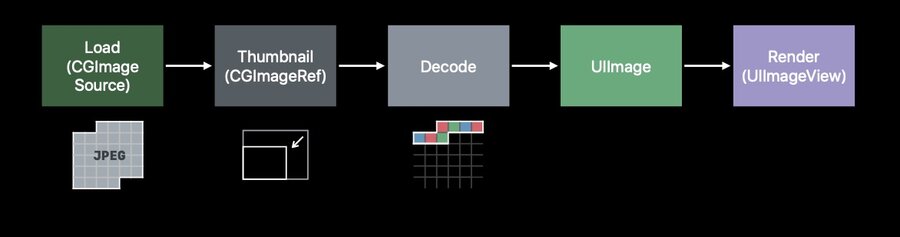
Use
CGImageSourcewithCGImageSourceCreateThumbnailAtIndexto build a right-sized buffer:
func downsample(imageAt imageURL: URL,
                to pointSize: CGSize,
                scale: CGFloat) -> UIImage {
    let imageSourceOptions = [kCGImageSourceShouldCache: false] as CFDictionary
    let imageSource = CGImageSourceCreateWithURL(imageURL as CFURL, imageSourceOptions)!

    let maxDimensionInPixels = max(pointSize.width, pointSize.height) * scale
    let downsampleOptions = [
        kCGImageSourceCreateThumbnailFromImageAlways: true,
        kCGImageSourceShouldCacheImmediately: true,
        kCGImageSourceCreateThumbnailWithTransform: true,
        kCGImageSourceThumbnailMaxPixelSize: maxDimensionInPixels
    ] as CFDictionary

    let downsampledImage = CGImageSourceCreateThumbnailAtIndex(imageSource, 0, downsampleOptions)!
    return UIImage(cgImage: downsampledImage)
}
In the session’s example, downsampling reduced memory from 31.5 MB to 18.4 MB for the same on-screen result.
Prefetching without thread explosion
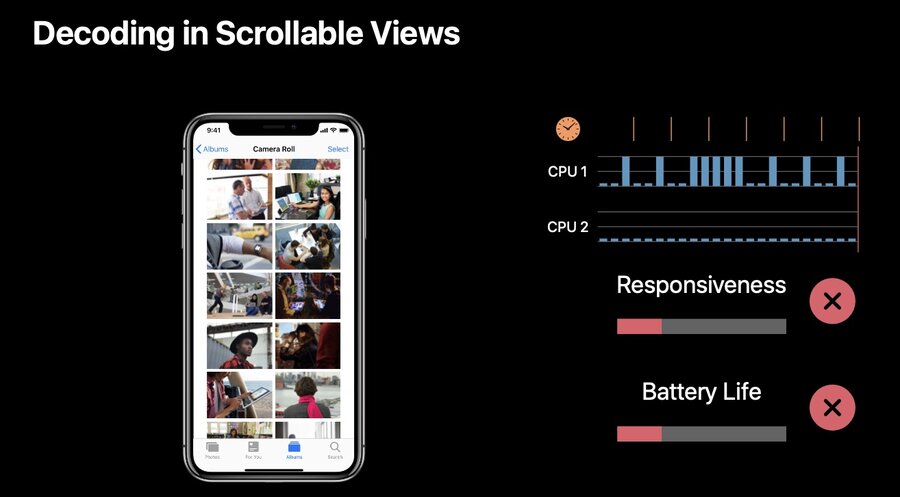
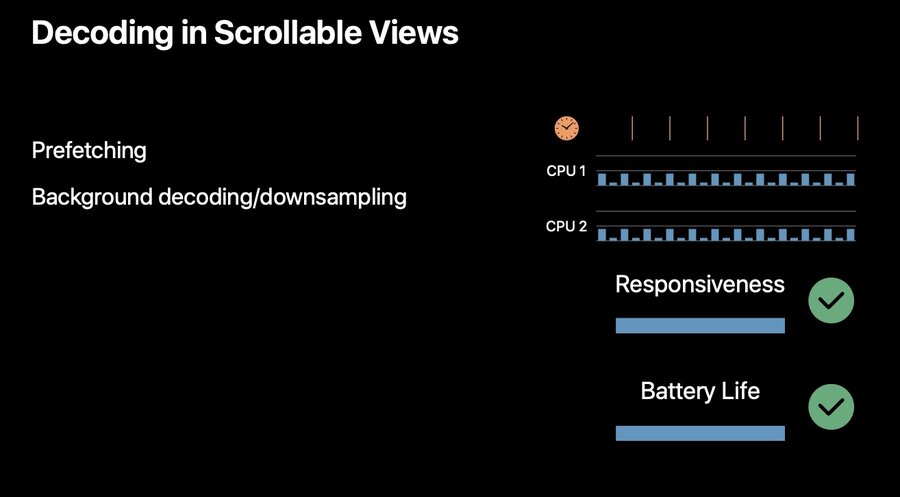
In scrolling views, use prefetching APIs to prepare images before they’re needed.
Dispatching all that work to the global concurrent queue causes thread explosion: too many blocked threads and heavy context-switching. Funnel decoding through a serial queue instead.
let serialQueue = DispatchQueue(label: "Decode queue")

func collectionView(_ collectionView: UICollectionView,
                    prefetchItemsAt indexPaths: [IndexPath]) {
    for indexPath in indexPaths {
        serialQueue.async {
            let downsampledImage = self.downsample(images[indexPath.row])
            DispatchQueue.main.async {
                self.update(at: indexPath, with: downsampledImage)
            }
        }
    }
}
Asset catalogs
Prefer asset catalogs over loose image files in the bundle:
Faster name- and trait-based lookup than searching the file system.
Automatic per-device app thinning.
Vector artwork support via Preserve Vector Data, letting a PDF asset re-rasterize crisply at different sizes.
Prefer a few fixed-size raster assets over relying on vector preservation everywhere.
Custom drawing with UIKit
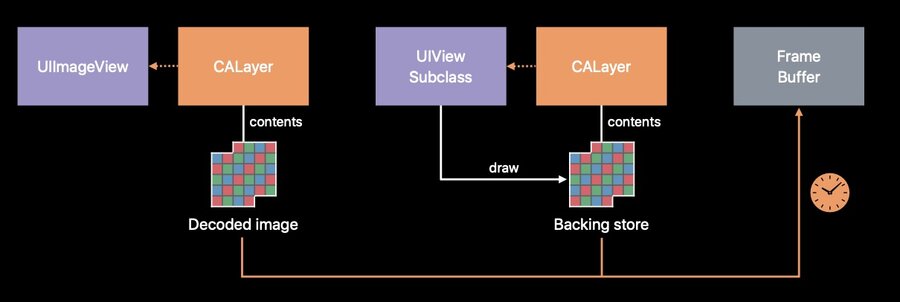
Overriding
draw(_:)gives the view a CALayer backing store sized to the whole view, which can be expensive.Refactor large custom-drawn views into smaller subviews and lean on optimized UIView properties instead:
Background colors avoid a backing store (except pattern colors).
cornerRadiusclips corners without extra allocations..alwaysTemplaterendering mode tints a single monochrome image instead of storing per-color copies.A monochrome
UILabeluses about 75% less memory than a colored one.
For off-screen rendering, prefer
UIGraphicsImageRendererover the olderUIGraphicsBeginImageContext()— it draws into an image buffer with automatic Wide Color support.
Advanced CPU and GPU techniques
Core Image: build a
CIImagerecipe and wrap it withUIImage(ciImage:)so processing runs on the GPU, freeing the CPU.UIImageViewrendersCIImages efficiently.CVPixelBuffer: when working with Metal, Vision, or Accelerate, pick initializers that match your existing data representation and avoid needlessly unwinding already-decoded data.
Framework interop: move data between CPU and GPU deliberately so the two run in parallel, rather than just offloading work.
