
Use Formatters
Use storyboards with auto layout
Use
UIStackViewsandUICollectionViewsas much as possibleWhen designing constraints, think about:
text that can be much shorter/longer
Directionality (right to left languages)
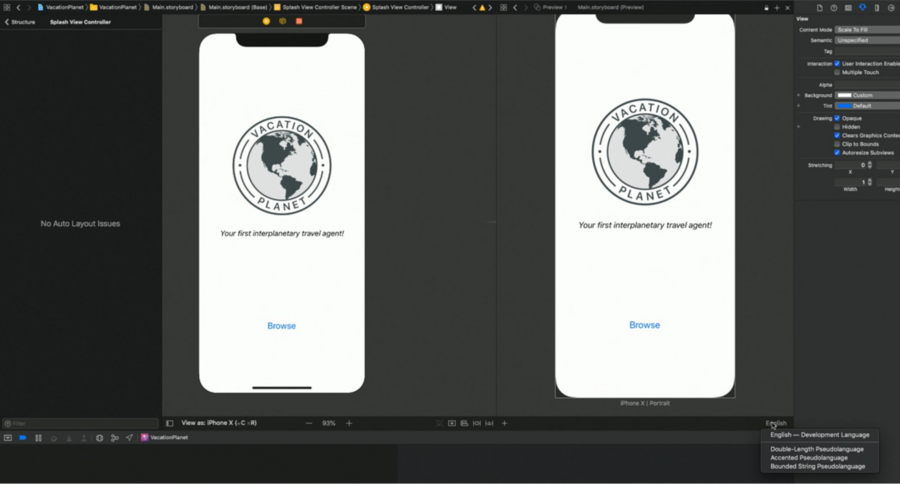
After opening a
.storyboardfile, open the assistant editor (cmd+opt+enter), select thestoryboard (preview)option and now at the bottom right you can preview your view in different languages without the need to run the app:
How to check if a font supports a certain language? In every mac there’s a tool called
Font Bookwhere you can search by language and it displays all the (installed) fonts that support that language.Very much like on
.cssfiles, even on iOS/macOS you can define a Cascade List to revert to different fonts in case one language is not supported by the current selected font (if you don’t declare a cascade list, iOS will always fall back to the system font):
// Custom Font with Cascade List

guard let font = UIFont (name: "SignPainter-HouseScript", size: UIFont.labelFontSize) else {
  // Handle error
}

// Create Cascade List
let cascadeList = [UIFontDescriptor(fontAttributes: [.name: "HanziPenTC-W5"])]
let cascadedFontDescriptor = font.fontDescriptor.addingAttributes([.cascadelist: cascadeList])
let cascadedFont = UIFont(descriptor: cascadedFontDescriptor, size: font. pointSize)

// Handle Text Size (Dynamic Type)
label.font = UIFontMetrics.default.scaledFont(for: cascadedFont)
label.adjustsFontForContentSizeCategory = true
macOS Mojave has a new “word-of-the-day” screensaver
For word emphasis, do not use italics, it doesn’t work in most of the languages, and if you use numbers, those will be the only thing italicized in your text 👎🏻. Bold is a better alternative.
For character emphasis, use different colors (bold doesn’t work for structural languages such as Hindi and Korean), use
AttributedStrings.
