
In this session the AppStoreConnect.app team shares how they manage complexity in their revamped app.
Data Source - minimizing complexity
Traditional Data Source Approach:
Implemented in
UlCollectionViewControllerDoesn’t encourage code reuse for similar sections
Either:
One gigantic controller
One controller per content type
Aggregate Data Source:
implement data sources as separate objects
enables code reuse
single view controller
Aggregate data source enables you to avoid implementing the data source in UlCollectionViewController.
Aggregate Data Source
This architecture is composed by four classes/objects:
AAPLDataSource- The base data source class, this is where we implementUICollectionViewDataSourceAAPLSegmentedDataSource- Can have multiple children/sections, only one active at a timeAAPLComposedDataSource- Multiple children/sections, all active at once, manage the translations between internal index paths and external index pathsAAPLBasicDataSource- One section, items are stored in anNSArray(for simple, table-like, representations)
An example
In App store connect, the product detail page is a AAPLSegmentedDataSource class, which has four segments (details, episodes, reviews, trends), which correspond to the four items in the segmented control UI component.
The info for each segment come from a different data source:
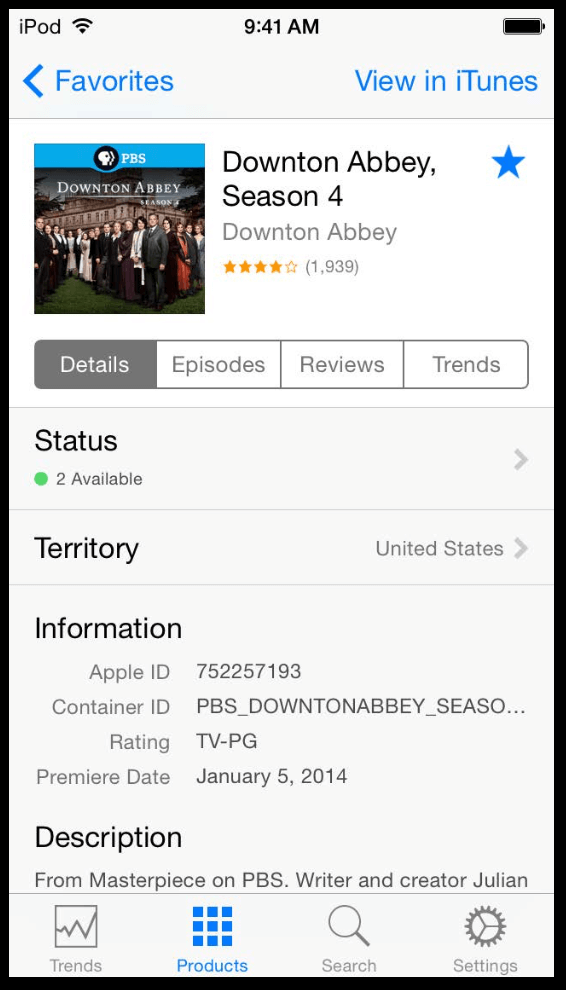
The Details segment has a separate AAPLComposedDataSource that provides data for its sections:
status
information
description
Each section (status, information, description) has its own data source.
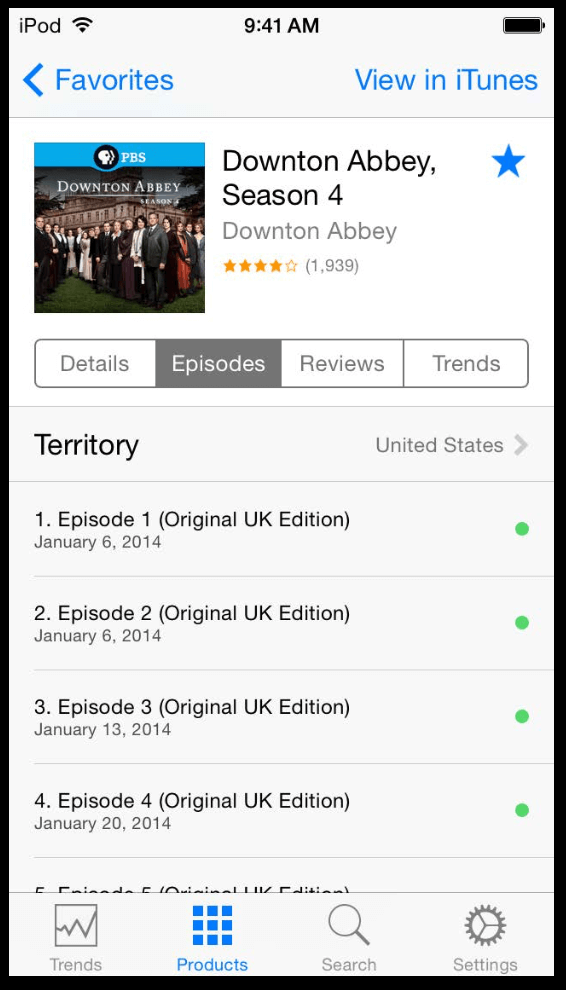
The Episodes segment has a simple AAPLBasicDataSource that provides the list data.
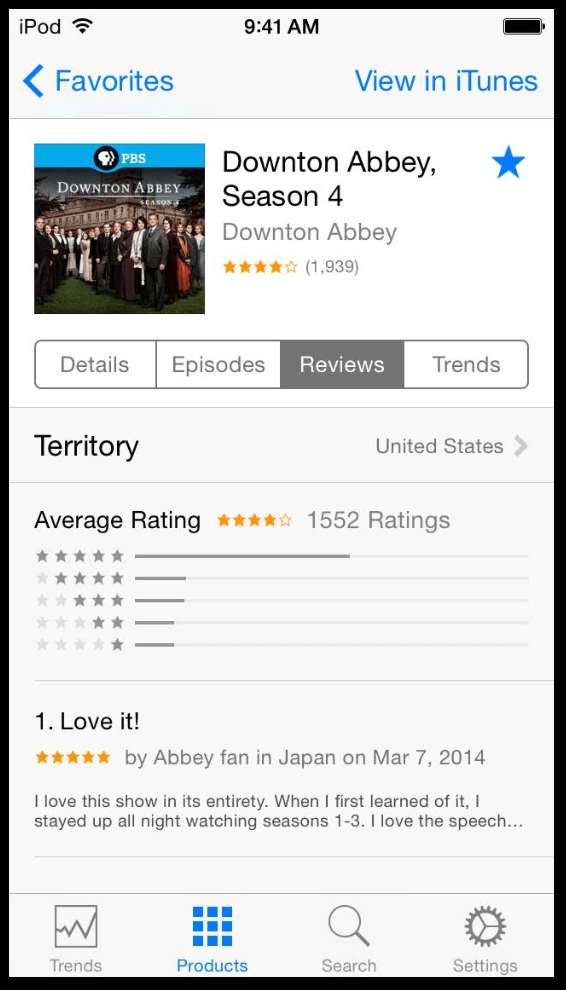
The Reviews segment has another AAPLComposedDataSource that provides data for its sections:
ratings
reviews
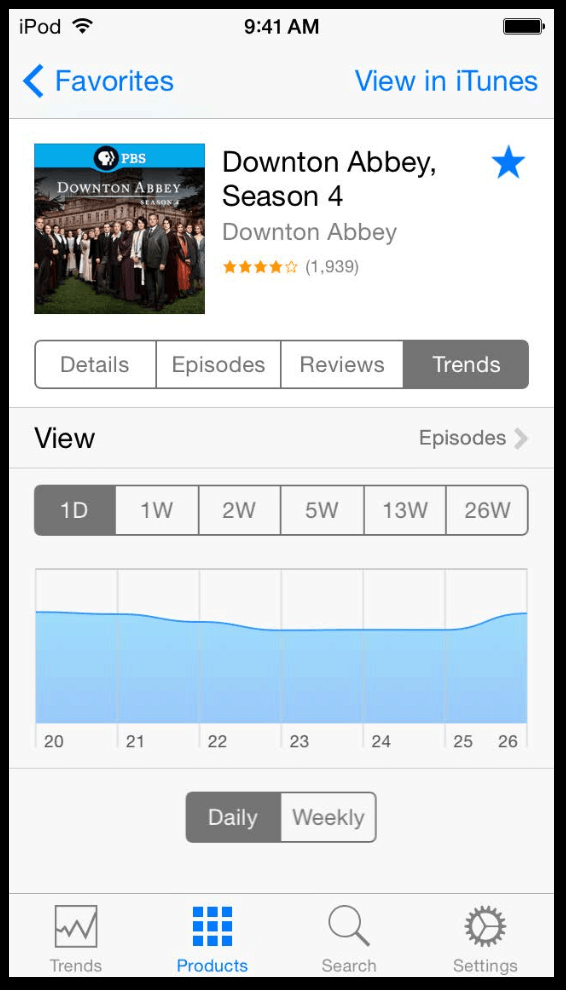
Lastly, the Trends segment uses a custom data source derived directly from AAPLDataSource.
Loading data in an Aggregate Data Source
As we have multiple sources for our data, the view controller tells the data source when it’s time to load, but then it’s the source that is responsible to do the actual data loading.
For example, a AAPLSegmentedDataSource will only load the selected data source, while a AAPLComposedDataSource will tell all of its children to load.
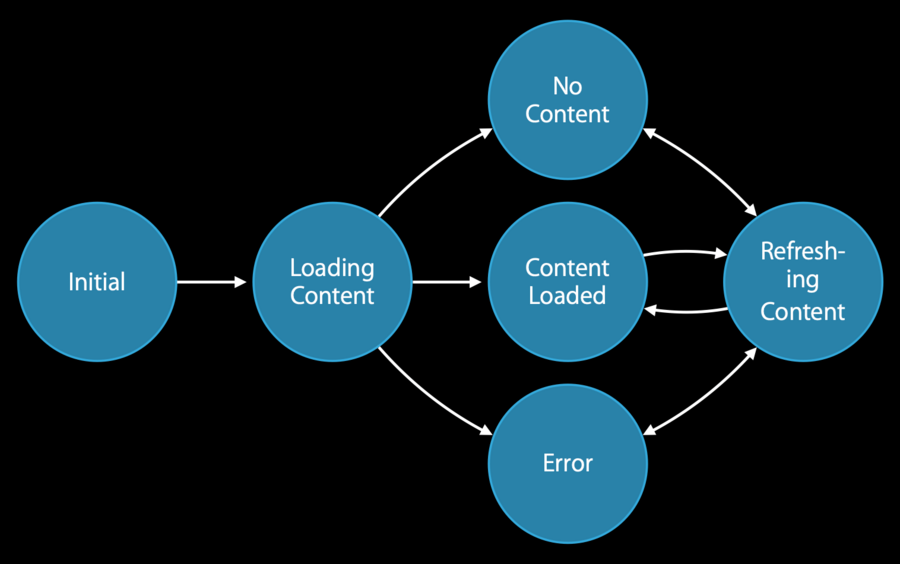
State machine
To manage the loading process, AppStoreConnect.app uses a AAPLLoadableContentStateMachine class, here are all the states:
Recap
Aggregate Data Sources:
Reduces view controller complexity
Promotes code reuse
Isolates task specific logic
Enables unified loading indicator
Custom UICollectionViewLayout
Before building your layout, make sure to have gathered all the necessary details such as:
What information do we need?
Per section?
Per header and footer?
Where does it go?
Examples:
Section Metrics:
rowHeightseparatorColorandseparatorInsetsbackgroundColorselectedBackgroundColornumberOfColumnsshowsColumnSeparator
Header and Footer Metrics:
heightbackgroundColorpadding
Global Headers
In AppStoreConnect.app they also some global headers, for these they use NSIndexPath with just a single index (no sections), i.e., [NSIndexPath indexPathWithIndex:0];
Build the Layout
If data source changed ➡️ snapshot data source
If collection view width changed or data source changed ➡️ regenerate layout attributes & special layout attributes
If collection view origin changed ➡️ update special layout attributes
Optional Layout Methods Critical to getting our layout just right
initialLayoutAttributes*finalLayoutAttributes*
